Go to the following website: https://edelivery.oracle.com Select "Sign In". Enter your username and password In Search by box, type "primavera professional". An suggestion dialog appear, select "Primavera P6 Professional Project Management 16.1" Select the Platform of your computer Click Continue Click Continue again Check "I have reviewed..." and click Continue. Click on the first file to... Continue Reading →
How to backup and restore Primavera P6 Oracle Express (XE) database
How to backup: From the command prompt (go to 'Start' > 'Run' > type 'cmd' and click 'OK') using the format below exp system/<password>@XE full=y file=<path>\xedump.dmp log=<path>\exp_xedump.log Where: <password> is the password you used when you installed P6 Standalone or Oracle XE manually. <path> is the complete path to the folder where the log file... Continue Reading →
How to backup and restore Primavera P6 SQL database
How to Backup: Go to Start -> SQL Server Management Studio Enter Login information. The default username is "sa" and password is "Prima123Vera" Select the database, right-click, go to Task -> Back Up Click on "Add" button Select the backup file destination Enter backup file name Click OK to start the backup Then we've got... Continue Reading →
Primavera become slow – Limitations of SQL Server Express Edition
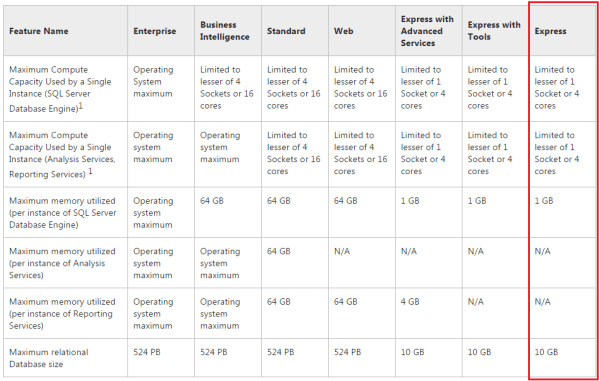
A lot of people are using Primavera with SQL Express database. And after using Primavera for a long time, we may realize the software become slow. Our database is become bigger and bigger. And the slow performance is may be because of the limitations of SQL Server Express Edition, not because of the CPU or RAM. ... Continue Reading →

You must be logged in to post a comment.