When you need to quickly update a project in Primavera P6 (assuming everything is going as planned), there are two options for automatically applying progress: Apply Actuals Update Progress (Progress Spotlight) Both options update activities automatically, but they work differently. Let’s explore. Apply Actuals The Apply Actuals function updates activities that have the Auto Compute... Continue Reading →
How to install Primavera P6 Professional 16.1 Stand-alone
After downloading the installation file from Oracle, unzip it. Click on Setup Select "Typical" and click OK Click Install After installation complete, click OK. In Driver type drop-down list, select "P6 Pro Stand-alone (SQLite)", then click Next Select "Add a new standalone database and connection". Click Next Enter new password. For example "admin". Click Next... Continue Reading →
How to Download Primavera P6 Professional
Go to the following website: https://edelivery.oracle.com Select "Sign In". Enter your username and password In Search by box, type "primavera professional". An suggestion dialog appear, select "Primavera P6 Professional Project Management 16.1" Select the Platform of your computer Click Continue Click Continue again Check "I have reviewed..." and click Continue. Click on the first file to... Continue Reading →
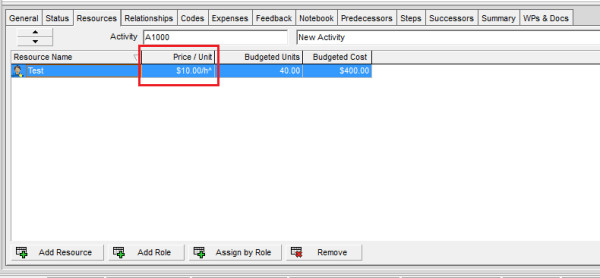
What does The Carat (^) Symbol next to the Resource Price/Unit in Primavera P6 mean?
When assigning a resource to an activity in Primavera P6, you may sometimes notice a carat (^) symbol next to the Price/Unit value. What does this mean? Let’s break it down. Reason for the Carat (^) The carat symbol indicates that the resource does not have a defined Price/Unit at the resource level. In this... Continue Reading →
How does Retained Logic, Progress Override and Actual Dates in Scheduling Options work?
Primavera P6 provides three key options in the Scheduling Options dialog that control how the software handles Out-of-Sequence Progress: Retained Logic Progress Override Actual Dates Understanding these options is essential for accurate schedule calculations. Let’s explore how each works with an example. Primavera P6 Scheduling Options dialog What is Out-of-Sequence Progress? Out-of-sequence progress occurs when... Continue Reading →
How to modify Activity ID Suffix in Primavera P6
Primavera P6 provides a built-in function to renumber Activity IDs and modify prefixes. But what if you need to add a suffix instead? Here’s how you can do it using the Global Change feature. Scenario We have a simple project with default Activity IDs like this: Step 1: Open Global Change Go to Tools →... Continue Reading →
How to Trim Activity ID or Activity Name in Primavera P6
When we think about trimming data, most people export to Excel and clean it there. However, Primavera P6 provides a built-in tool to trim text directly within the application using Global Change. For example, let’s say you want to remove the first character (e.g., the letter “A”) from all Activity IDs. Here’s how: Step 1:... Continue Reading →
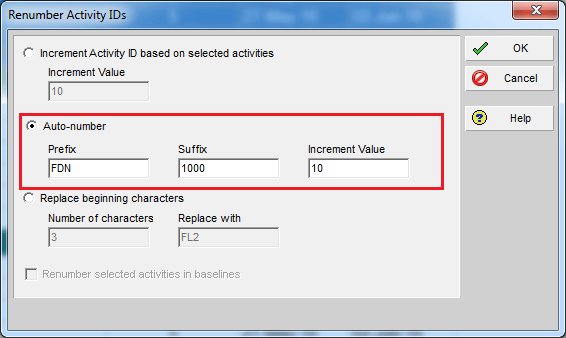
Renumbering Activity ID in Primavera P6
By default, Primavera P6 assigns activity IDs in a generic format like A1000, A1010, A1020, and so on. While functional, these IDs don’t provide much context. A better approach is to make IDs meaningful by including information such as the WBS they belong to. Here’s how you can do it using the Renumber Activity IDs... Continue Reading →
How to backup and restore Primavera P6 Oracle Express (XE) database
How to backup: From the command prompt (go to 'Start' > 'Run' > type 'cmd' and click 'OK') using the format below exp system/<password>@XE full=y file=<path>\xedump.dmp log=<path>\exp_xedump.log Where: <password> is the password you used when you installed P6 Standalone or Oracle XE manually. <path> is the complete path to the folder where the log file... Continue Reading →
How to backup and restore Primavera P6 SQL database
How to Backup: Go to Start -> SQL Server Management Studio Enter Login information. The default username is "sa" and password is "Prima123Vera" Select the database, right-click, go to Task -> Back Up Click on "Add" button Select the backup file destination Enter backup file name Click OK to start the backup Then we've got... Continue Reading →
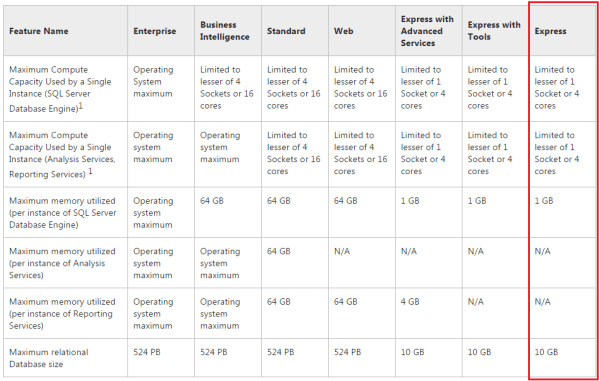
Primavera become slow – Limitations of SQL Server Express Edition
A lot of people are using Primavera with SQL Express database. And after using Primavera for a long time, we may realize the software become slow. Our database is become bigger and bigger. And the slow performance is may be because of the limitations of SQL Server Express Edition, not because of the CPU or RAM. ... Continue Reading →
Show relationship between group of activities
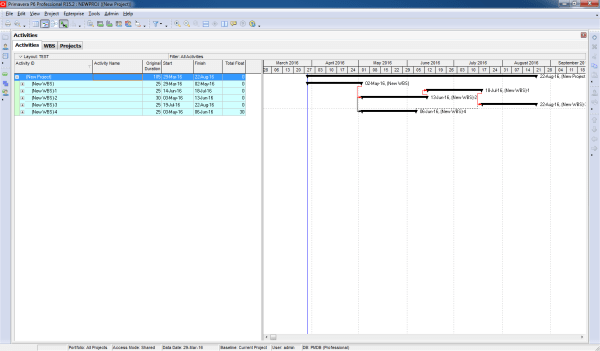
Gantt charts in Primavera P6 often display all activity relationships, which can make the report look cluttered and hard to read—especially for managers who only need a high-level view. Default View By default, Primavera shows all relationships between activities: Simplified View We want to collapse activities and show only relationships between summary bars: Instead of... Continue Reading →

You must be logged in to post a comment.