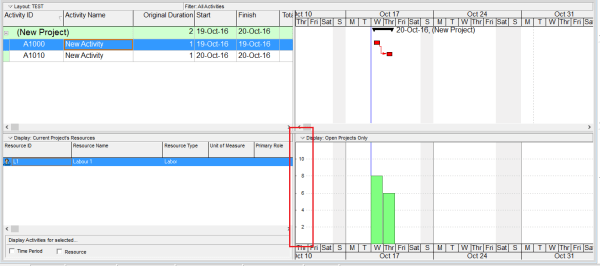
When viewing the Resource Usage Profile or Activity Usage Profile in Primavera P6, you may notice that the Y-axis scale is automatically determined by the software. But how exactly is this value calculated? Let’s break it down. The Y-axis scale depends on the Timescale setting — whether it's set to week, month, or year. Based on this setting, Primavera identifies the maximum value (i.e., the tallest... Continue Reading →
How does Progress Line in Primavera P6 work?
Primavera P6 provides a useful tool called Progress Line, which allows users to visually compare Actual Progress (% Complete) with the Baseline directly on the Gantt chart. Step-by-Step Guide 1. Project Setup We begin with a simple project that has an assigned Project Baseline. 2. Update the Project After updating the project: Activity A finishes... Continue Reading →
How to display Multiple Critical path in Primavera P6
By default, Primavera P6 shows only one critical path when you apply the standard critical filter. However, in complex projects, you may need to display near-critical paths or multiple float paths for better analysis. This guide explains how to enable and display multiple critical paths in Primavera P6. Step 1: Open the Schedule Options Press... Continue Reading →
How to modify Activity ID Suffix in Primavera P6
Primavera P6 provides a built-in function to renumber Activity IDs and modify prefixes. But what if you need to add a suffix instead? Here’s how you can do it using the Global Change feature. Scenario We have a simple project with default Activity IDs like this: Step 1: Open Global Change Go to Tools →... Continue Reading →
How to Trim Activity ID or Activity Name in Primavera P6
When we think about trimming data, most people export to Excel and clean it there. However, Primavera P6 provides a built-in tool to trim text directly within the application using Global Change. For example, let’s say you want to remove the first character (e.g., the letter “A”) from all Activity IDs. Here’s how: Step 1:... Continue Reading →
Renumbering Activity ID in Primavera P6
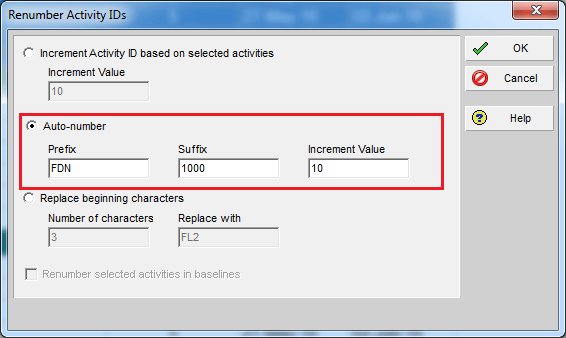
By default, Primavera P6 assigns activity IDs in a generic format like A1000, A1010, A1020, and so on. While functional, these IDs don’t provide much context. A better approach is to make IDs meaningful by including information such as the WBS they belong to. Here’s how you can do it using the Renumber Activity IDs... Continue Reading →
Show relationship between group of activities
Gantt charts in Primavera P6 often display all activity relationships, which can make the report look cluttered and hard to read—especially for managers who only need a high-level view. Default View By default, Primavera shows all relationships between activities: Simplified View We want to collapse activities and show only relationships between summary bars: Instead of... Continue Reading →
Print report show predecessors in Gantt chart
When working in Primavera P6, the Relationship tab is the standard way to view the predecessors of an activity. However, identifying those activities in the schedule can be challenging. Wouldn’t it be easier if we could see them directly in the Gantt chart? Here’s how you can do it: Step 1: Collapse All Go to... Continue Reading →
Create activity list report include predecessors and successors
Sometimes, you need a report that not only lists activities but also displays their predecessors and successors. Primavera P6 makes this possible through its reporting feature. Here’s how to do it: Step 1: Open the Report Window Go to the Reports window and click the “+” button to create a new report. Step 2: Select... Continue Reading →
Make report to Show only some WBS in Gantt chart
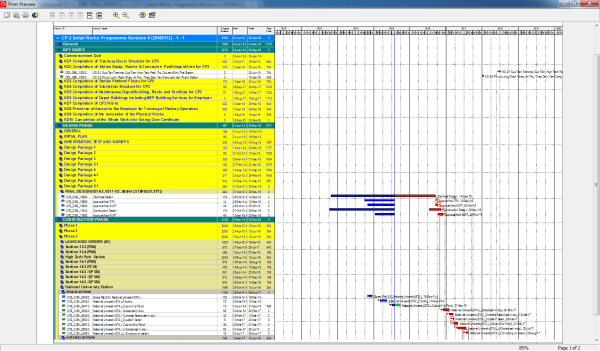
Sometimes, you need to create a report that focuses on specific WBS elements only. For example, you want the Gantt chart to show just the relevant activities without all the extra bars cluttering the view. By default, the Gantt chart displays all bars, which can be distracting. Here’s how to make it clean and focused:... Continue Reading →
Graphing a P6 Resource S-Curve in Excel
Tutorial Files Excel Spreadsheet (Excel 2007+): P6_Scurve_Example.xlsx – 1.5Mb Step 1 – Export Primavera P6 Resource Assignments to Excel Following the steps from our previous tutorial, you now have all the resources and assignments in an Excel sheet. You can modify the primary sheet for better graphical features. Step 2 – How to Use the Data To draw... Continue Reading →
Export data to Excel with “lowest level” summary data only
You create an Activity code to group data as you wish. After assigning and grouping activity by Activity code, here is the result: You want to export only the summary data to excel. So we will tick the "Show Summaries Only" option. However, you only want to export summary data at the lowest level. Because... Continue Reading →

You must be logged in to post a comment.