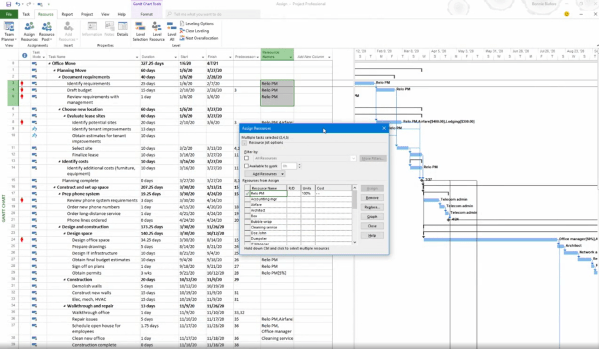
Lynda/LinkedIn Learning provides a free online training course of Microsoft Project 2019 until the end of March 2021. Normally it costs you 30 USD/month to access this course. Below is the link to this course: https://www.linkedin.com/learning/microsoft-project-2019-and-project-online-desktop-essential-training Microsoft Project 2019 and Project Online Desktop Essential Training
Microsoft Project: Filter predecessor and successor based on “Task Path” function
Microsoft Project version 2013 or later provide a function named "Task Path" to highlight the driving predecessor or successor in gantt chart but not provide a function to filter the activity. We can create a macro to filter activity based on "Task Path" function. Go to View -> Macros -> Visual Basic Right click on... Continue Reading →
Primavera P6 error when import Microsoft Project XML / Run Update Baseline, Claim Digger
When we import Microsoft Project XML file to Primavera P6 / Run Update Baseline / Claim Digger, an error could appear with Event code: CNFFC- Message: Could not find file \bin\java.exe. Cause: These are scenarios which can cause above error: There is no java.exe file in the \Primavera Common\]ava\jvm\bin directory The JAVA_HOME variable is set to... Continue Reading →
How to highlight a Time period in Gantt chart in Microsoft Project
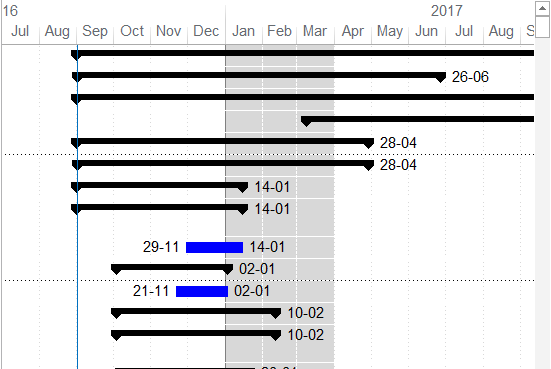
Microsoft Project does not offer a built-in tool to directly highlight a specific time period in the Gantt chart. However, you can achieve this effect by using a custom calendar. Here's how: Create a New Calendar Go to the Project tab and select Change Working Time. Click Create New Calendar and name it something like "Gantt Shade". Define the Highlighted Time... Continue Reading →
How to edit Project calendar in Microsoft Project
By default, when you create a new project in Microsoft Project, it uses a 5-day work week (Monday to Friday). If your project requires a 6-day work week, you can easily adjust the calendar settings. Here's how to do it. Step 1: Review the Current Schedule Let’s start with a simple project using the default 5-day work week.... Continue Reading →
Convert Microsoft Project MPP to MPX to import to Primavera
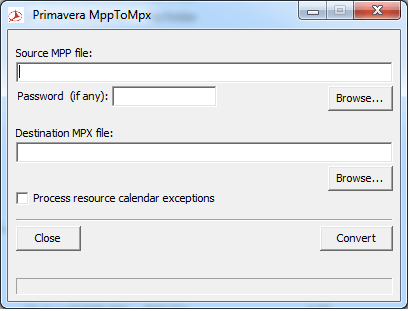
Usually Microsoft Project saves file as MPP format. However, Primavera allows us to import Microsoft Project files in MPX format. So, here is the tool help you to convert MPP to MPX. Download from Google Drive: https://drive.google.com/file/d/0ByHnieTJNwKGdGVybE5LaElOcnM/view?usp=sharing&resourcekey=0-9JeuQrLavBI1ix781GGGRQ Download from Onedrive: https://1drv.ms/u/s!Air459YMTPJdkMEVJTjjyOf6L-1QCg?e=Xqusjj
Open Microsoft Project file and a blank screen appear
If you’re working with Microsoft Project 2010 on a dual-monitor setup, you might run into this situation: You finish your work, save the file, and the next day you open it again…But instead of your project, you see a blank screen: Don’t worry! The file is not damaged. This issue usually happens because Microsoft Project... Continue Reading →
Microsoft Project : Custom View (New view) appear in all Project
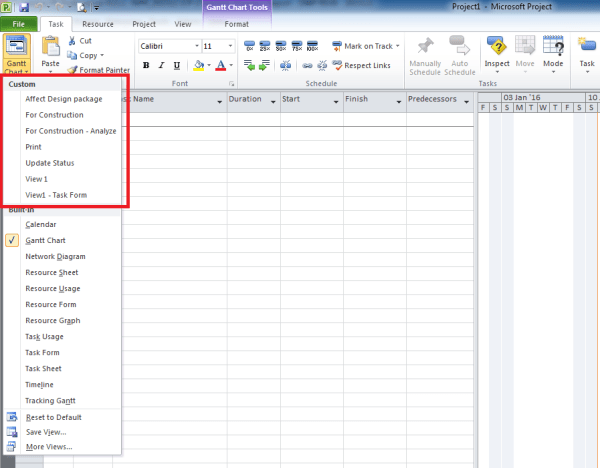
When customizing Views in Microsoft Project, you may sometimes need a View that applies only to a specific project, not across all projects. However, by default, Microsoft Project saves any new View to the Global Template. This means the View will be available in all projects. Over time, this can clutter your View list, making... Continue Reading →
What does “Effort driven” option in Microsoft Project do?
You may have noticed the “Effort driven” option in the Task Details Form and wondered what it actually does. Let’s break it down with a simple example. Example Comparison Task A – Effort Driven OFF This task does not have the Effort driven option enabled. When you assign 2 resources, each resource still has 80... Continue Reading →

You must be logged in to post a comment.