

You may have noticed the “Effort driven” option in the Task Details Form and wondered what it actually does.
Let’s break it down with a simple example.
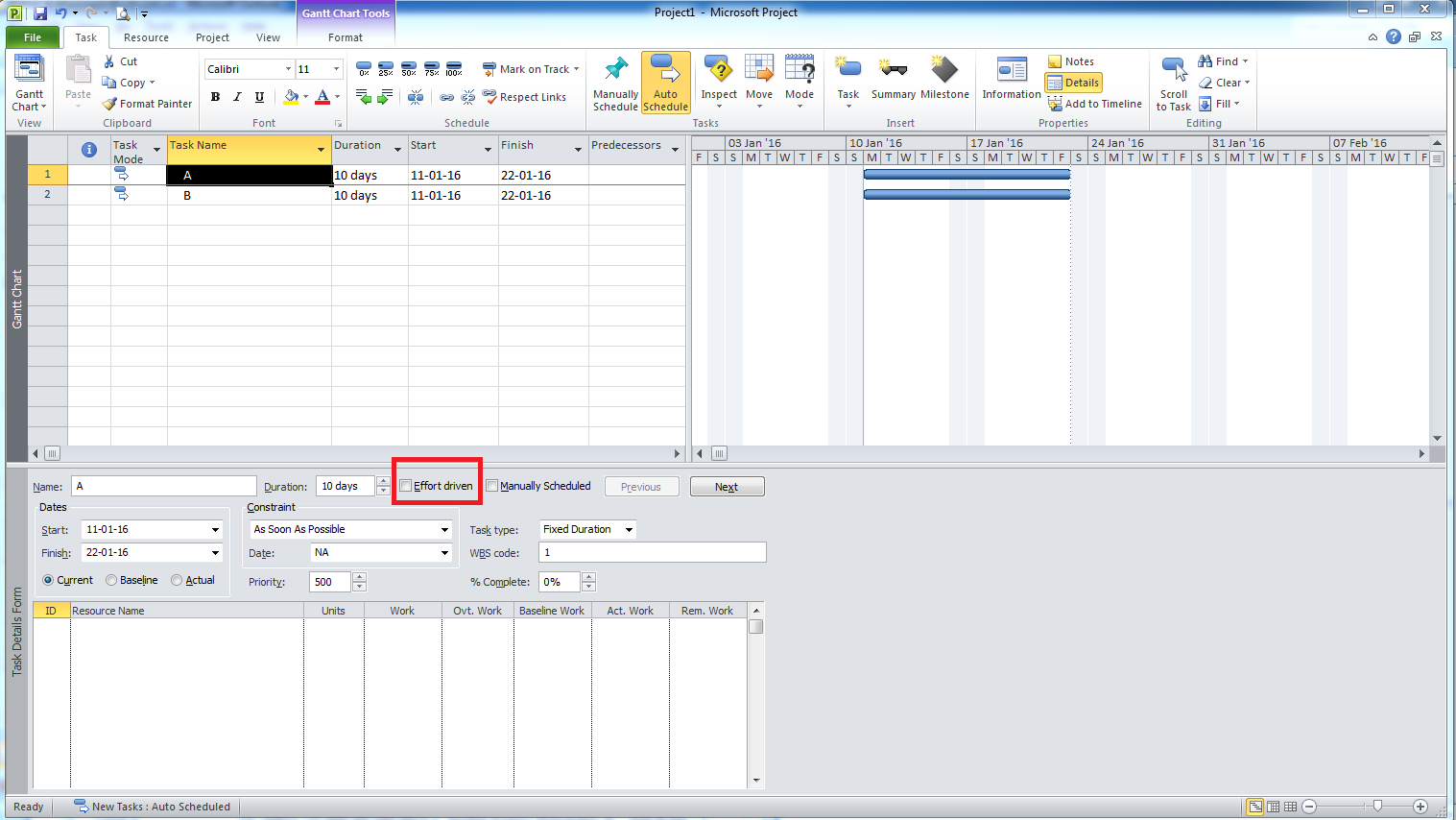
Example Comparison
Task A – Effort Driven OFF
- This task does not have the Effort driven option enabled.
- When you assign 2 resources, each resource still has 80 hours of work.
- Adding more resources does not reduce the workload per resource or the task duration.
In this case, work increases as you add more resources:
- 2 resources = 160h total
- 1 resource = 80h total

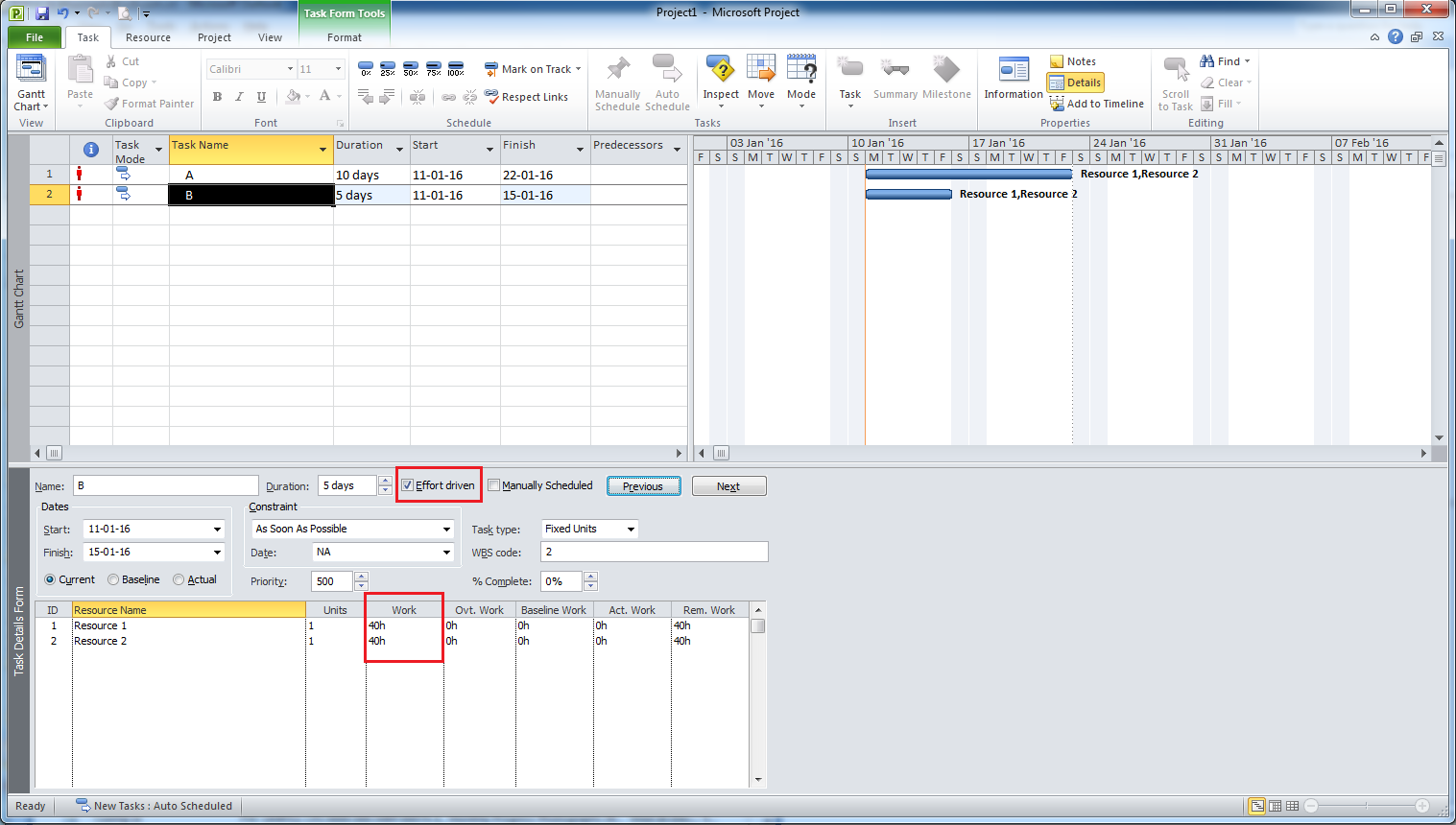
Task B – Effort Driven ON
- This task has the Effort driven option enabled.
- When you assign 2 resources, the total work is shared:
- Each resource gets 40 hours
- Task duration is reduced (e.g., from 10 days to 5 days)
In this case, total work remains constant, but:
- Duration decreases as more resources are added
- Work is distributed across resources
Summary
Use the “Effort driven” option when the task duration can be shortened by adding more resources.
- Effort driven OFF → Work per resource stays the same, total work increases
- Effort driven ON → Fixed total work, shorter duration with more resources


You can choose activity type “fixed work” and get the same result.
LikeLike
Yes that’s correct. Fixed Work and Effort Driven mean the same thing in this context. In fact if you select Fixed Work, it automatically puts a tick in the effort driven check box and grey’s it out. :-). But you can have effort driven selected (or not) for Fixed duration and Fixed Unit tasks. In either of these cases the behaviour can be different.
LikeLike