

Sometimes, you need a report that not only lists activities but also displays their predecessors and successors. Primavera P6 makes this possible through its reporting feature. Here’s how to do it:
Step 1: Open the Report Window
Go to the Reports window and click the “+” button to create a new report.

Step 2: Select Subject Area
In the Select Subject Area dialog, choose Activities.
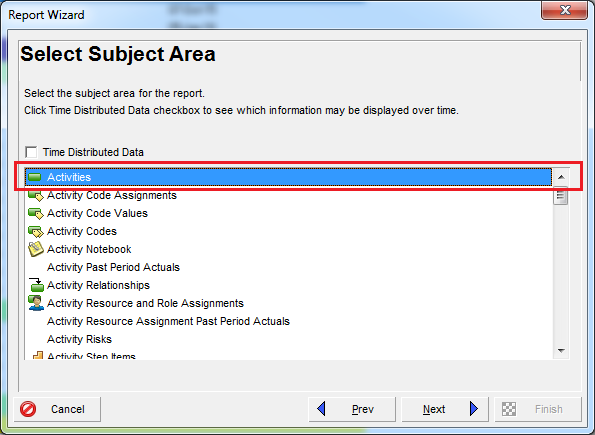
Step 3: Add Additional Subject Areas
In the Select Additional Subject Areas dialog, select Predecessors and Successors.
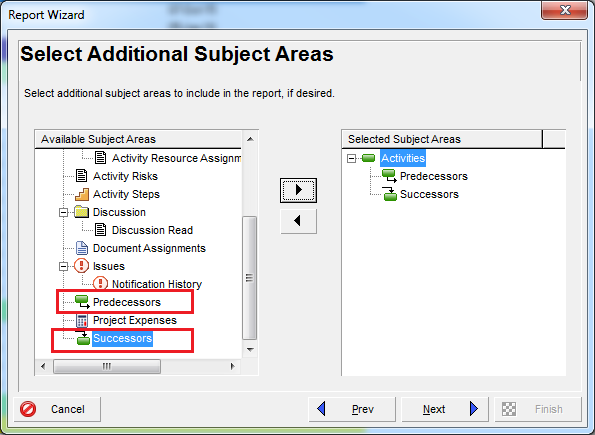
Step 4: Configure Columns for Predecessors
Select Predecessors, then click Columns.
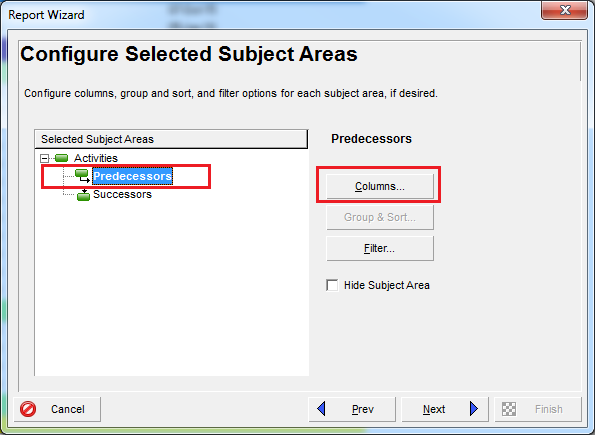
Choose the columns you want to display, such as Activity ID and Activity Name.
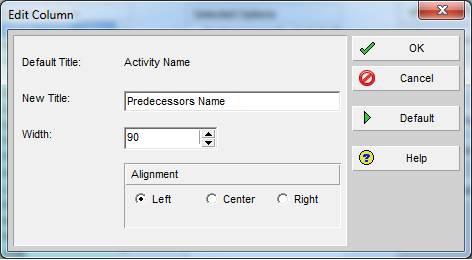
Tip: Use Edit Column to rename titles for clarity.

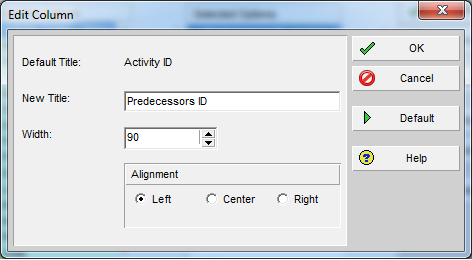
Step 5: Configure Columns for Successors
Repeat the same process for Successors.
Step 6: Generate and Print the Report
Now, you can print or preview the report. It will show each activity along with its predecessors and successors in a clear tabular format.

Result:
A comprehensive activity table report that includes relationship details, making it easier to analyze dependencies.

 Khuong Do Blog
Gold report !! Thanks to share it.
LikeLiked by 1 person
You’re welcome 🙂
LikeLike
How can we have same report with Lag if we have give or relationship?
cms_vvn@yahoo.co.in
LikeLike
After you click “Column” for Predecessor / Successor, go to “Durations” group, Select to show the “Lag”. Then you will have it in the report.
LikeLike
Awesome. Thanks!
LikeLike
How to get Predecessor and successor in same line against activity ID?
I dont want below like for one activity ID pred and succdetails are appearing below ….I want Activity details and Successor & predessor in same line
LikeLike