
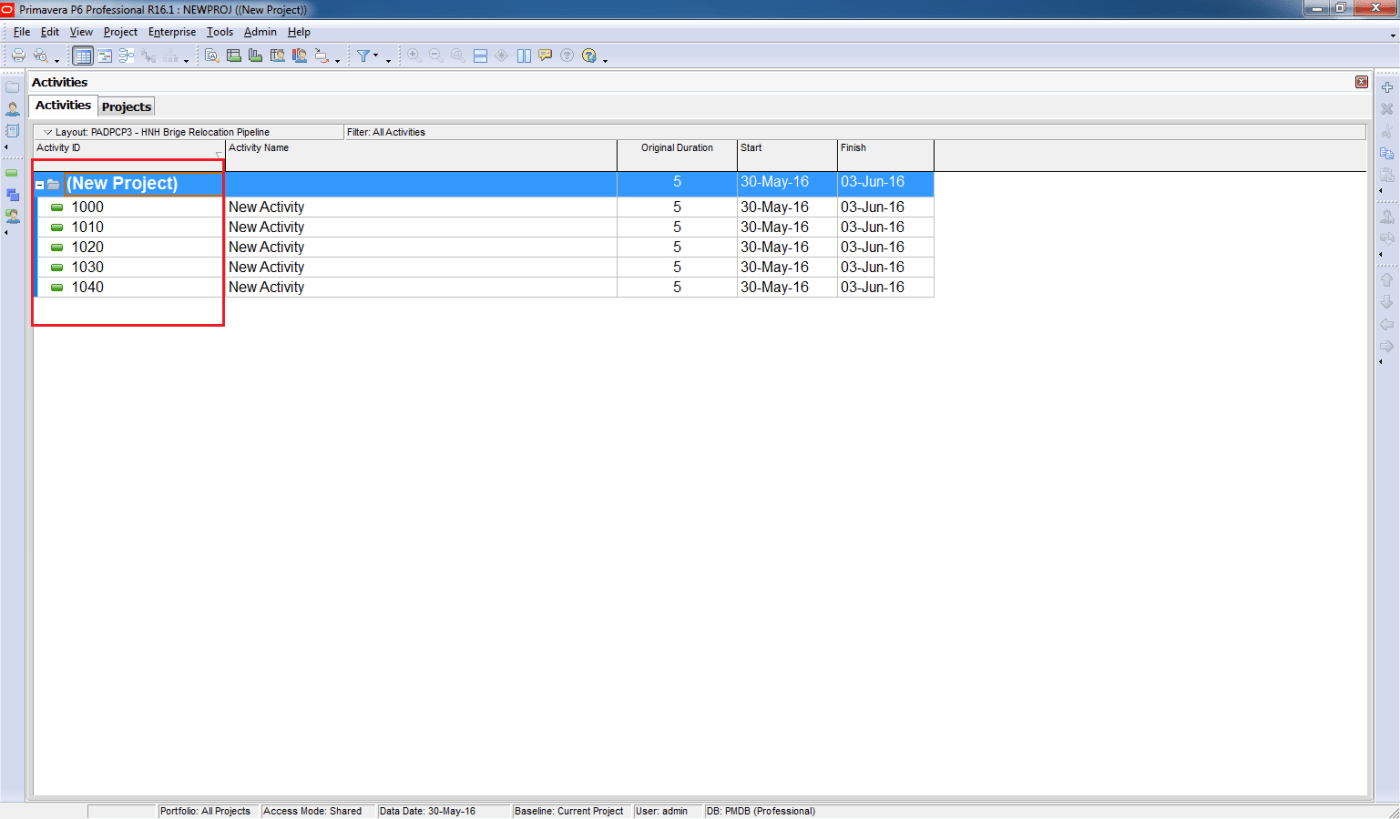
When we think about trimming data, most people export to Excel and clean it there. However, Primavera P6 provides a built-in tool to trim text directly within the application using Global Change.
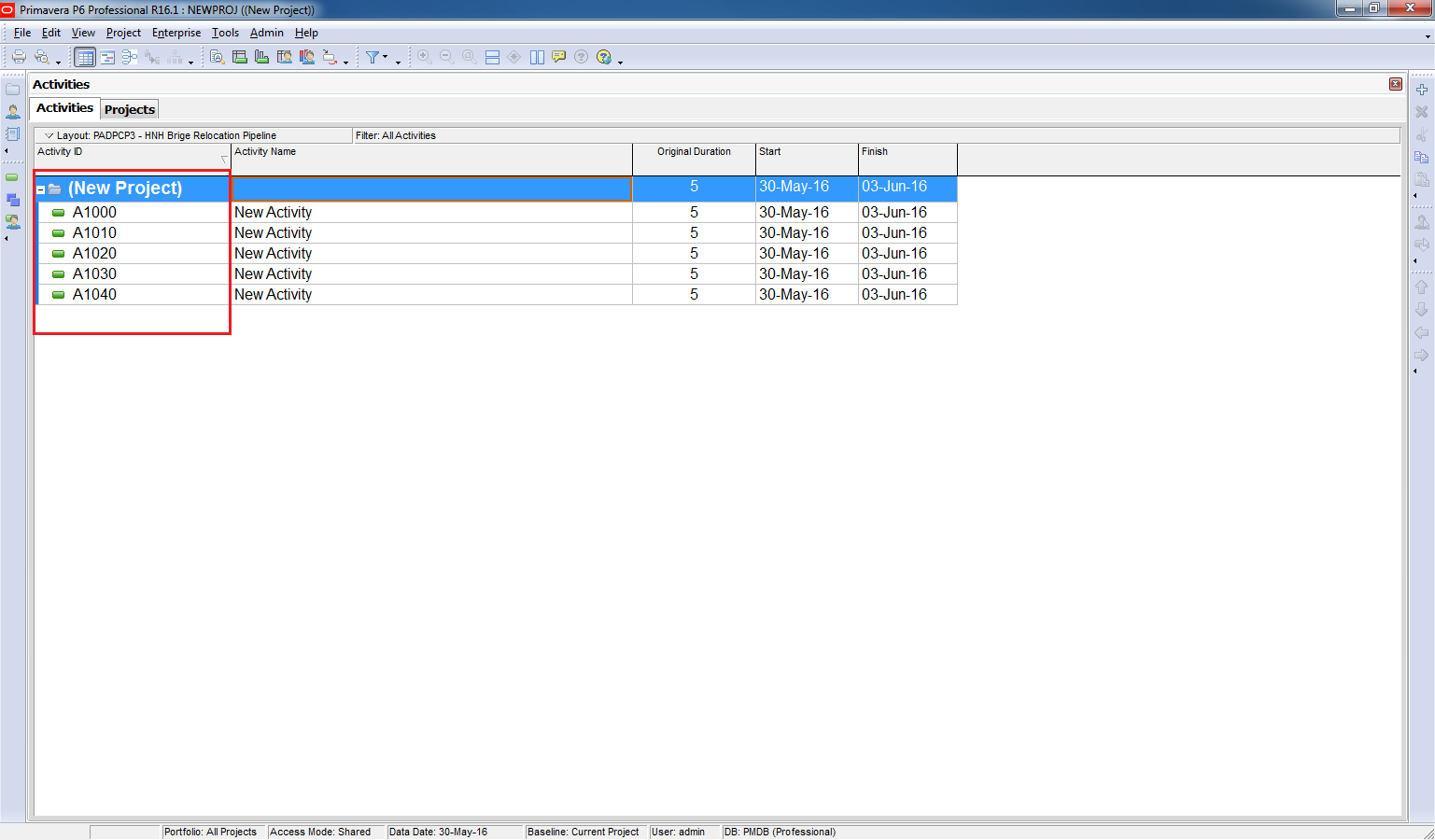
For example, let’s say you want to remove the first character (e.g., the letter “A”) from all Activity IDs. Here’s how:
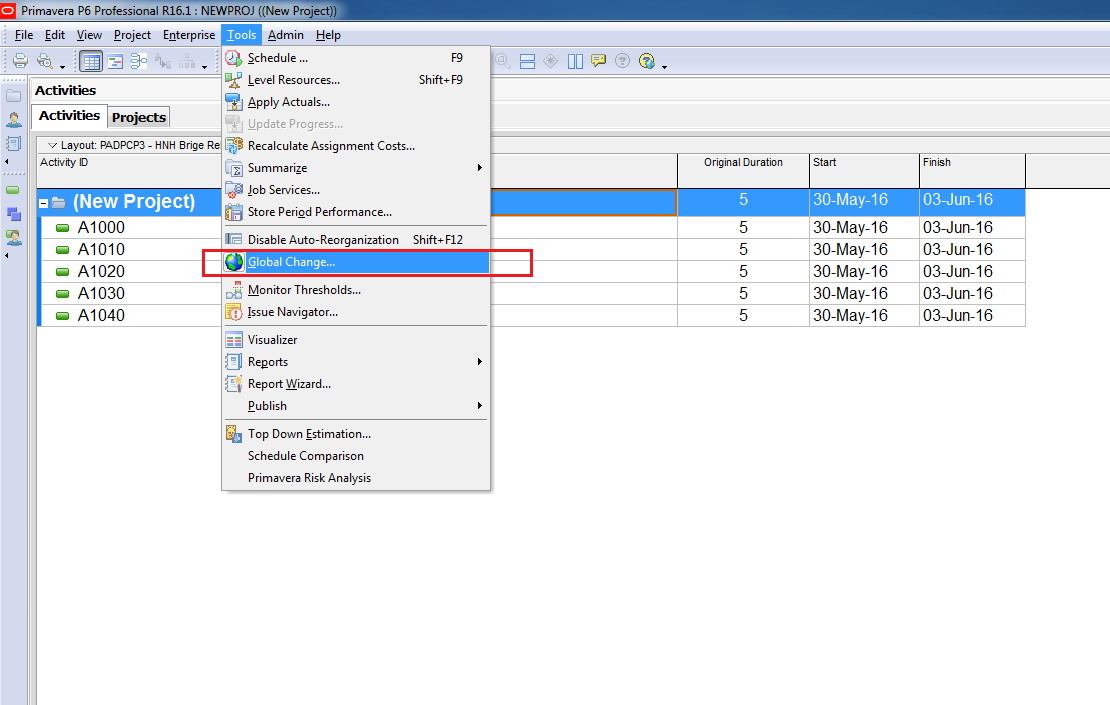
Step 1: Open Global Change
- Go to Tools → Global Change.
- Click New to create a new rule.

Step 2: Configure the Rule
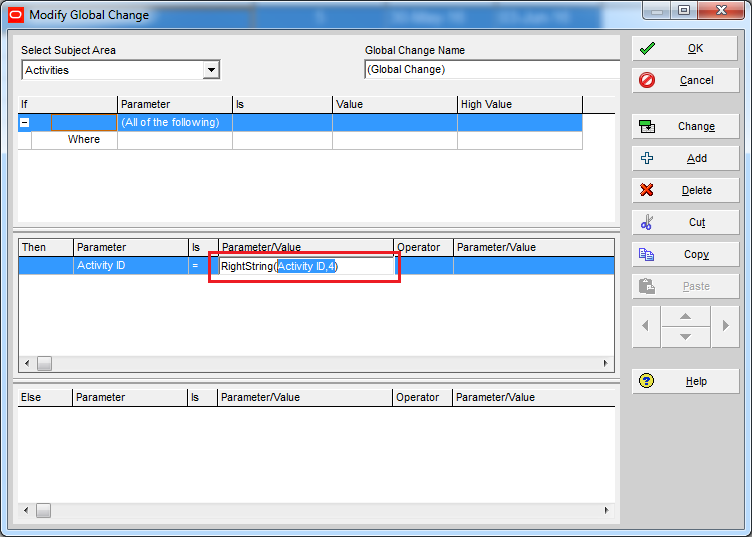
In “Then” section, In Parameter select “Activity ID”, In Parameter/Value select “RightString(Parameter,#)”
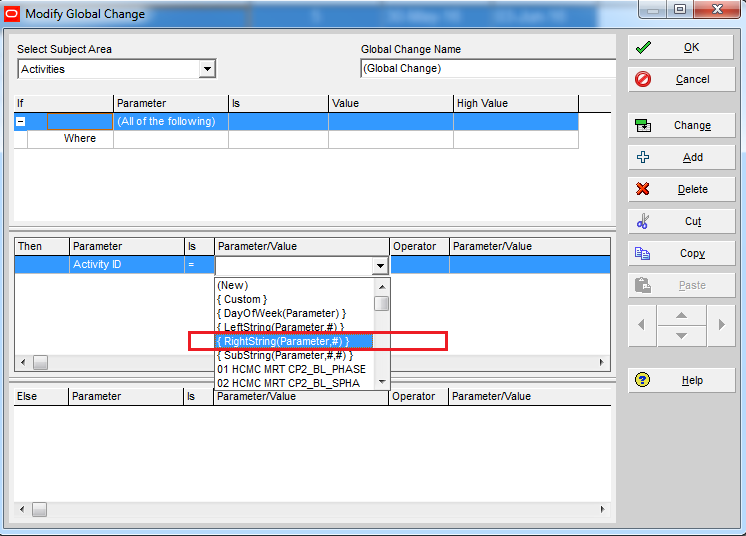
Then click on that field to adjust “Parameter” value to “Activity ID” and “#” value to “4”. This means Primavera will keep the last 4 characters of the Activity ID and remove the rest.
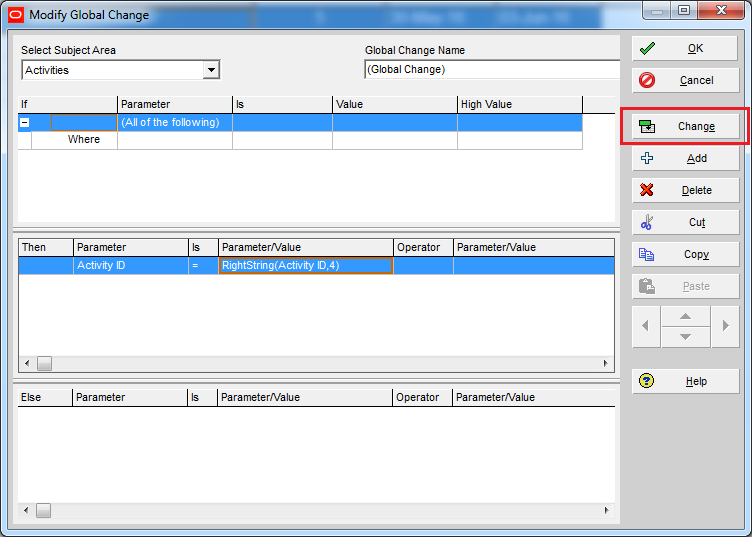
Click on “Change” button.
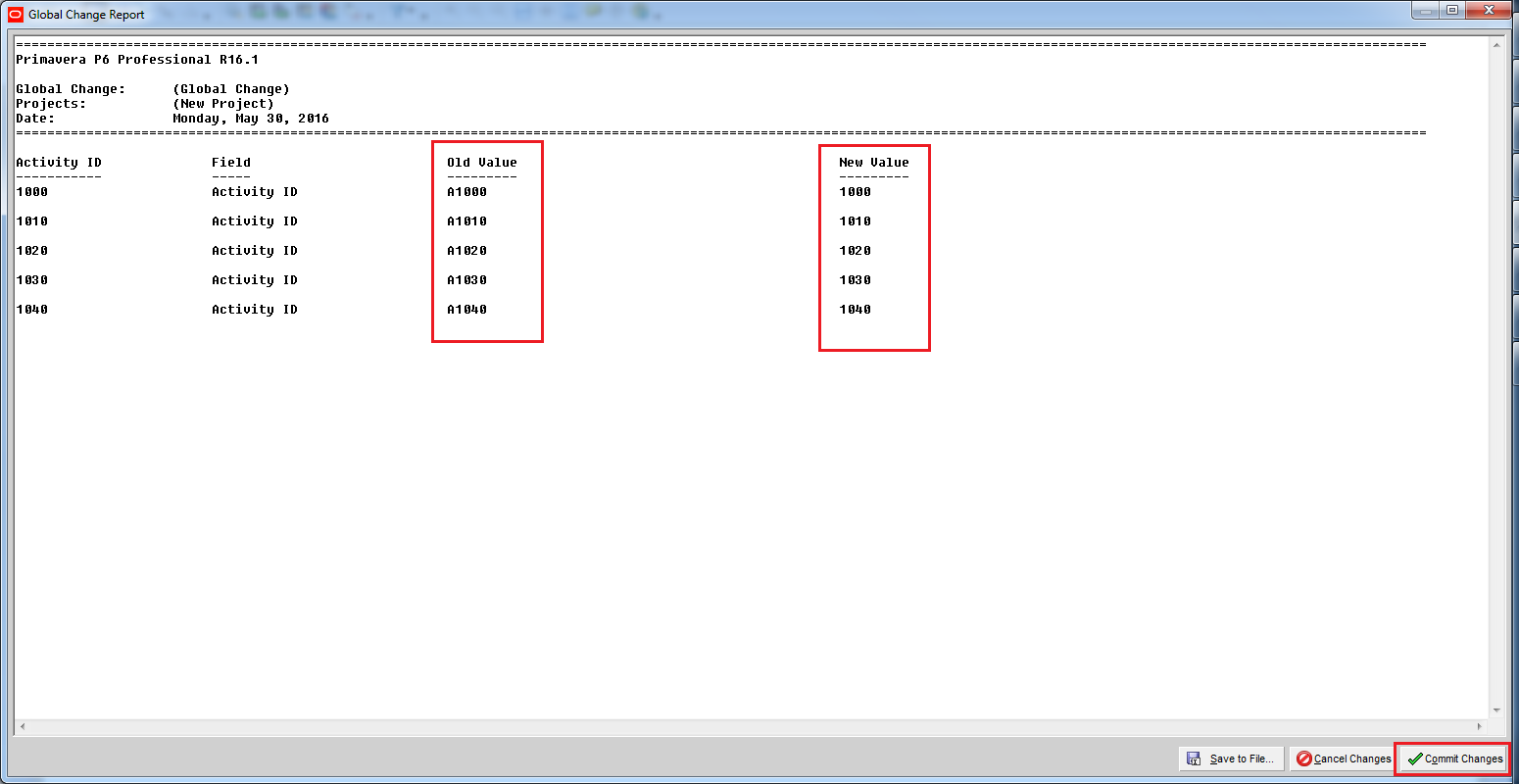
P6 will show you a preview of the change. Click on “Commit Changes” button.
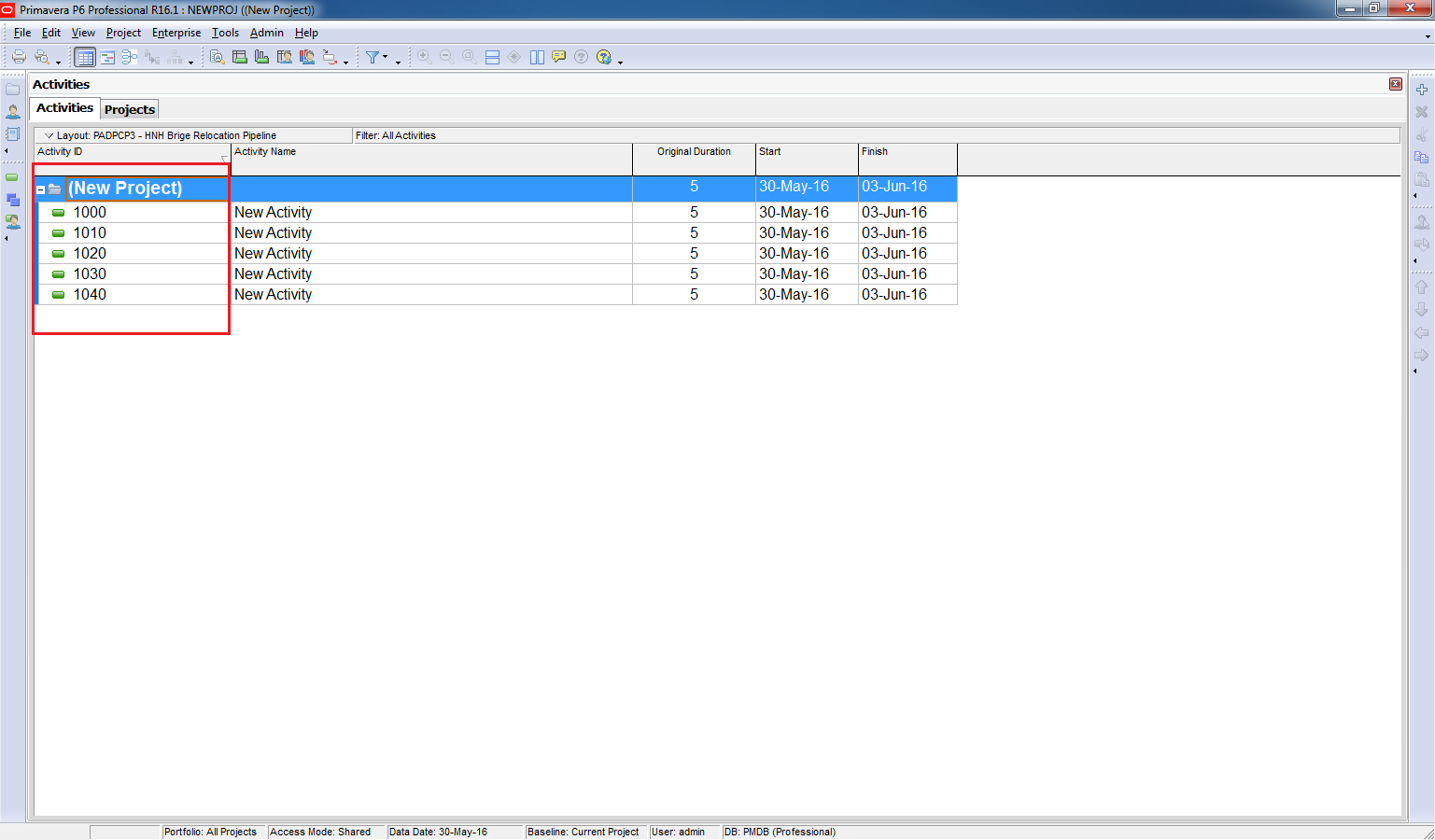
Result
The first character (or any unwanted part) is removed from the Activity ID.
This method can also be applied to Activity Name and other text fields.
Key Benefit
Using Global Change for trimming saves time and avoids exporting data to Excel for manual cleanup.

 Khuong Do Blog
Could you explain what does number 4 represent ?
Thanks
LikeLike
It mean P6 will take 4 character from the right
LikeLike