

Primavera P6 allows users to efficiently track schedule and budget performance using graphical indicators in User Defined Fields (UDFs). This guide will walk you through the steps to create and use these indicators to highlight activities that are behind schedule or over budget.
Identify Behind Schedule Activities
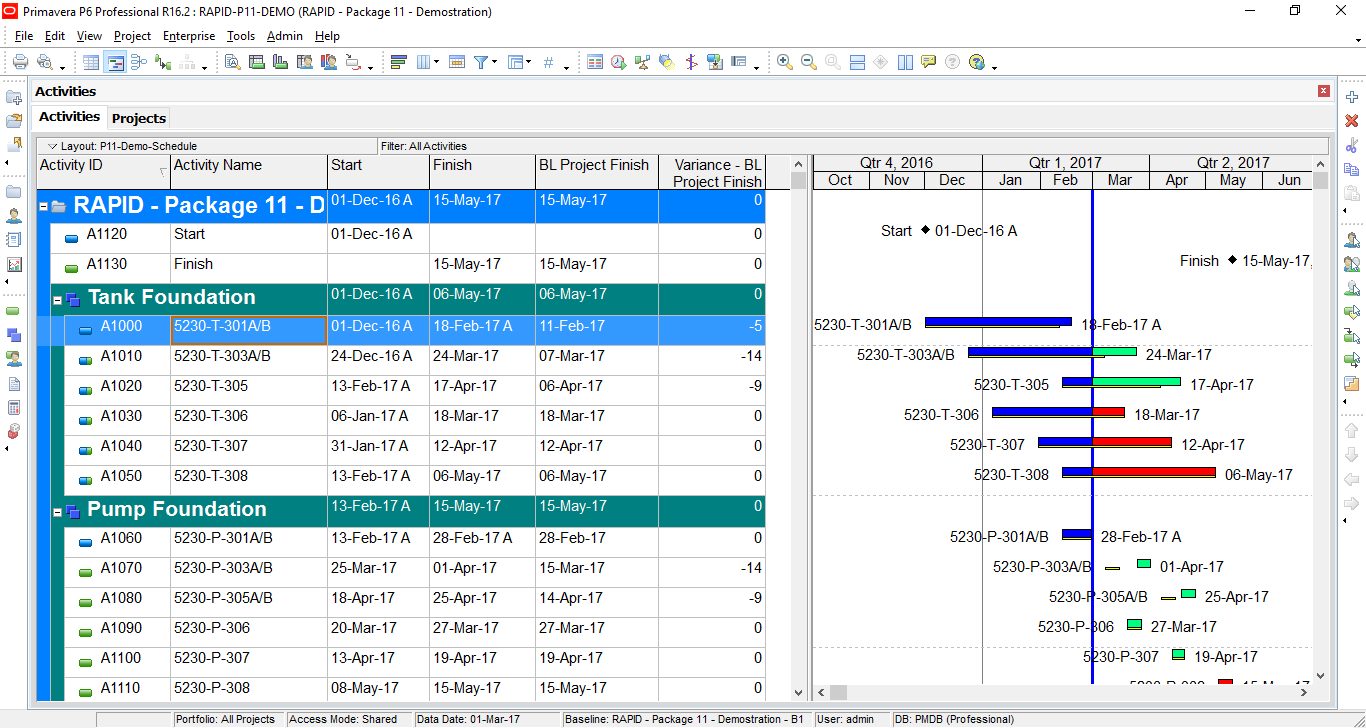
Assume you have a project with a baseline already set. After updating progress, you can use the following columns to assess schedule performance:
- BL Project Finish: The activity’s finish date from the project baseline.
- Variance – BL Project Finish: The difference between the baseline finish date and the current finish date.
Formula:BL Project Finish - Finish
Create an Indicator UDF
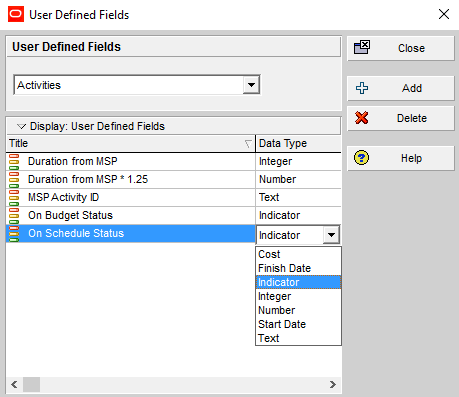
- Go to Enterprise → User Defined Fields.
- Click Add to create a new UDF.
- Enter a title (e.g., “On Schedule Status”) and set the Data Type to Indicator.
- Close the dialog.

Apply Global Change
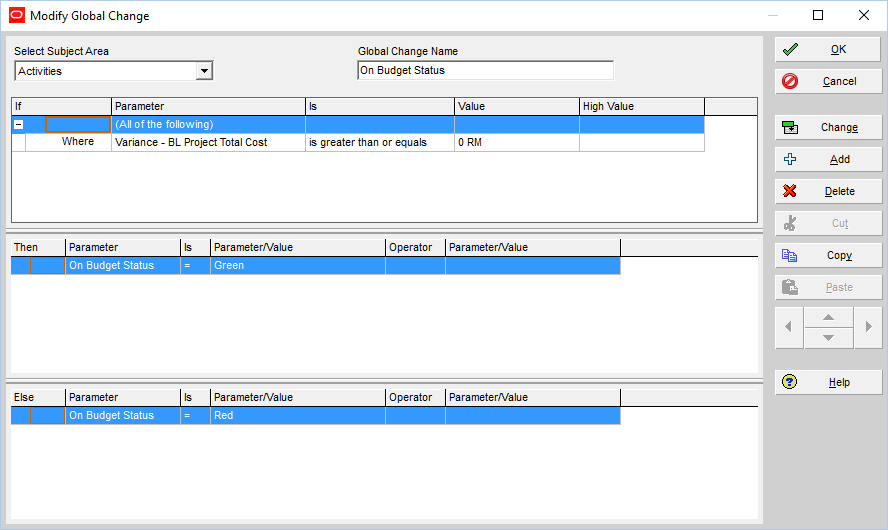
- Go to Tools → Global Change and click New.
- Define the condition as outlined in the picture below.
- Click Change, then Commit Change.
- Click OK and close the dialog.


Display the Indicator
Add the newly created indicator column to your activity layout. You can now quickly identify which activities are behind schedule.


Identify Over Budget Activities
To assess cost performance, use the following columns:
- Budget At Completion: The cost from the project baseline.
- At Completion Total Cost: Sum of actual and remaining costs.
- Variance – BL Project Total Cost:
Formula:Budget At Completion - At Completion Total Cost

Create an Indicator UDF
- Go to Enterprise → User Defined Fields.
- Create a new UDF titled “On Budget Status” with Data Type set to Indicator.

Apply Global Change
- Go to Tools → Global Change and create a new rule.
- Set the condition as outlined in the picture below.
- Click Change, then Commit Change.
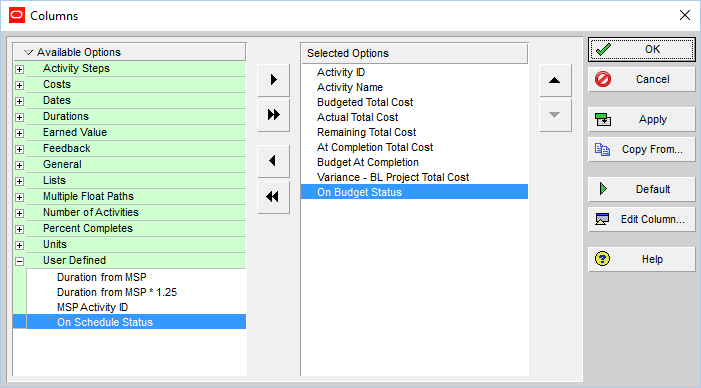
Display the Indicator
Add the “On Budget Status” indicator column to your layout. You can now easily see which activities are over budget.


 Khuong Do Blog
it really good
LikeLike
👍
LikeLike
Very good.
LikeLike
Hello thanks for this, would it possible to send a copy to my email. Thanks
LikeLike
Hi. In the end of the article you can click on the More button, then Print. You can have a copy of the article
LikeLike
It is really good.
LikeLike
Superb….
LikeLike
Nice article
LikeLike
Nice article
LikeLike
Simple. Easy. Perfect!
LikeLike
Perfect Thanks!!
LikeLiked by 1 person
Dear Mr. Khuong,
Can we assign UDF function on WBS? For example above, I also want to assign one column “On Status Schedule” in WBS field and It is also indicator status of Variance. Please guide me.
Thanks,
LikeLike
Hi anh Việt,
At WBS level, value is summaried from activities (only certain type of UDF can be summaried like: number, date…)
UDF with indicator can not be summaried to WBS level.
So it is impossible 🙂
LikeLike
Cảm ơn anh Khương.
LikeLiked by 1 person
Dear Mr Khuong Do,
how to show in primavera report for progress last week, so we can see progress last week and progress this week.
thank you
Ranto
LikeLike
Thanks so much for the article…. I found it very helpful. My question though is do we have to update the Global Change each time the schedule is updated or “Is there a way to make this function automated, so it updates when one schedules?”
LikeLike
Hi.
We have run manually each time the schedule is updated
LikeLike
Very nice of you to share your knowledge with us. I applied your rules but get the indicator in writing, Red / Green, rather than symbol. Can you help me to view it as an icon instead? Many thanks
LikeLike
Hi,
When you create the User Defined Field, the Data Type have to be “Indicator”.
LikeLike