
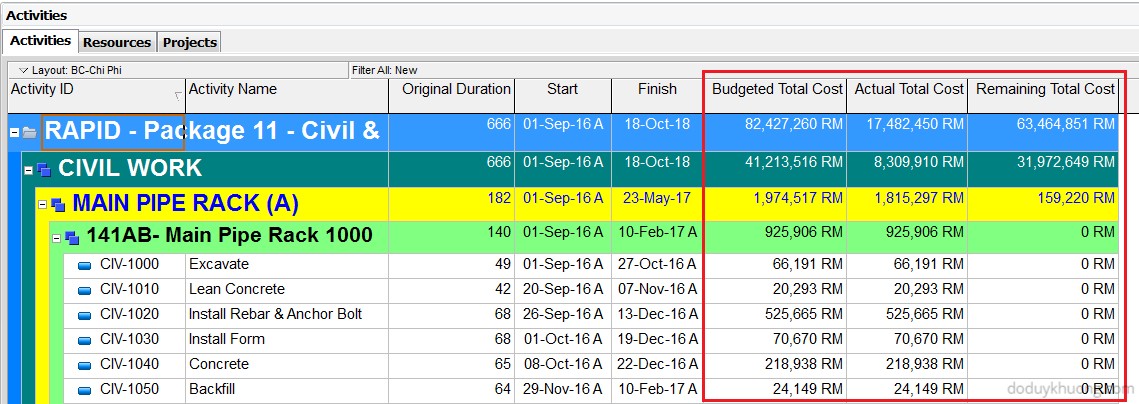
Sometimes, we work on projects that use a currency other than the US Dollar (USD). In this guide, I’ll show you how to create a new currency in Primavera P6 and use it in a project.
Example Scenario
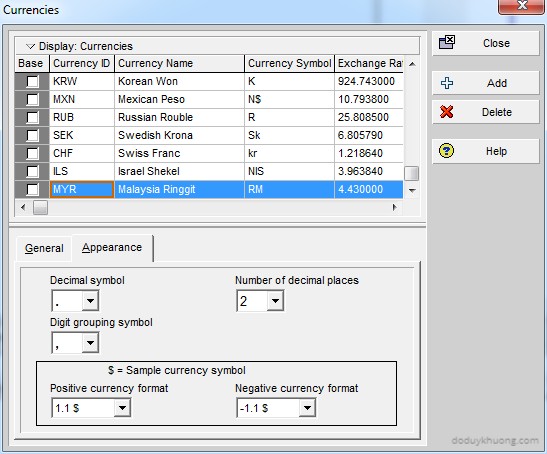
Let’s say we have a new project that will use Malaysian Ringgit (MYR) as its currency.
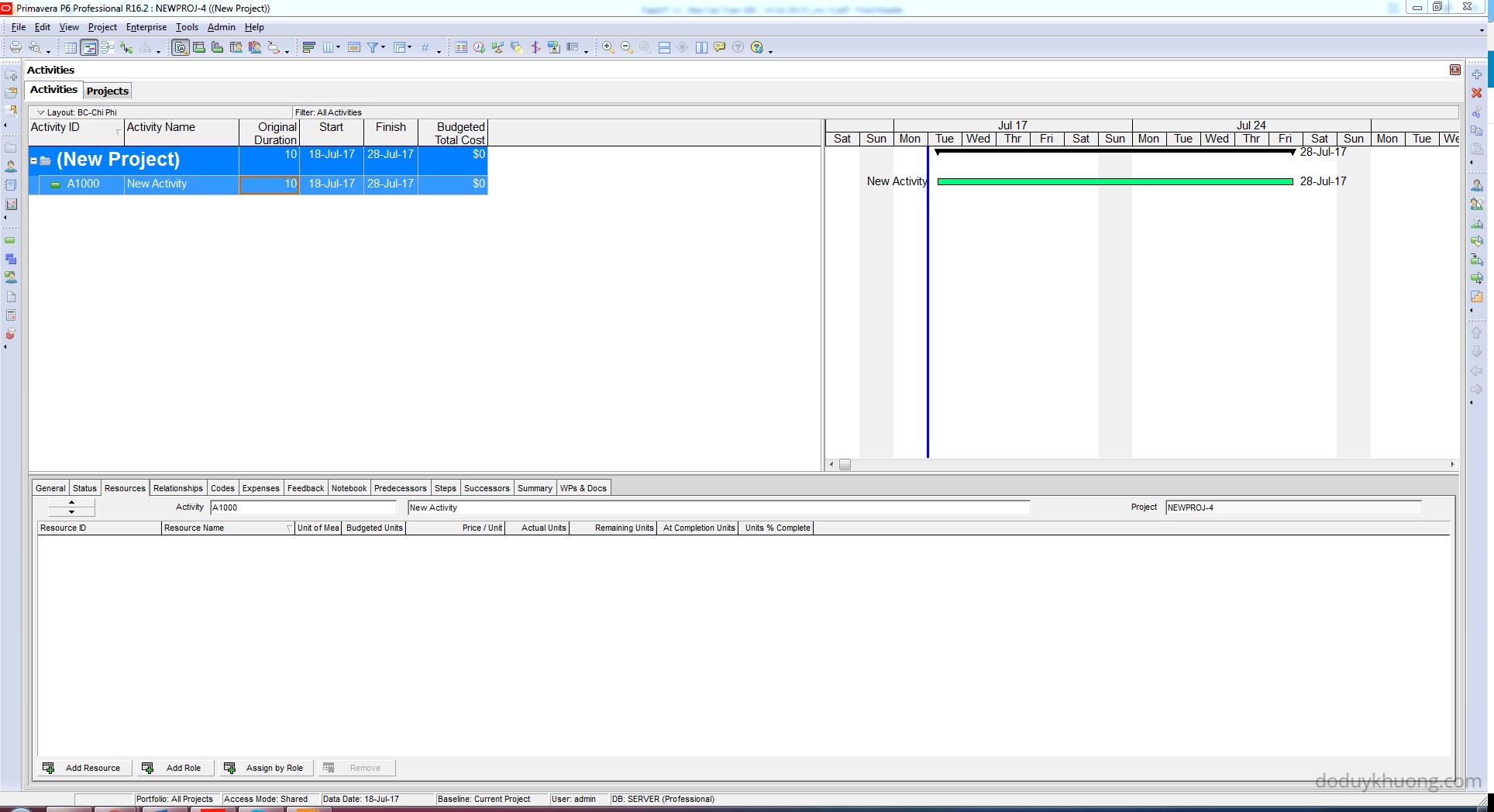
Step 1: Create a New Currency
- Go to Admin > Currencies.
- Click Add and enter the following details
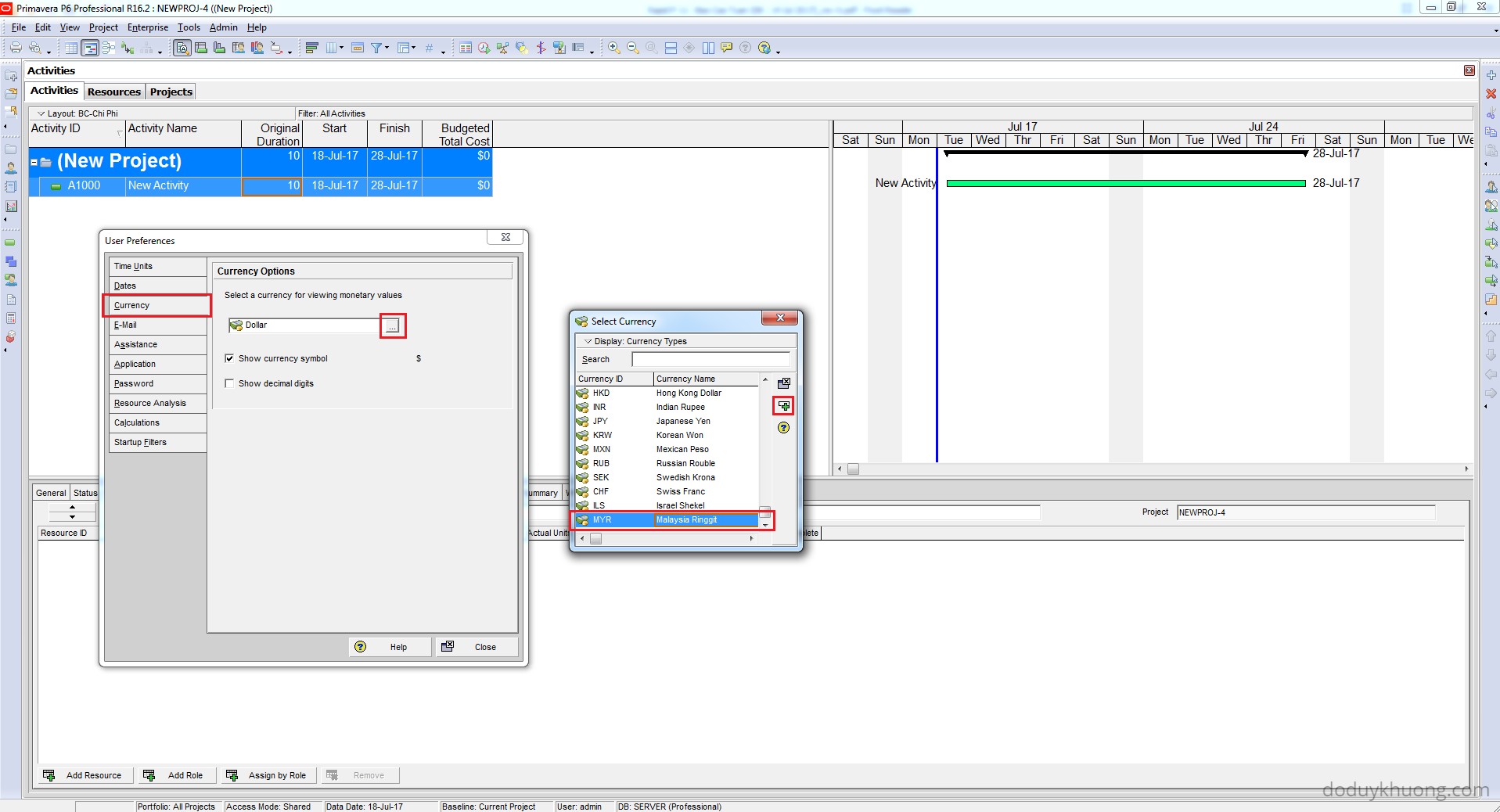
Step 2: Set Display Currency to MYR
- Go to Edit > User Preferences.
- Select the Currency tab.
- Change the display currency to MYR.
Step 3: Create a Resource with MYR Rate
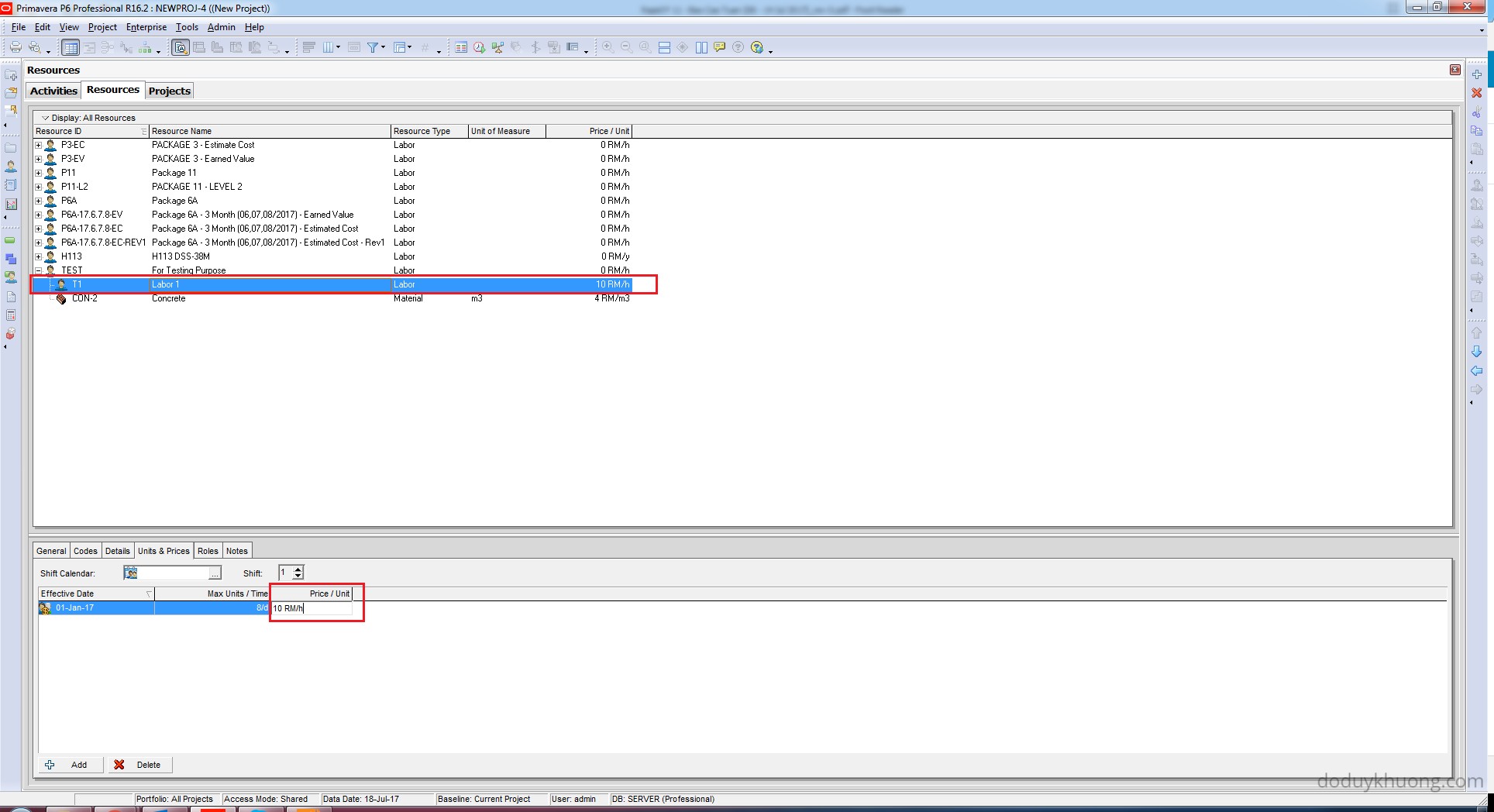
- Go to Enterprise > Resources.
- Create a new labor resource.
- Set the Price/Unit to
10 RM/h.
Step 4: Assign the Resource to an Activity
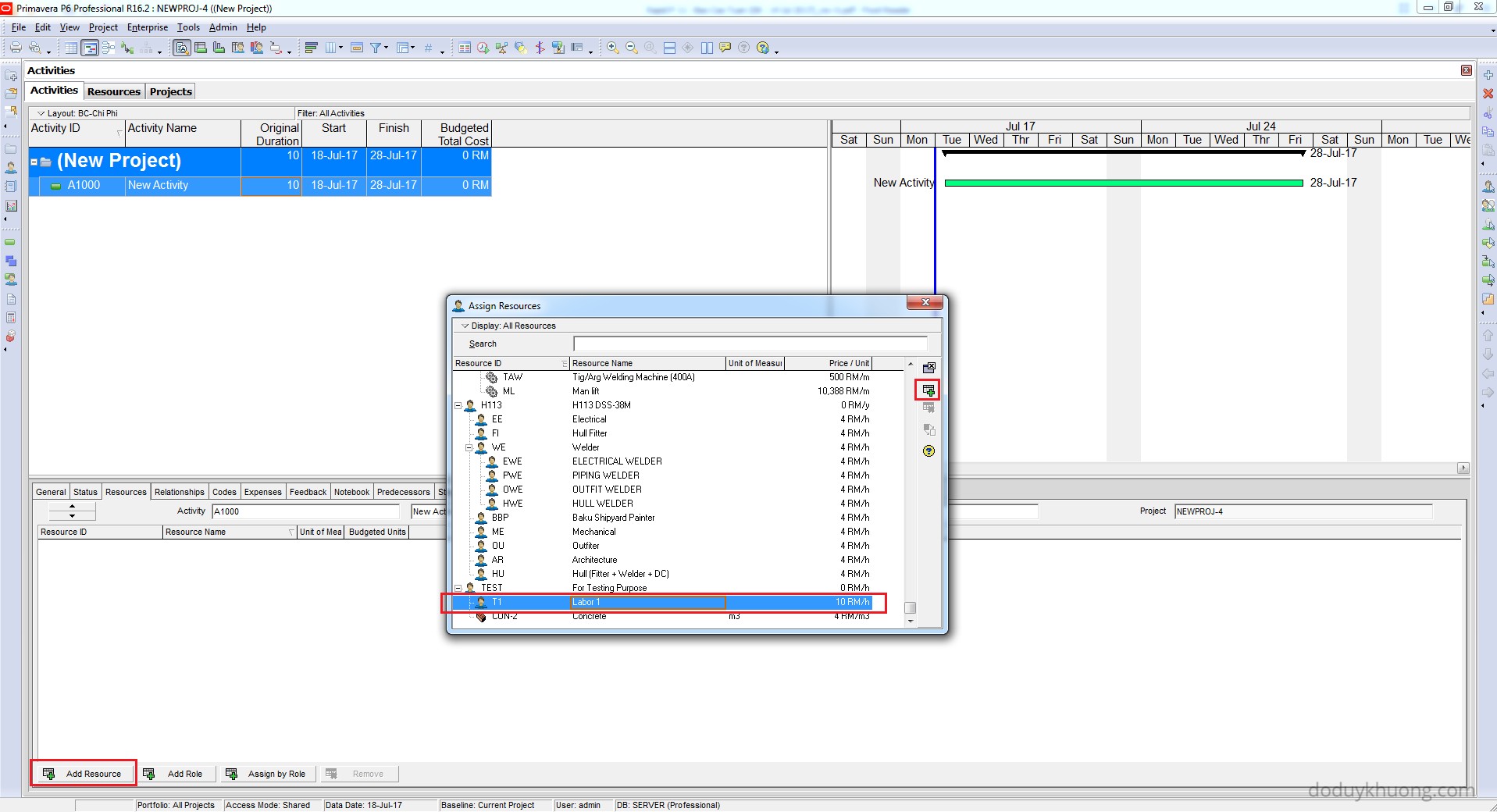
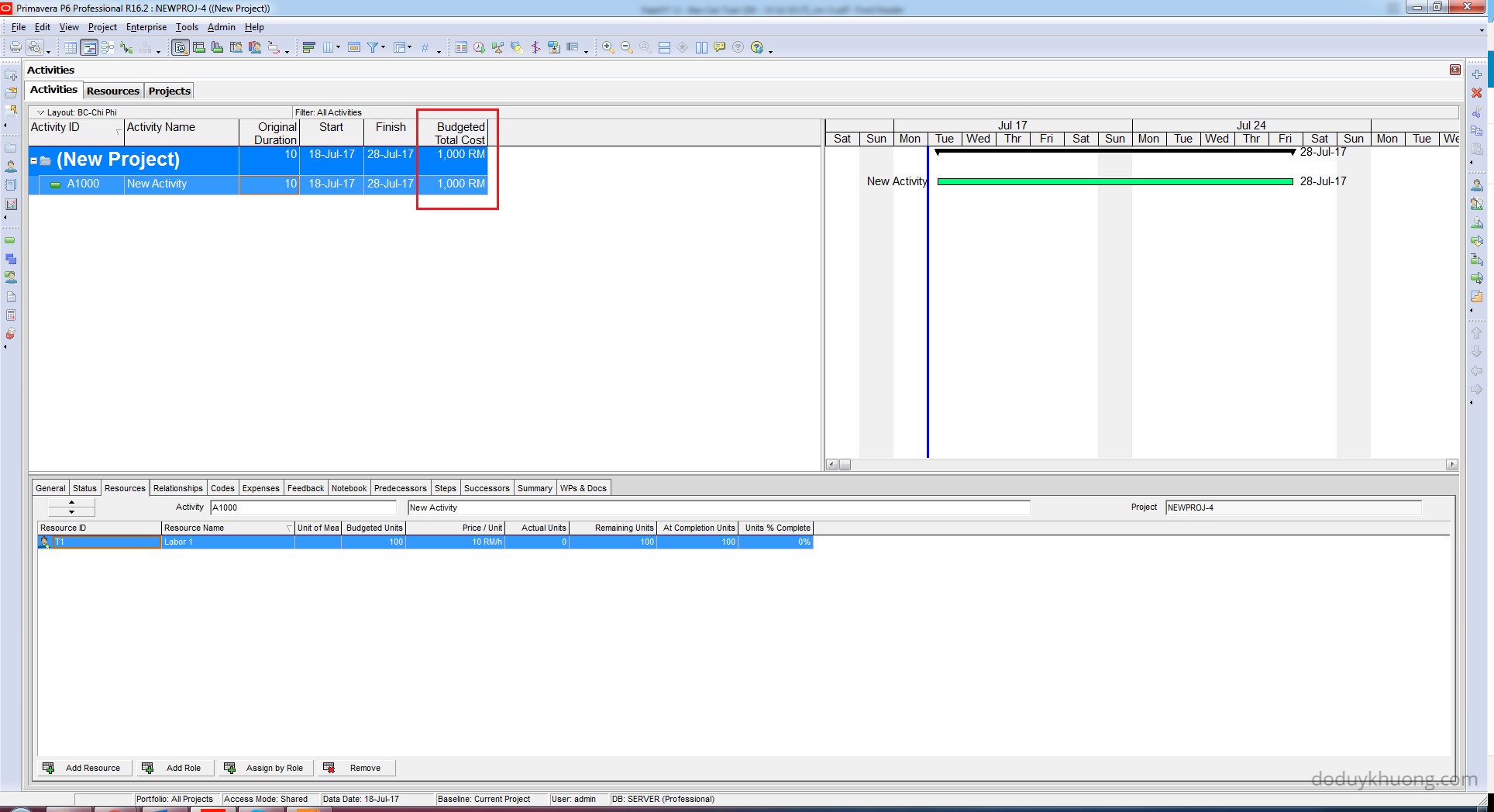
Assign the newly created resource to an activity. The project will now display costs in Malaysian Ringgit.
How Is Currency Data Stored?
Primavera P6 stores all financial data in the base currency, which is USD by default. When you enter a rate of 10 RM/h, Primavera converts and stores it as:
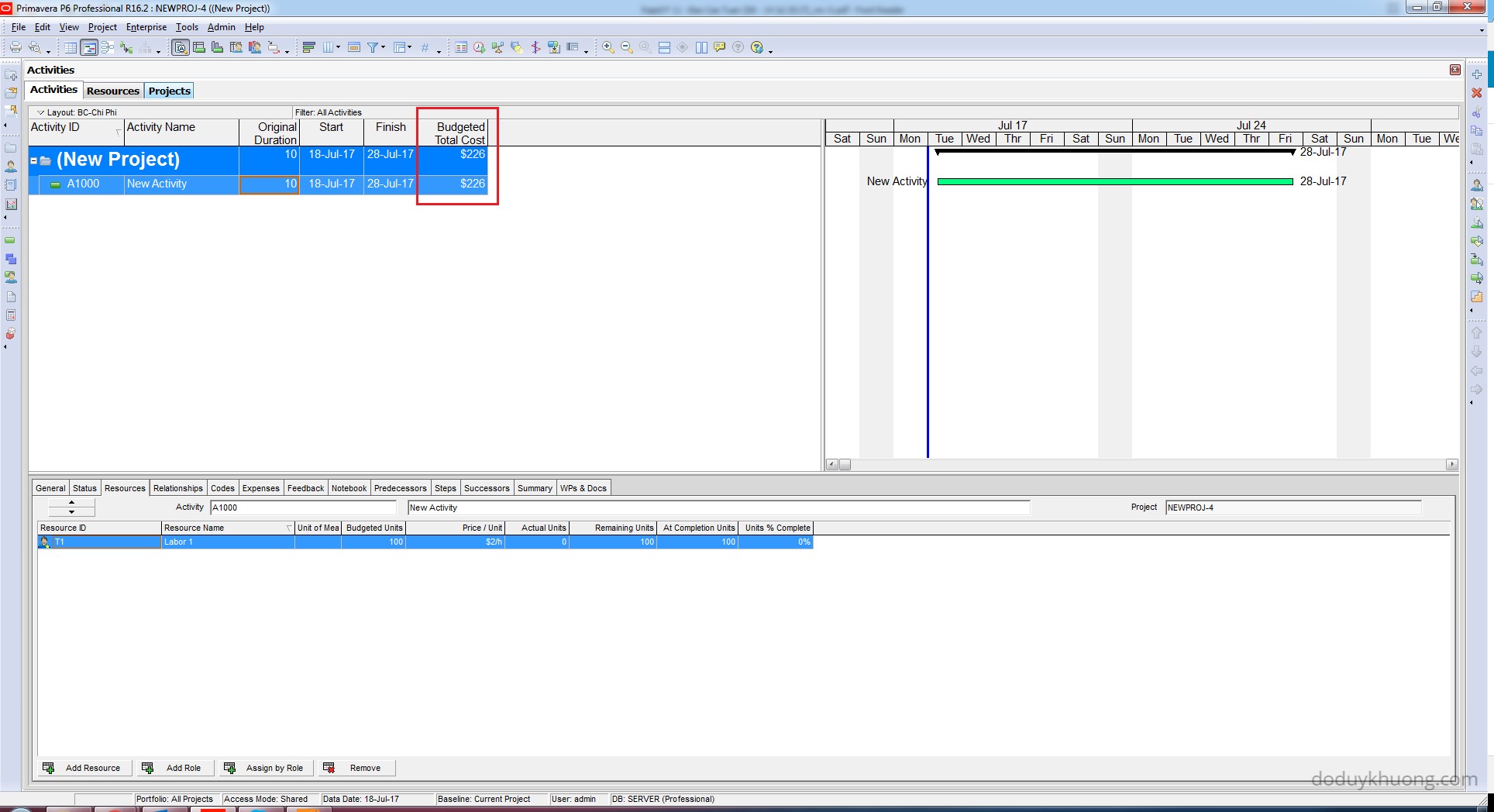
So, a cost of 1000 RM is stored as approximately 226 USD.
To switch back to USD:
- Go to Edit > User Preferences.
- Select the Currency tab.
- Change the display currency to USD.
Displaying in Another Currency
You can display the project in any currency:
- Add a new currency and set the exchange rate.
- Change the display currency in User Preferences.
For example, to display in Indian Rupees (INR), follow the same steps and set INR as the display currency.
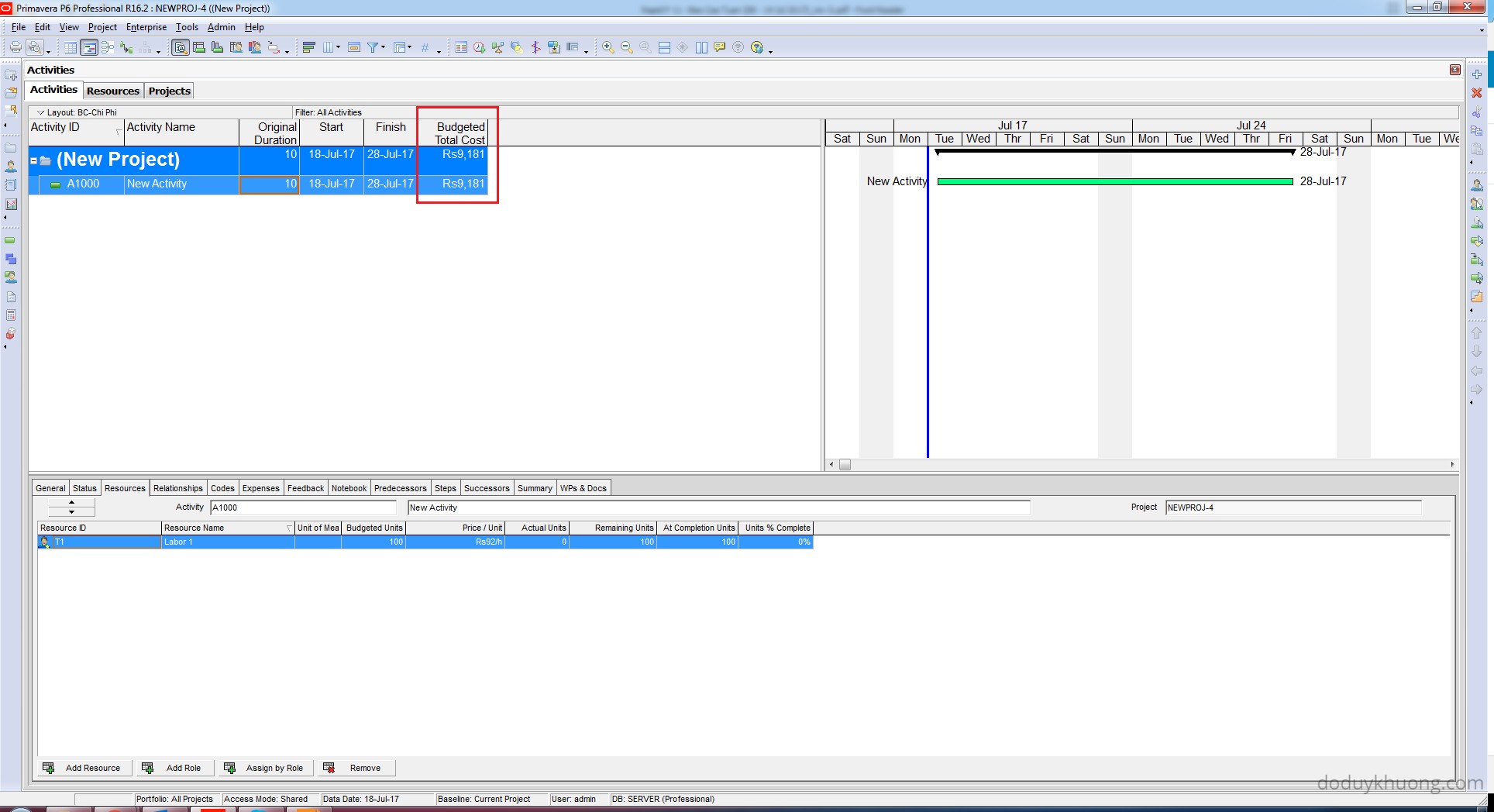
Notes on Base Currency
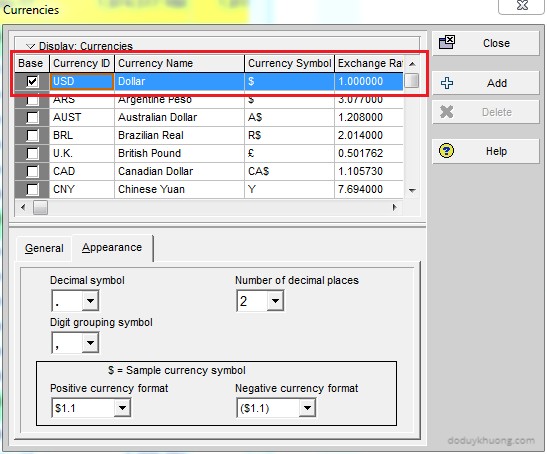
- The base currency is set during initial setup and cannot be changed once live data exists in the database.
- By default, the base currency is USD, with an exchange rate of 1.
To define a different base currency (only during initial setup):
- Go to Admin > Currencies.
- Select the row with the BASE option checked.
- Edit the ID, Name, and Symbol fields (e.g., MYR, Malaysian Ringgit, RM).
Entering Price/Unit by Month
You can enter rates by month instead of by hour.
For example:
5000 RM/month
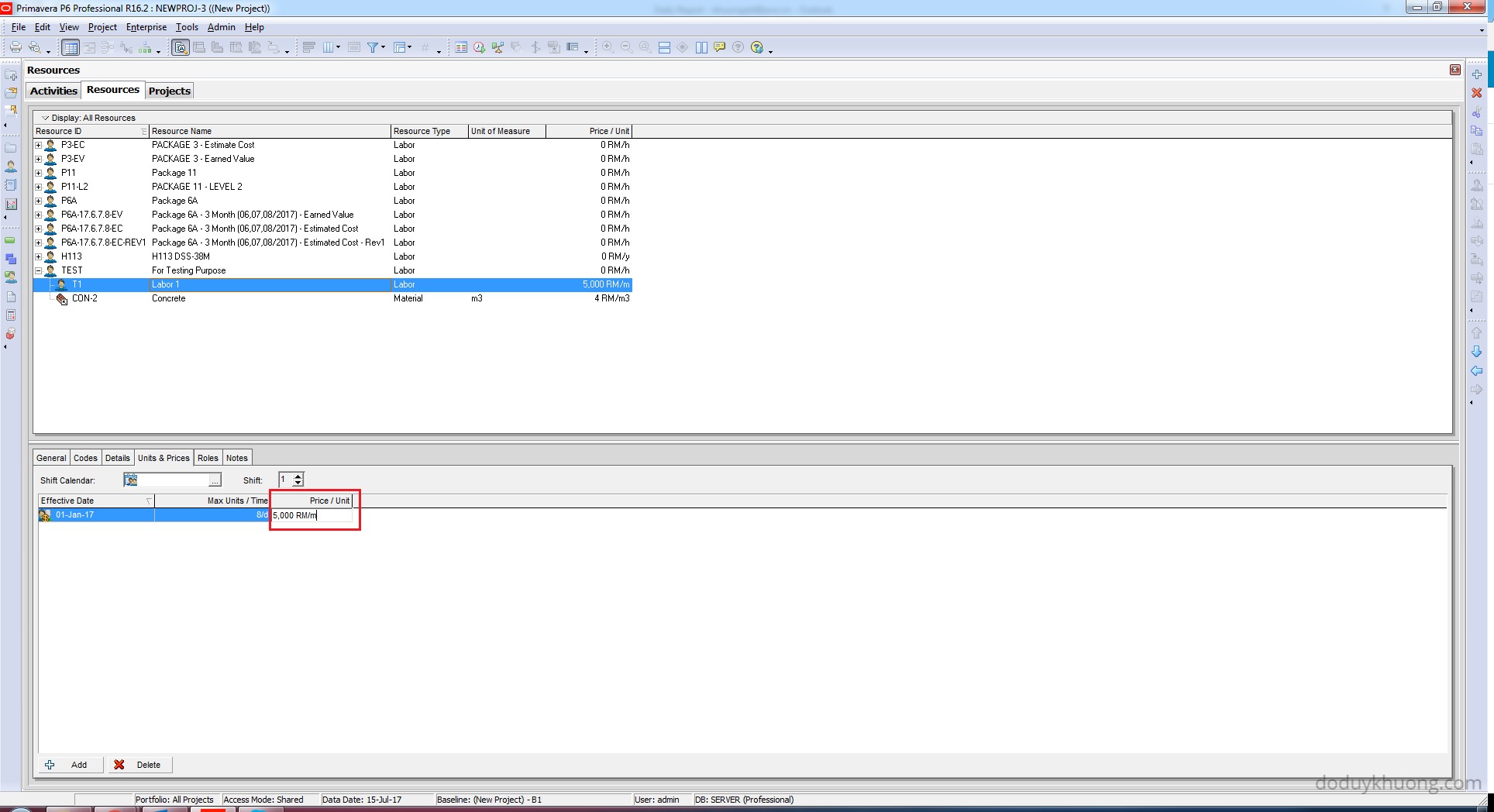
Primavera will automatically convert this to an hourly rate based on your time period settings.
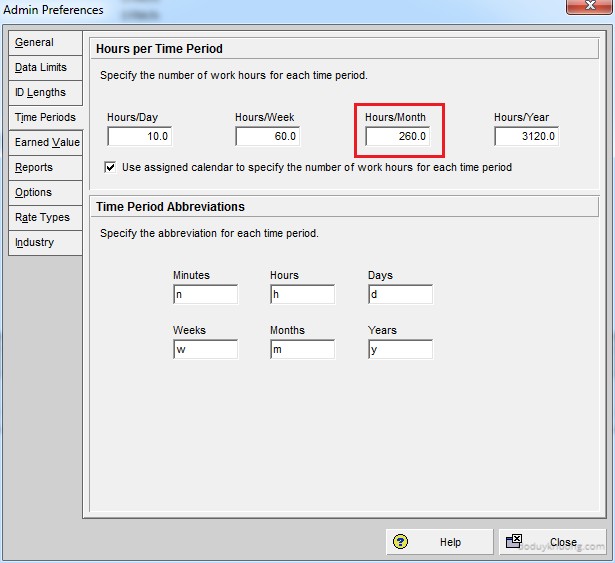
To check or change this:
- Go to Admin > Admin Preferences > Time Periods tab.
- If 1 month = 260 hours, then:
This converted hourly rate is what Primavera stores in the database.

 Khuong Do Blog
thank you.This information is useful for me
it is very interesting……
CAD centre in Kochi
LikeLike
good subject
LikeLiked by 1 person