

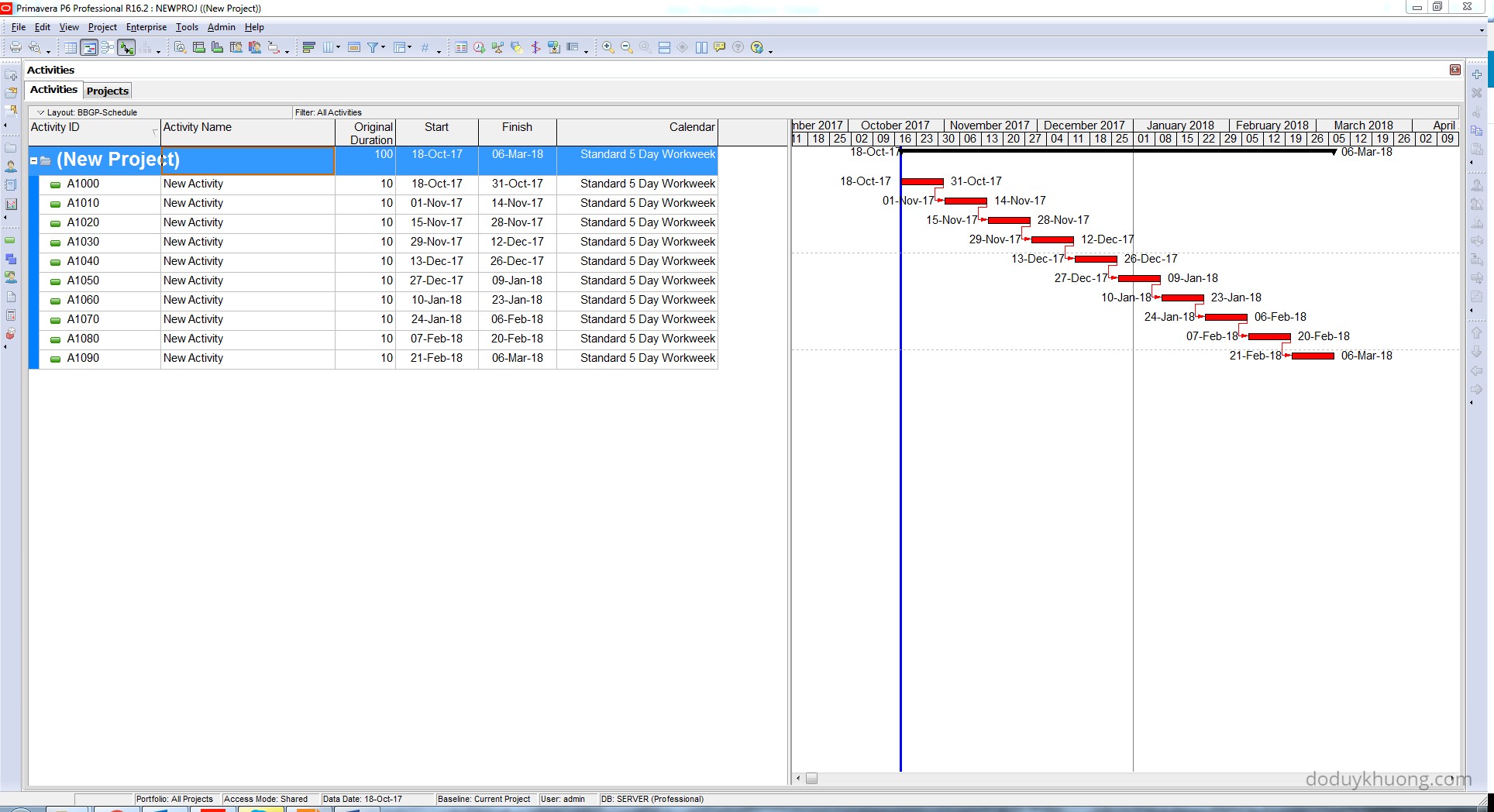
After three months of hard work, we completed a schedule using a 5-day workweek calendar, as shown in the image below.
Then came the twist.
The construction team said: “6 March 2018, is the correct project finish date—but we’re using a 7-day workweek, not a 5-day one. Sorry, must’ve been a misunderstanding.”
Wait, what?
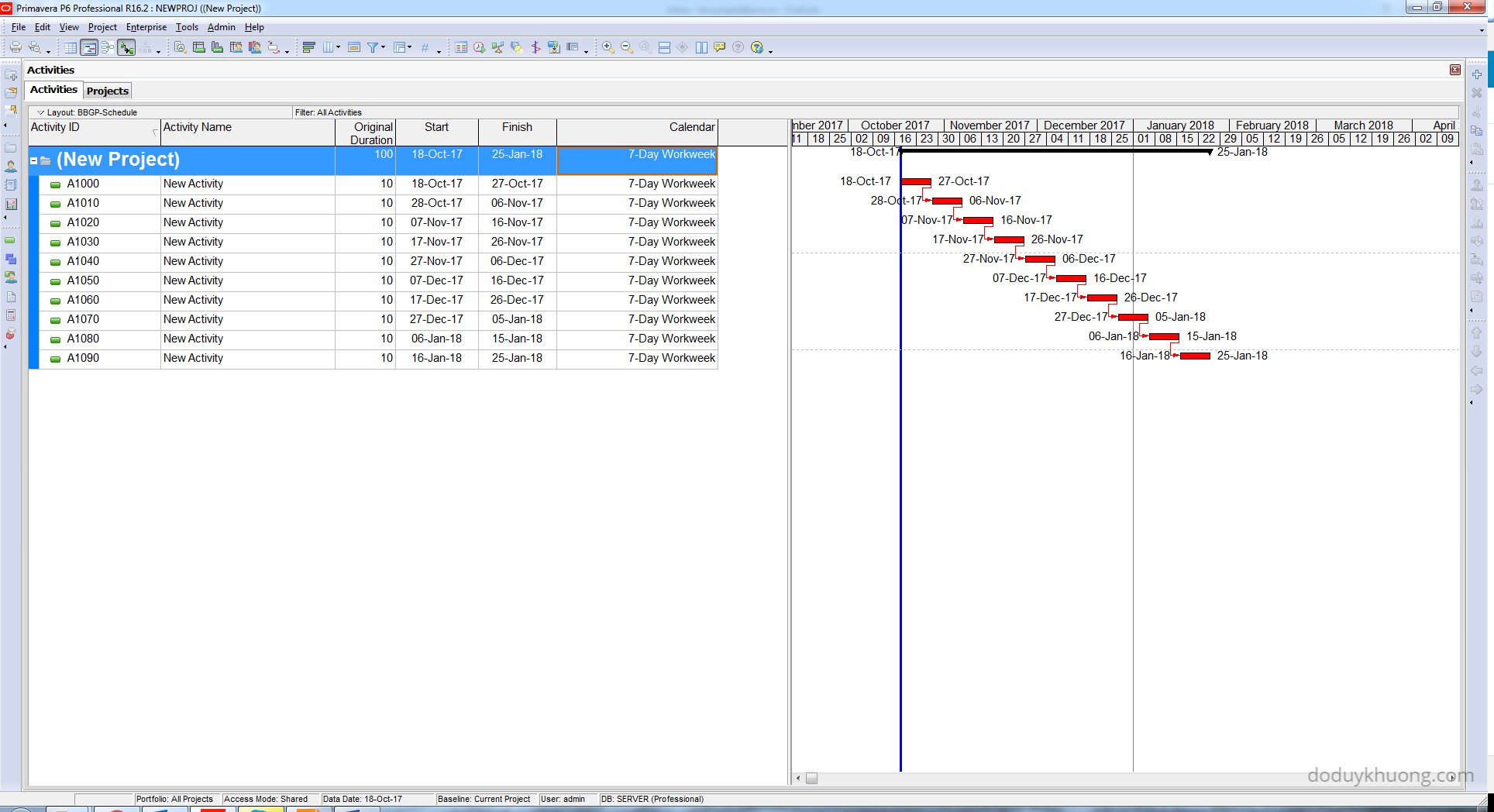
Changing the activity calendar affects everything. Normally, if you switch from a 5-day to a 7-day workweek, all activity finish dates shift, as shown in the next image. The new project finish date becomes January 25, 2018.
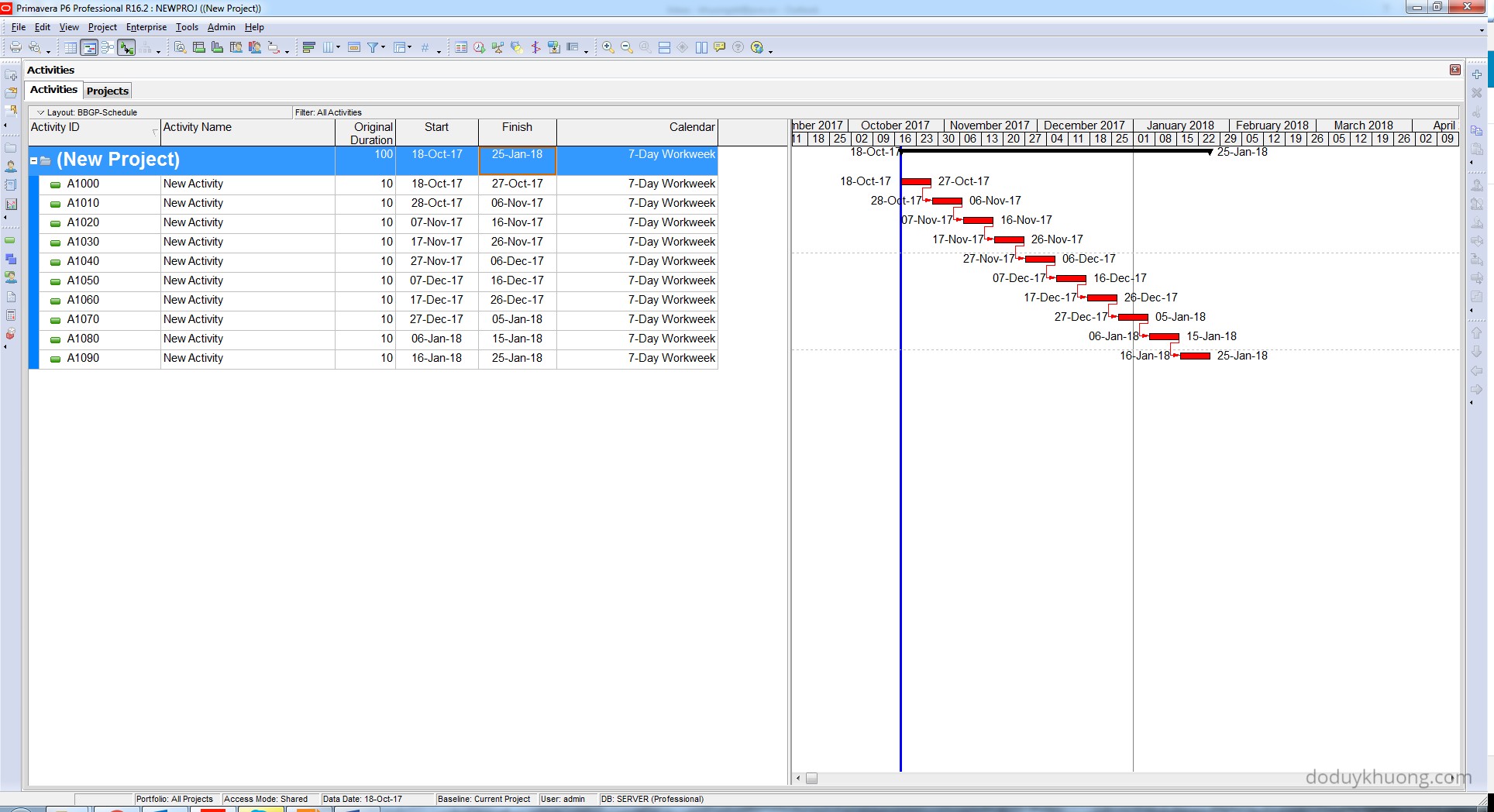
So how do we keep the original finish date of March 6, 2018, even after changing to a 7-day workweek?
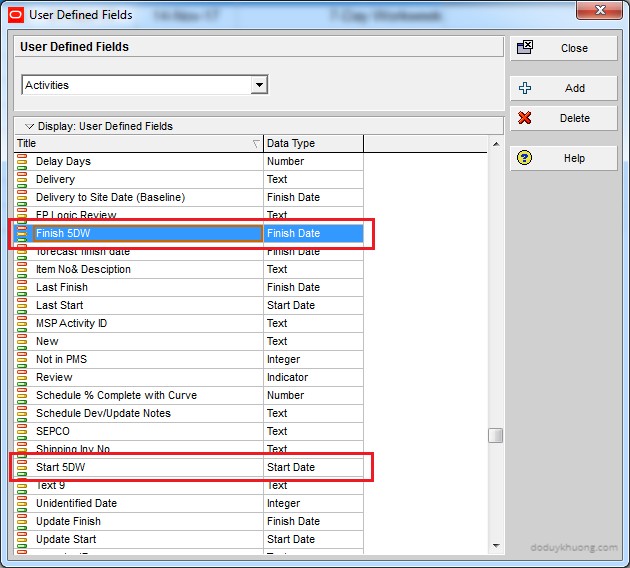
Step 1: Create User Defined Fields
Go to Enterprise > User Defined Fields.
- Create a field called “Finish 5DW” with data type: Finish Date
- Create another field called “Start 5DW” with data type: Start Date
Step 2: Save Original Dates
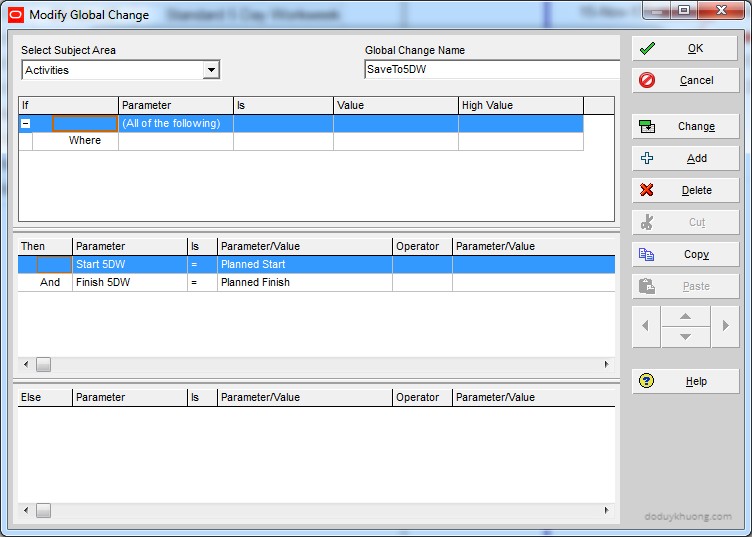
Go to Tools > Global Change.
- Create a new change named “SaveTo5DW”
- Set it up to copy the current Start and Finish dates into the new UDFs: Start 5DW and Finish 5DW
- Click Change to apply
Step 3: Change the Calendar
Change the activity calendar to a 7-day workweek.
- You can update the first activity, then use the Fill Down function to apply it to the rest.
Step 4: Restore Original Dates
Go to Tools > Global Change again.
- Create a new change named “LoadFrom5DW”
- Set it up to copy values from Start 5DW and Finish 5DW back into the Start and Finish fields
- Click Change to apply

Now, all activity start and finish dates remain the same. Only the durations are recalculated based on the new 7-day calendar. The project finish date stays at March 6, 2018—just as required.


 Khuong Do Blog
Hi Khuong Do,
Very interesting and easy method for changing the 5D Calendar to 7D Calendar without changing the finish date of the project. I followed the same as you have shown. It worked exactly as described by you, but unfortunately at the end when i schedule the programme it will change the completion date of the Project and it is neither matching with the 5D Calendar nor with the 7D Calendar. Please confirm that weather I am missing something or really it happens.
LikeLike
Hi.
Could you check:
1) Does your project have Actual data? Or it is an As-Planned schedule?
2) Do you use relationship lag?
LikeLike
Hi Mr Khuong Do,
Thank you for your website,
Could you help me Sir,
how to create/show in primavera P6 progress last week?
for example my progress this week is 15%, and progress last week is 10%.
I want to show the progress last week & progress this week in primavera.
Thank a lot Sir,
Ranto
LikeLike
Mr. Khuong Do,
I have a Project that is using multiple schedules. I have the start time and finish time the same for all calendars to reduce any time issues I might encounter. Unfortunately, I have a start time displayed on several activities that is what the prior calendar indicated. The first activity has a predecessor that has been actualized and ends at 5pm. The calendar is set for 7am start, 5pm finish. The activity is starting at 8am. I cannot manually change this time to 7am without a constraint, and even with a Start On constraint it continues to show 8am. The Admin preferences are set at “Use assigned calendar to specify the number of work hours for each time period”. I’ve scheduled the Project several times. I’ve F5 refreshed several times. Nothing. The time will not start on the selected calendar start time. Am I missing something?
Thanks
Alex
LikeLike