

Microsoft Project version 2013 or later provide a function named “Task Path” to highlight the driving predecessor or successor in gantt chart but not provide a function to filter the activity.
We can create a macro to filter activity based on “Task Path” function.
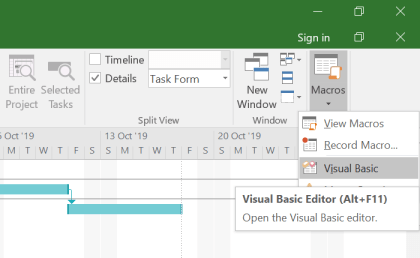
Go to View -> Macros -> Visual Basic
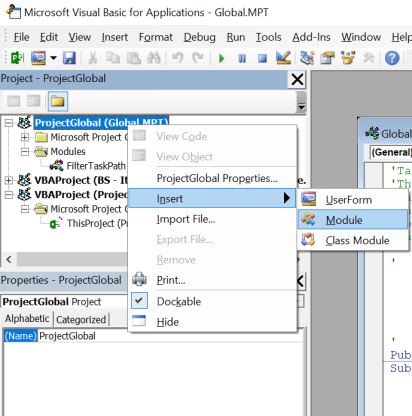
Right click on Project Global -> Insert -> Module
Add the following code (created by Boyle) to the module
'TaskPathFilters Module
'This module includes four procedures to mark tasks according to their TaskPath
'characteristics.  A fifth procedure applies a filter to display only the marked tasks.
'The module is intended only for users of Microsoft Project 2013+, which incorporates TaskPath
'formatting of task bars.  If the applicable TaskPath formatting has not been applied,
'then no filter will be created.  VBA code developed by TMBoyle, 14Sep'18
'   1. Install all code into a new module, with "TaskPathFilters Module" above as the top line.
'   2. Assign buttons or hotkeys to the first four procedures only (the other one is called by these):
        'a. AllTaskPathFilter() - Filters all the marked task paths.
        'b. TaskPathPredecessorFilter() - Filters the marked "predecessors" of the selected task.
        'c. TaskPathDrivingPredecessorFilter() - Filters the marked "driving predecessors" of the selected task.
        'd. TaskPathSuccessorFilter() - Filters the marked "successors" of the selected task.
        'e. TaskPathDrivenSuccessorFilter() - Filters the marked "driven successors" of the selected task.
'
Public MsgBase As String, Tsel As Task
Sub AllTaskPathFilter()
    Dim t As Task
    Dim Apply As Boolean

    Set Tsel = ActiveCell.Task
    For Each t In ActiveProject.Tasks
        If Not t Is Nothing Then
            If (t.PathPredecessor = True) Or (t.PathDrivingPredecessor = True) Or _
                (t.PathSuccessor = True) Or (t.PathDrivenSuccessor = True) Then
                t.Marked = True
                Apply = True
            Else
                t.Marked = False
            End If
        End If
    Next t
    Tsel.Marked = "Yes"
    If Apply Then
        MarkedFilter
        MsgBox (MsgBase & "All Selected for task " & vbCrLf & _
            Tsel.ID & " - " & Tsel.Name)
    Else
        MsgBox "No Filter Applied."
    End If
End Sub
Sub TaskPathPredecessorFilter()
    Dim t As Task
    Dim Apply As Boolean

    Set Tsel = ActiveCell.Task
    For Each t In ActiveProject.Tasks
        If Not t Is Nothing Then
            If t.PathPredecessor = True Then
                t.Marked = True
                Apply = True
            Else
                t.Marked = False
            End If
        End If
    Next t
    Tsel.Marked = "Yes"
    If Apply Then
        MarkedFilter
        MsgBox (MsgBase & "Predecessors of task " & vbCrLf & _
            Tsel.ID & " - " & Tsel.Name)
    Else
        MsgBox "No Filter Applied."
    End If
End Sub

Sub TaskPathDrivingPredecessorFilter()
    Dim t As Task
    Dim Apply As Boolean

    Set Tsel = ActiveCell.Task
    For Each t In ActiveProject.Tasks
        If Not t Is Nothing Then
            If t.PathDrivingPredecessor = True Then
                t.Marked = True
                Apply = True
            Else
                t.Marked = False
            End If
        End If
    Next t
    Tsel.Marked = "Yes"
    If Apply Then
        MarkedFilter
        MsgBox (MsgBase & "Driving Predecessors of task " & vbCrLf & _
            Tsel.ID & " - " & Tsel.Name)
    Else
        MsgBox "No Filter Applied."
    End If
End Sub

Sub TaskPathSuccessorFilter()
    Dim t As Task
    Dim Apply As Boolean

    Set Tsel = ActiveCell.Task
    For Each t In ActiveProject.Tasks
        If Not t Is Nothing Then
            If t.PathSuccessor = True Then
                t.Marked = True
                Apply = True
            Else
                t.Marked = False
            End If
        End If
    Next t
    Tsel.Marked = "Yes"
    If Apply Then
        MarkedFilter
        MsgBox (MsgBase & "Successors of task " & vbCrLf & _
            Tsel.ID & " - " & Tsel.Name)
    Else
        MsgBox "No Filter Applied."
    End If
End Sub

Sub TaskPathDrivenSuccessorFilter()
    Dim t As Task
    Dim Apply As Boolean

    Set Tsel = ActiveCell.Task
    For Each t In ActiveProject.Tasks
        If Not t Is Nothing Then
            If t.PathDrivenSuccessor = True Then
                t.Marked = True
                Apply = True
            Else
                t.Marked = False
            End If
        End If
    Next t
    Tsel.Marked = "Yes"
    If Apply Then
        MarkedFilter
        MsgBox (MsgBase & "Driven Successors of task " & vbCrLf & _
            Tsel.ID & " - " & Tsel.Name)
    Else
        MsgBox "No Filter Applied."
    End If
End Sub

Sub MarkedFilter()
Dim HL As Boolean

    If MsgBox("Apply Highlighting Only?", vbYesNo) = vbYes Then
        HL = True
        MsgBase = "Highlighting TaskPath "
    Else
        MsgBase = "Filtered for TaskPath "
    End If
    On Error Resume Next
    FilterApply Name:="Marked Tasks", Highlight:=HL
    If Err.Number <> 0 Then
        FilterEdit Name:="Marked Tasks", TaskFilter:=True, Create:=True, OverwriteExisting:=True, _
           FieldName:="Marked", Test:="equals", Value:="Yes", ShowInMenu:=True, ShowSummaryTasks:=True
        FilterApply Name:="Marked Tasks", Highlight:=HL
    End If
    EditGoTo ID:=Tsel.ID
End Sub

Click Save and Close the Visual Basic window.
In Microsoft Project, we highlight the activity we want to create the driving predecessor path, and go to Format -> Task Path -> click on Driving Predecessors:

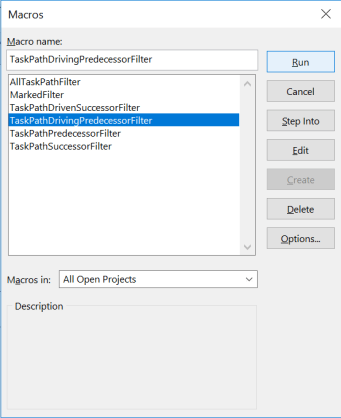
Go to View -> Macros -> View Macros

Select the macro “TaskPathDrivingPredecessorFilter” and click Run.
Select “No” when it shows “Apply Highlighting Only?”
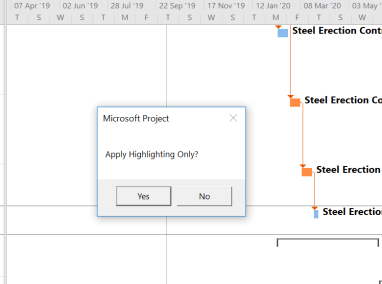
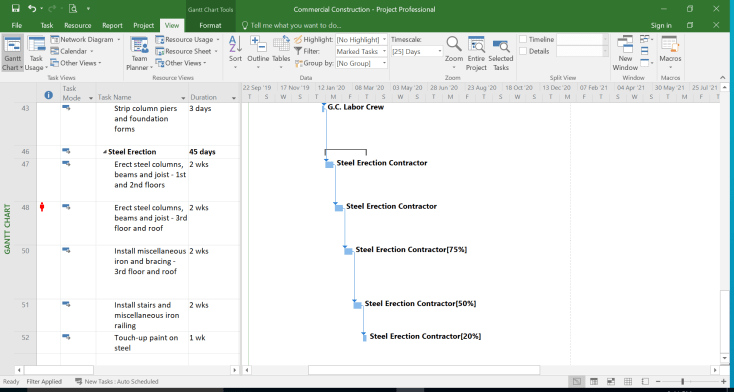
Now Microsoft Project only show activities which are driving predecessors
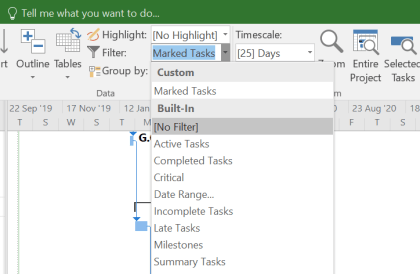
In case we want to clear the filter and show all activity, go to View -> Filter -> select [No Filter]:

 Khuong Do Blog
So happy to see your name again. I’ve missed youSent from my Verizon, Samsung Galaxy smartphone
LikeLike