
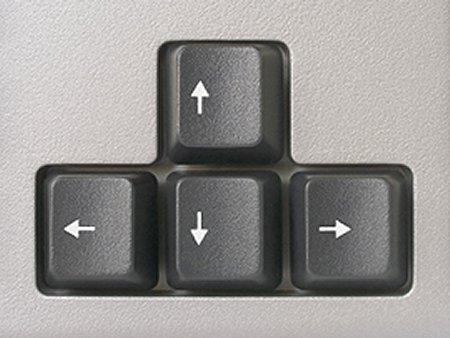
In the WBS window, you can build the entire WBS structure using only the keyboard—which is often much faster than using the mouse.
Instead of clicking the “Plus” icon to create a new WBS element, simply press the “Insert” key on your keyboard. Then:
- Enter the WBS ID
- Press “Tab”, and enter the WBS name
If you need to adjust the hierarchy, you can do it directly from the keyboard. For example, to move a WBS element to the left (outdent), instead of clicking the left arrow icon, use the shortcut:
- Ctrl + Left Arrow.

You can then press “Insert” again to continue creating new WBS elements efficiently.
Similarly, you can reposition WBS elements using these shortcuts:
- Ctrl + Right Arrow → move right (indent)
- Ctrl + Up Arrow → move up
- Ctrl + Down Arrow → move down
These shortcuts also apply in the Activity Code window, allowing you to quickly build and organize code structures in the same way.


Leave a Reply