
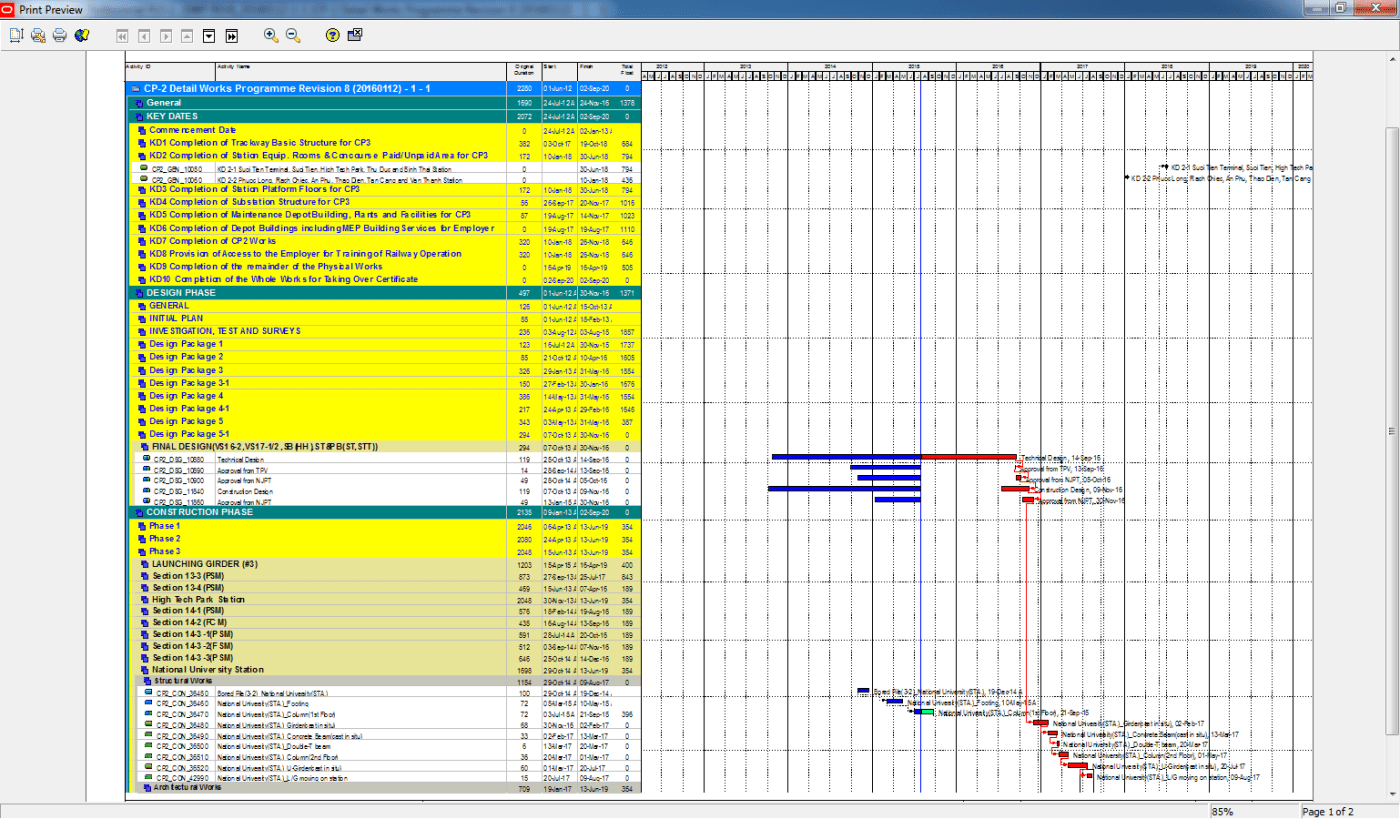
Sometimes, you need to create a report that focuses on specific WBS elements only. For example, you want the Gantt chart to show just the relevant activities without all the extra bars cluttering the view.
By default, the Gantt chart displays all bars, which can be distracting.

Here’s how to make it clean and focused:
Step 1: Open the Bar Settings
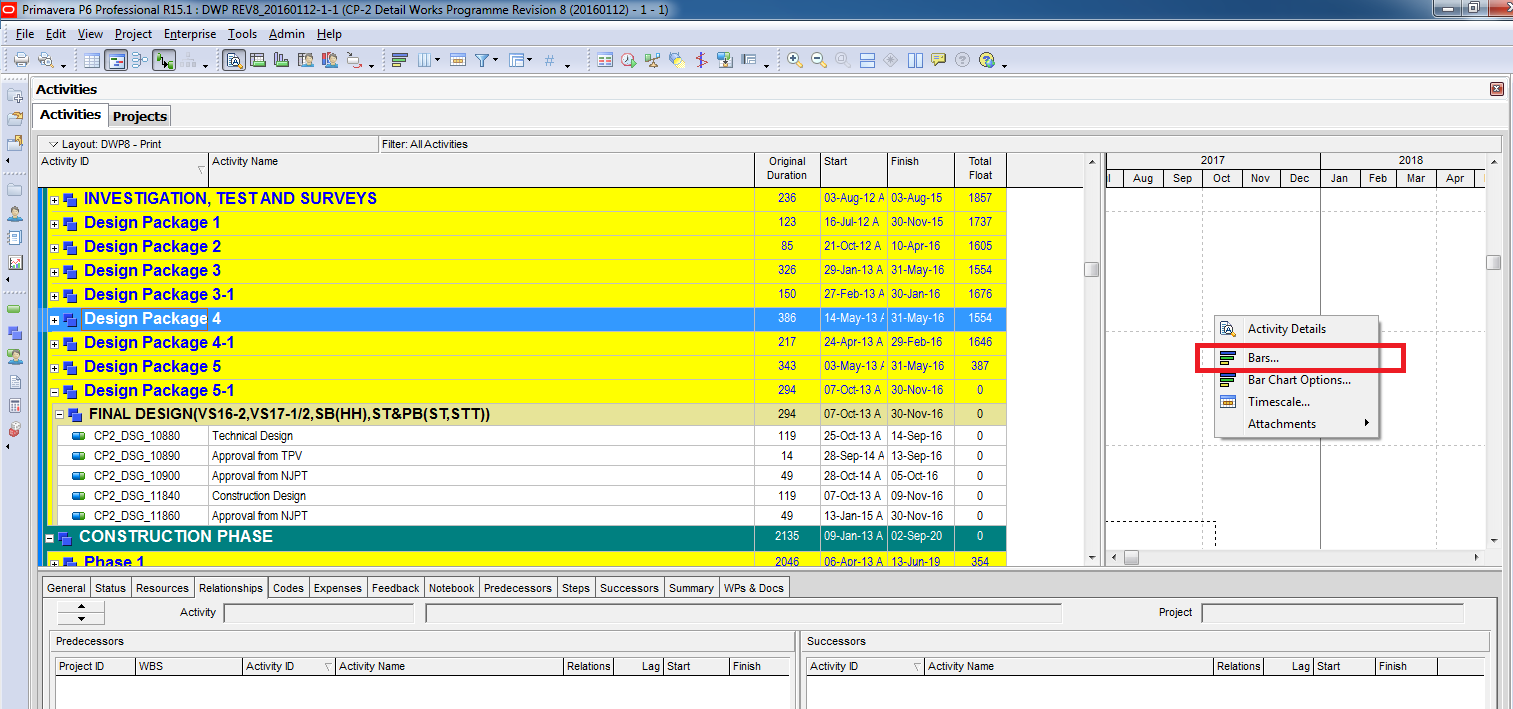
Right-click anywhere in the Gantt chart area and select Bars.
Step 2: Adjust Bar Display Options
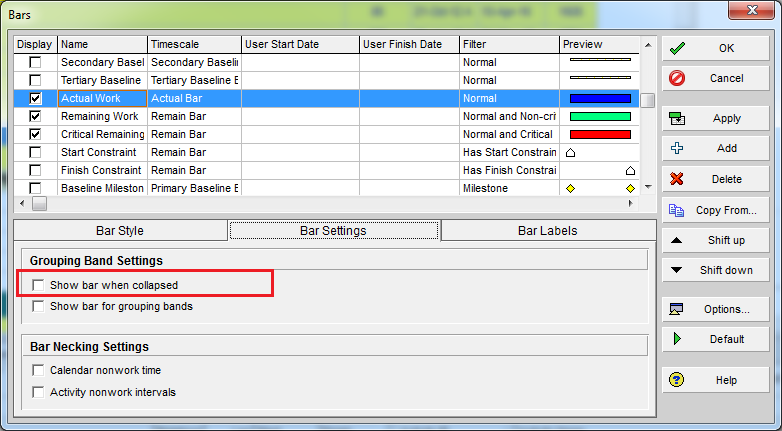
In the Bars dialog, select the bar types currently shown in the Gantt chart.
By default, the option “Show bar when collapsed” is checked.
Uncheck this option for each bar you don’t want to display when the WBS is collapsed.
Step 3: Repeat for All Unnecessary Bars
Apply this setting to all bar types you want hidden. This ensures that only the relevant WBS bars remain visible.
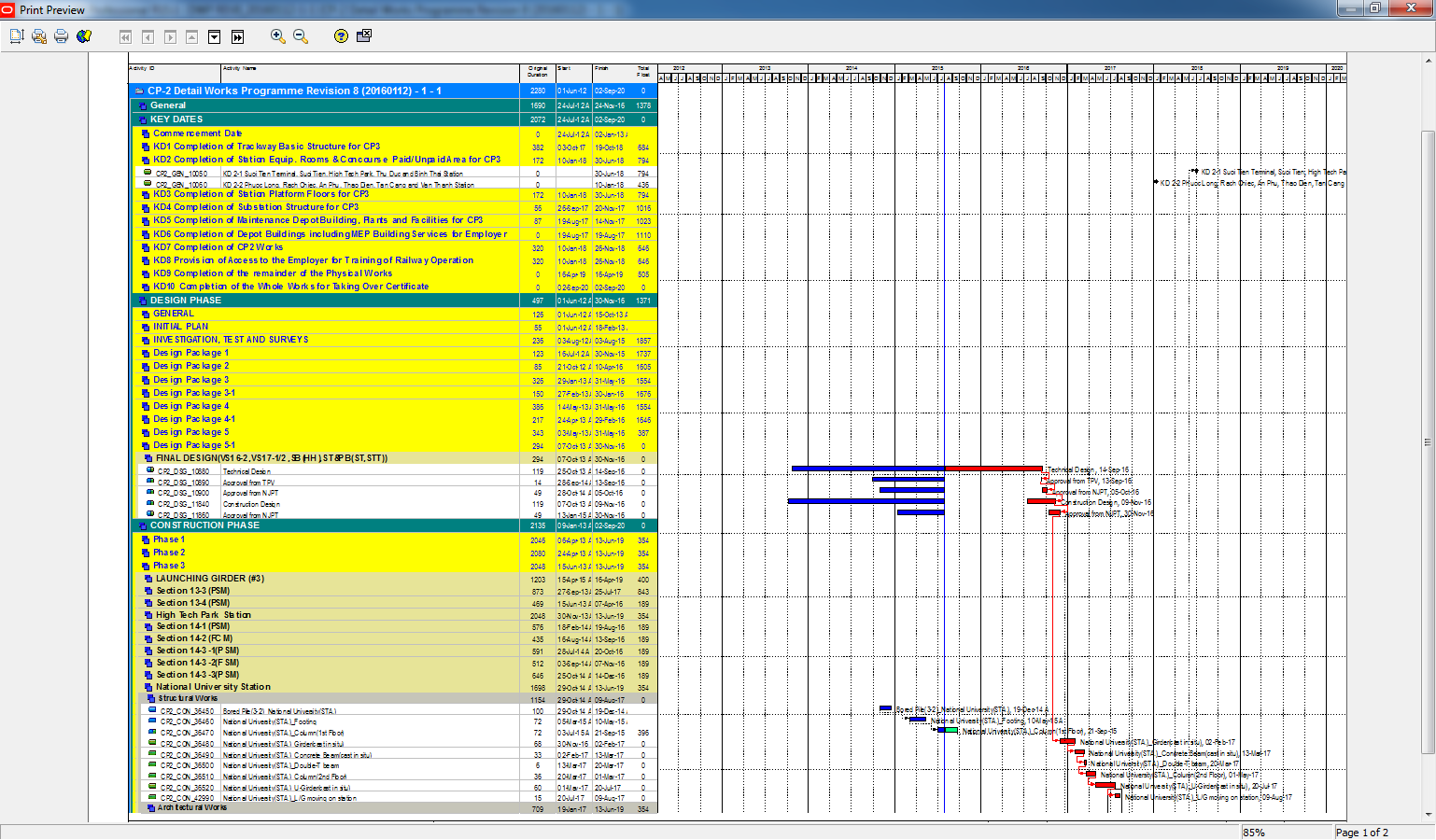
Result
You now have a clean Gantt chart that focuses on the WBS you need, making your report easier to read and more professional.

 Khuong Do Blog
Hi,
Can you please suggest how to show project plan using blocks having relationship and timeline
LikeLike
Hi. I’m afraid I can’t understand your idea. Can you elaborate it?
LikeLike