
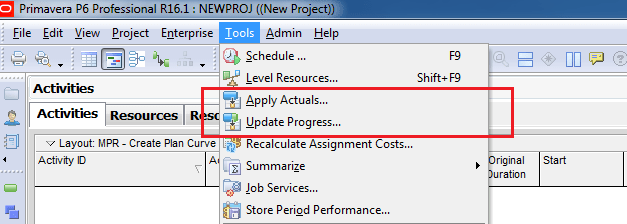
When you need to quickly update a project in Primavera P6 (assuming everything is going as planned), there are two options for automatically applying progress:
- Apply Actuals
- Update Progress (Progress Spotlight)
Both options update activities automatically, but they work differently. Let’s explore.
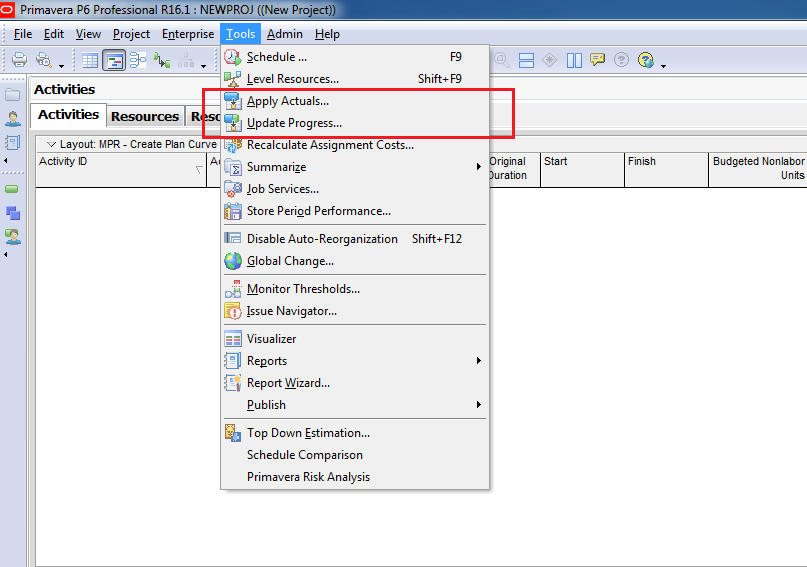
Apply Actuals
The Apply Actuals function updates activities that have the Auto Compute Actuals checkbox marked in their settings.

Update Progress (Progress Spotlight)
The Update Progress feature updates activities that fall within the spotlighted region, regardless of whether the Auto Compute Actuals checkbox is selected.
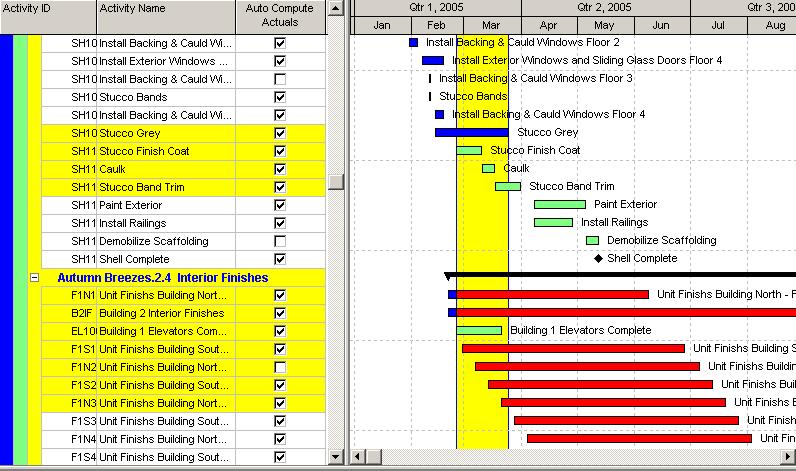
Rules for Automatic Actuals
When Primavera applies actuals (in both options), it follows these rules:
- Apply Actual Start to all activities with Planned Start < Data Date.
(Actual Start = Planned Start) - Level of Effort and WBS Summary activities get dates from other activities.
- Planned Finish is not changed.
- Remaining Duration = Early Finish – New Data Date.
- Actual Duration = Original Duration – Remaining Duration.
- Actual Units = Activity % Complete × At Complete Units.
- If Planned Finish < Data Date, then Actual Finish is applied.
(Actual Finish = Planned Finish) - Actuals are subtracted from budgeted values to calculate remaining values.
Key Difference
- Apply Actuals → Works only for activities with Auto Compute Actuals enabled.
- Update Progress → Works for all activities in the spotlighted date range.

 Khuong Do Blog
Hi,
very good, but you should explain the “planned dates” and their difference with the “baseline dates”
LikeLike
Well, I still have not got your idea. If possible can you elaborate it.
LikeLike
Hi,
Planned dates in P6 are the same as in MS Project; they are stored in the project; on the contrary, P6 creates baseline dates when you run the Update baseline command, and they are stored in the baseline project.
When you import a baseline MS Project file into P6, the P6 project is not baselined, but the MSP baseline start and finish dates are stored as planned start and finish dates in the P6 project.
When you use the Automatically Update Progress command, P6 updates the selected activities as per the planned dates and does not take the current start and finish dates into account; in other words, the selected activities will progress as per the initial project , and P6 will not consider the variance between the current project and the baseline project.
You may refer to Ron Winter’s “Understanding P6 Dates” paper published in 2009 for further explanation.
Regards
LikeLike
Thanks for your clarification.
It’s very helpful.
LikeLike
YES – BUT!!! You can set Planned Dates to be same as Current Dates by a simple Global Change: Planned Start=Start and also Planned Finish=Finish. This will set all Planned Dates to be same as current. I always do that when I finish Baseline Schedule and before storing it to archive. Then I do it before first Progress Update in the Current Schedule. By this way, I have BL=Current before first update. This will also help in Auto Update – before performing it, you do the Global Change as above and then the progress will be correct, not that of the ages-old Initial Baseline.
LikeLike
Thank You.
LikeLike
Dear doduykhuong, why the performance % complete is lesser than the schedule % complete after i applied update progress to a new program? I notice that some activities actually shifted to the data date and it should be completed or in progress activities.
LikeLike
Encourage everyone who is interested in Primavera P6 online training, to check the best trainers globally.
LikeLike