
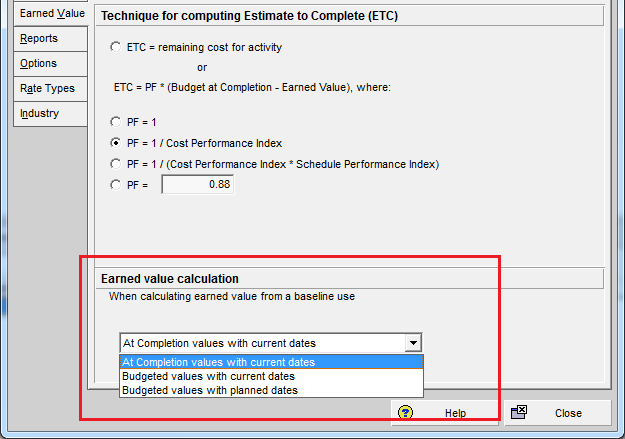
Primavera P6 provides an important option that allows users to decide whether baseline dates are based on the Planned Dates or the Current Dates of a project. This setting plays a crucial role in Earned Value Management (EVM).
In this article, I’ll walk you through how this option works and how it affects schedule and cost performance tracking.
We start with a simple project containing three activities, each assigned to Resource A.

Step 1: Create and Assign Baseline B1
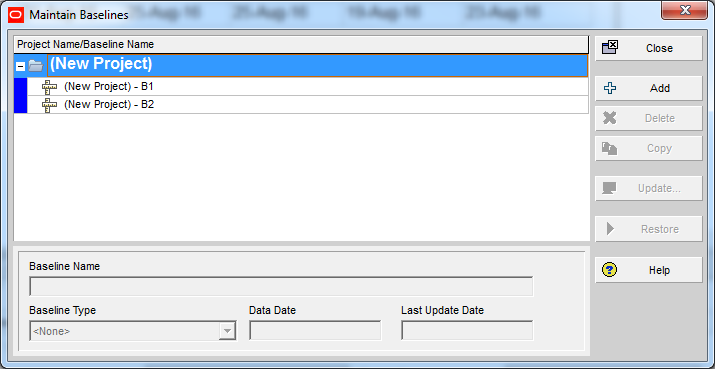
We create a baseline named B1 and assign it to the project.
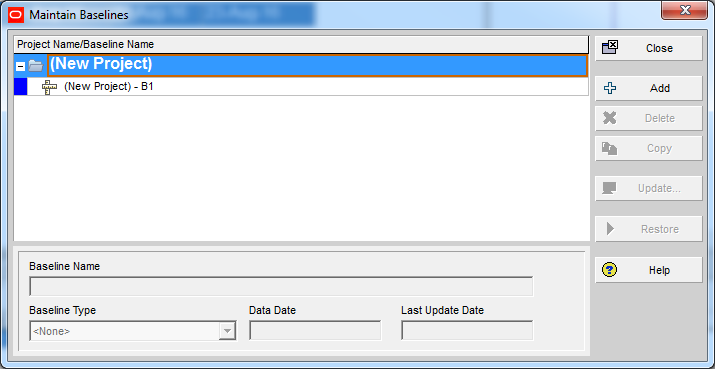
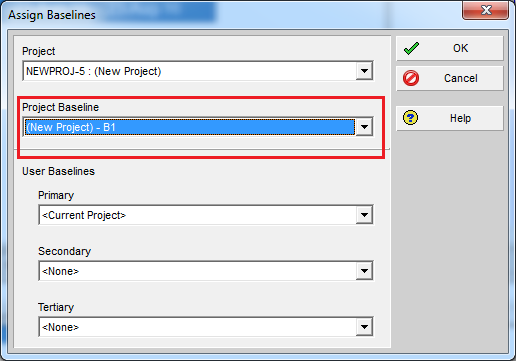
By default, Primavera uses the Planned Dates of the baseline project as the Baseline Dates.
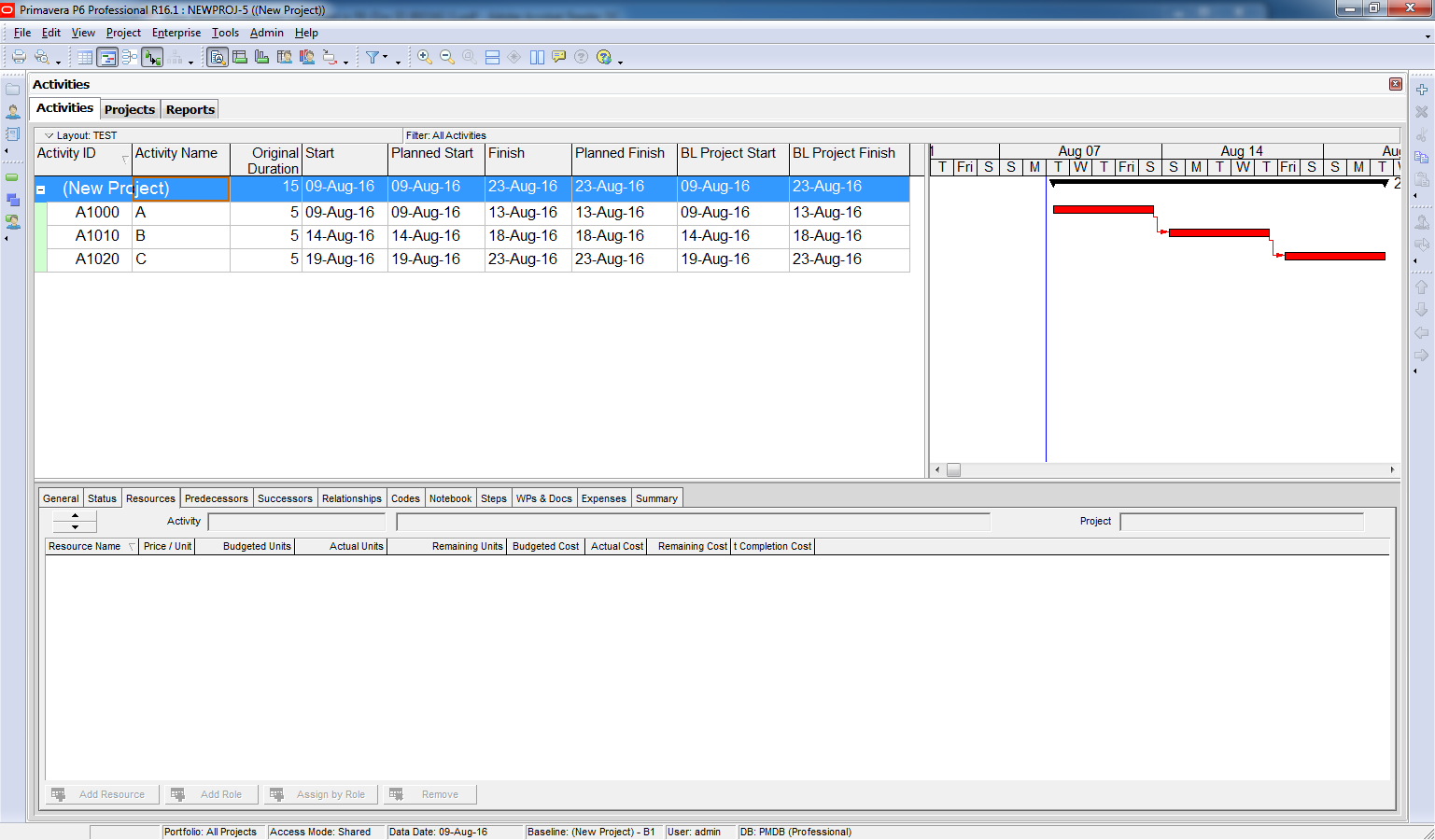
Step 2: Delay Occurs
Once the project starts, Activity A is delayed by 2 days due to the owner’s fault.
Now we’re on Day 6, and according to the baseline, Activity A should be 100% complete.
→ The Schedule % Complete is 100%, but the project is behind schedule, resulting in a negative Schedule Variance.

Step 3: Adjust Baseline to Reflect Delay
Since the delay is not our fault, we request to update the baseline to reflect the new start date.
⚠️ Important: Before creating a new baseline, you must adjust a key setting. Otherwise, the baseline dates will not reflect the current schedule.
Go to:
Admin → Admin Preferences → Earned Value tab
Select: “Budgeted values with current dates”


Step 4: Create and Assign Baseline B2
Now we create a new baseline named B2 and assign it to the project.

→ The Schedule % Complete is now 60%, and the project is no longer late.

Step 5: Cost Adjustment
We display the Budget At Completion (BAC) column and notice that the cost has not changed.

However, the delay has caused an increase in cost, so we make adjustments.
Again, since the delay is due to the owner, we request to update the baseline to reflect the new BAC.
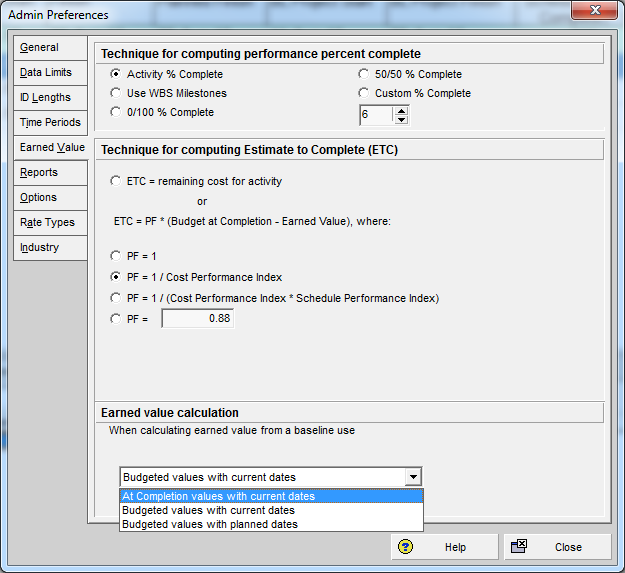
⚠️ Important: Before creating the new baseline, update the setting again.
Go to:
Admin → Admin Preferences → Earned Value tab
Select: “At Completion values with current dates”

Step 6: Create and Assign Baseline B3
We create a new baseline named B3 and assign it to the project.


→ The Budget At Completion is now updated, and all Earned Value metrics (EV, PV, SV, etc.) are more accurate.

Summary of Earned Value Calculation Options in Primavera P6:
If Budgeted values with planned dates is selected, the baseline dates are equal to the Baseline project’s Planned Start and Finish dates. If either At Completion values with current dates or Budgeted values with current dates is selected, the baseline dates are equal to the Baseline project’s Start and Finish dates. (Actual dates if they exist or planned dates if activity if not started or finished)
Best Practice
Whenever there are changes in the project schedule or cost due to external factors, update the baseline accordingly. This ensures that your Earned Value Management reflects the true performance of the project.

 Khuong Do Blog
Why are you not inserting delay activities that reflect the change in time and cost? There is a recommended practice for time impact analysis through AACEI. Don’t you feel that those recommended practices should be incorporated into how you are showing the client caused delay and the associated costs?
LikeLike
You’re right. I should insert a delay event instead of editing the original plan.
However in this post I just want to focus on Primavera function so I edit the plan. That will make the example more simple.
LikeLike
hi it doesnt work to me. i used performance % complete not the Schedule complete. the performance % complete does not change in the schedule variance also. Please guide me on this. thank you
LikeLike
Hi.
These option only apply to Schedule % complete.
It does not apply to Performance % complete.
By default Performance % complete equal to Activity % complete however you can adjust this configuration.
That’s a big topic which I will write instruction when I have time 🙂
LikeLike