
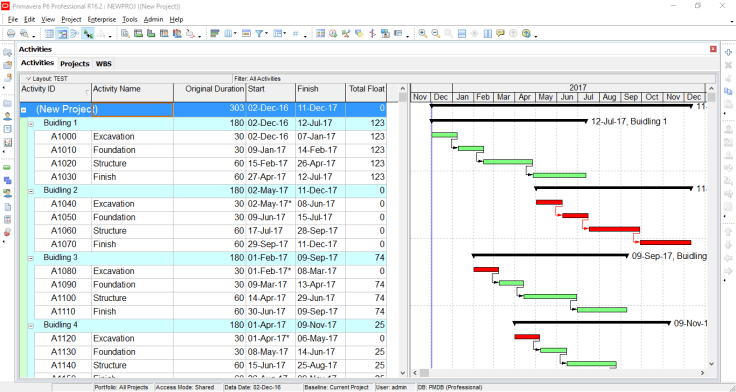
We are working on a project that includes four buildings, as shown in the image below:
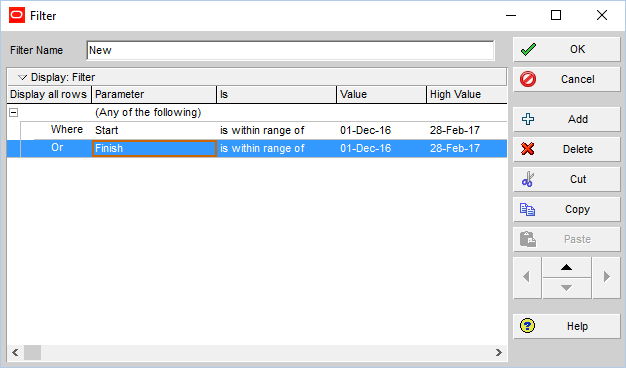
Our goal is to filter and identify which buildings are scheduled to start within the next three months (December, January, and February).
To do this, we can create a filter based on activity dates:
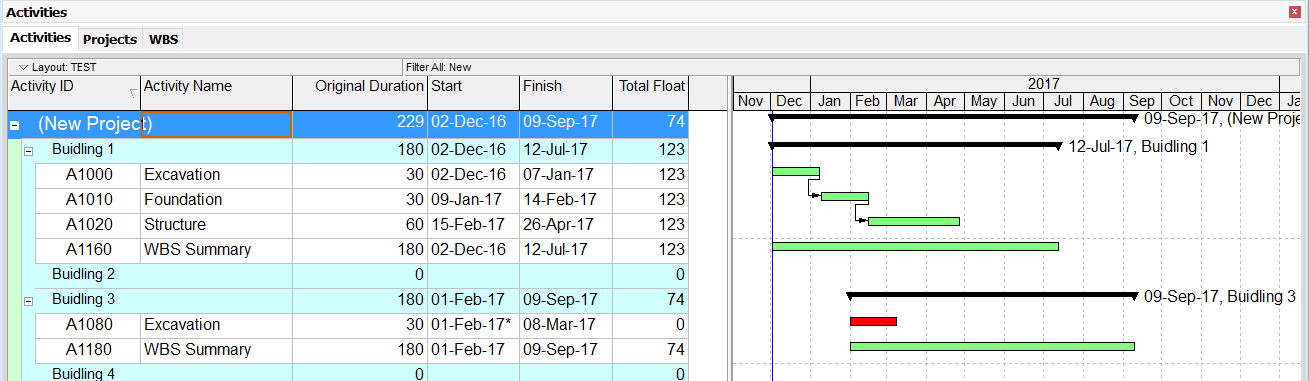
Primavera P6 will then display the following result:

According to this filter, Building 1 and Building 3 are scheduled to start.
However, the finish dates for Building 1 and Building 3 at WBS-level are incorrect. This is because P6 displays WBS-level dates based on the currently visible activities in the layout.
How can we display the correct start and finish dates for each WBS?
Primavera P6 does not support filtering directly based on WBS dates. This is where the “WBS Summary” activity type becomes useful.
We can create a WBS Summary activity for each building:
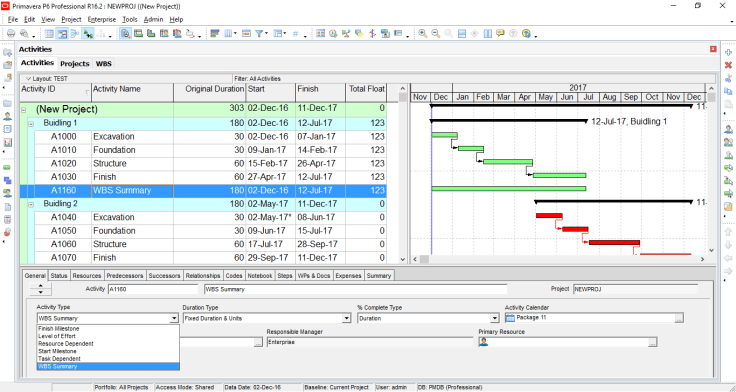
Each WBS will now include a summary activity that mirrors the overall schedule of that WBS:

This allows us to filter WBS elements just like regular activities:
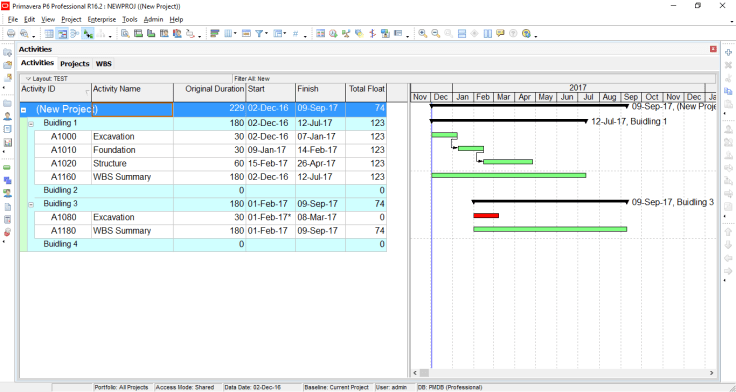
Now, when we apply the filter, Building 1 and Building 3 display the correct finish dates.

 Khuong Do Blog
Leave a comment