

After creating your project schedule in Primavera P6, the next step is to assign resources to activities in order to develop a comprehensive resource plan.
In this guide, I’ll walk you through the process step-by-step.
Step 1: Prepare Your Schedule
Let’s assume you already have a schedule created, as shown in the image below:

Step 2: Create Resources
Before assigning resources, you need to create them.
- Go to Enterprise → Resources.
- Click the Plus (+) icon to add a new resource.
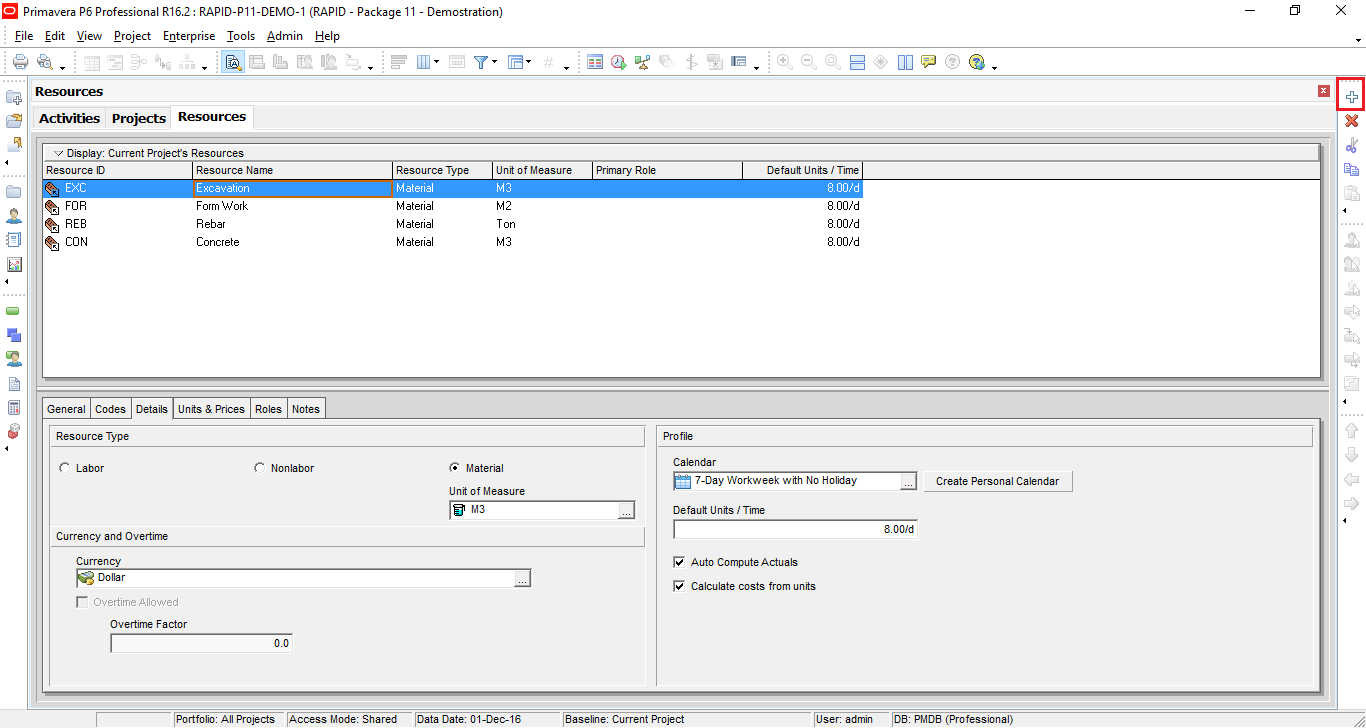
In this example, I’ve created four Material-type resources.
Set Unit of Measure
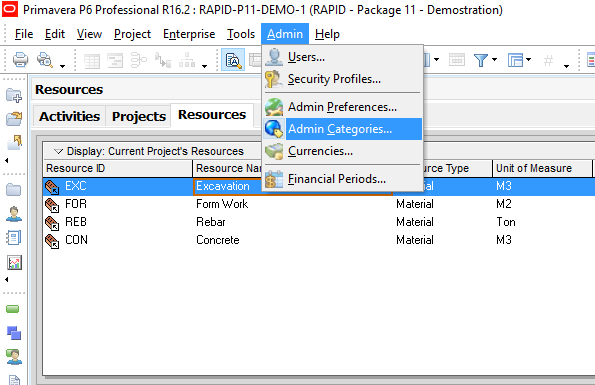
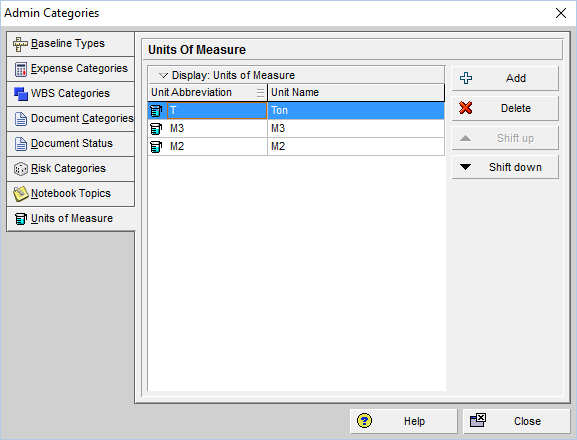
If the unit of measure you need isn’t available:
- Go to Admin → Admin Categories.
- Navigate to the Units of Measure tab.
- Click Add to create a new unit.
Step 3: Assign Resources to Activities
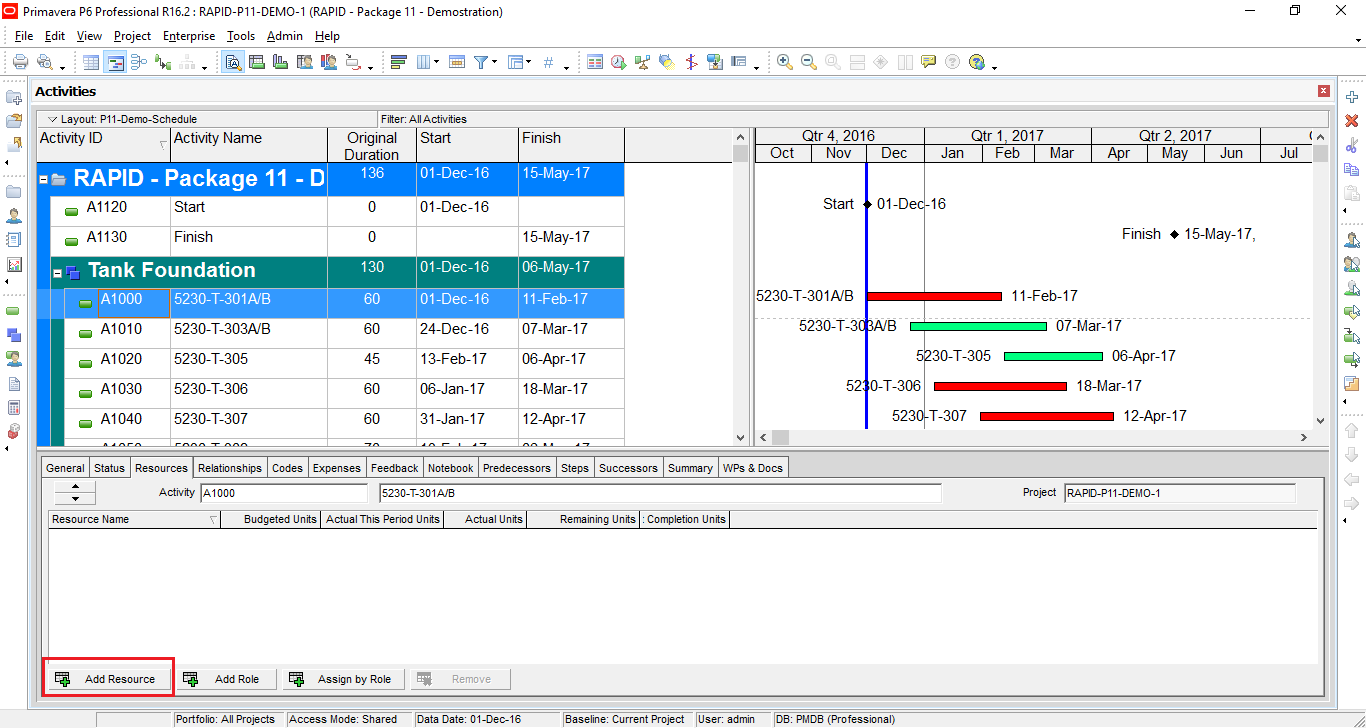
- Go to Project → Activities.
- Select the activity you want to assign resources to.
- Open the Resources tab and click Add Resource.
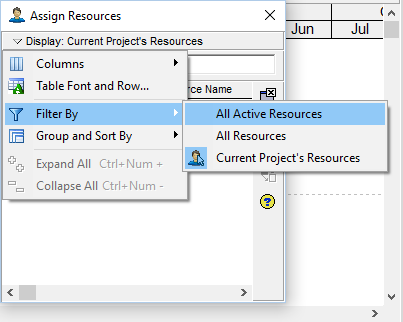
- Click Display → Filter By → All Active Resources to view your list.
- Select the desired resources and click Assign.
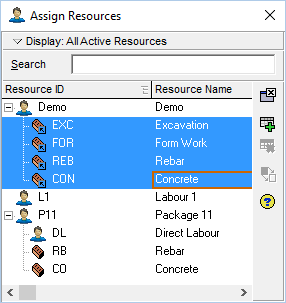
- In the Budgeted Units column, enter the required quantity.

By default, Primavera distributes the resource usage linearly. For example, assigning 80 m³ over a 10-day activity results in 8 m³ per day.
Step 4: Customize Resource Distribution (Optional)
If you prefer a non-linear distribution:
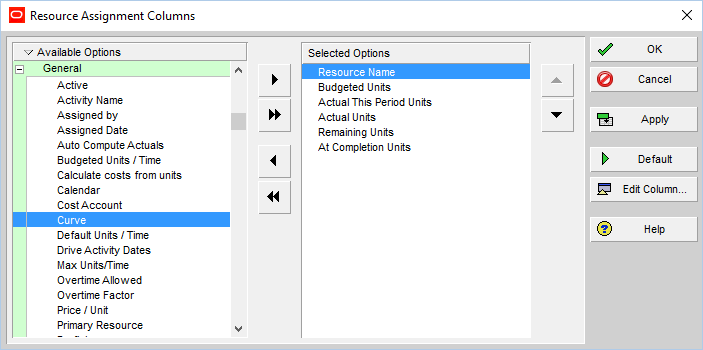
- Right-click in the Resources tab and select Customize Resource Columns.
- Add the Curve column.

- In the Curve column, choose a distribution type (e.g., Back Loaded).
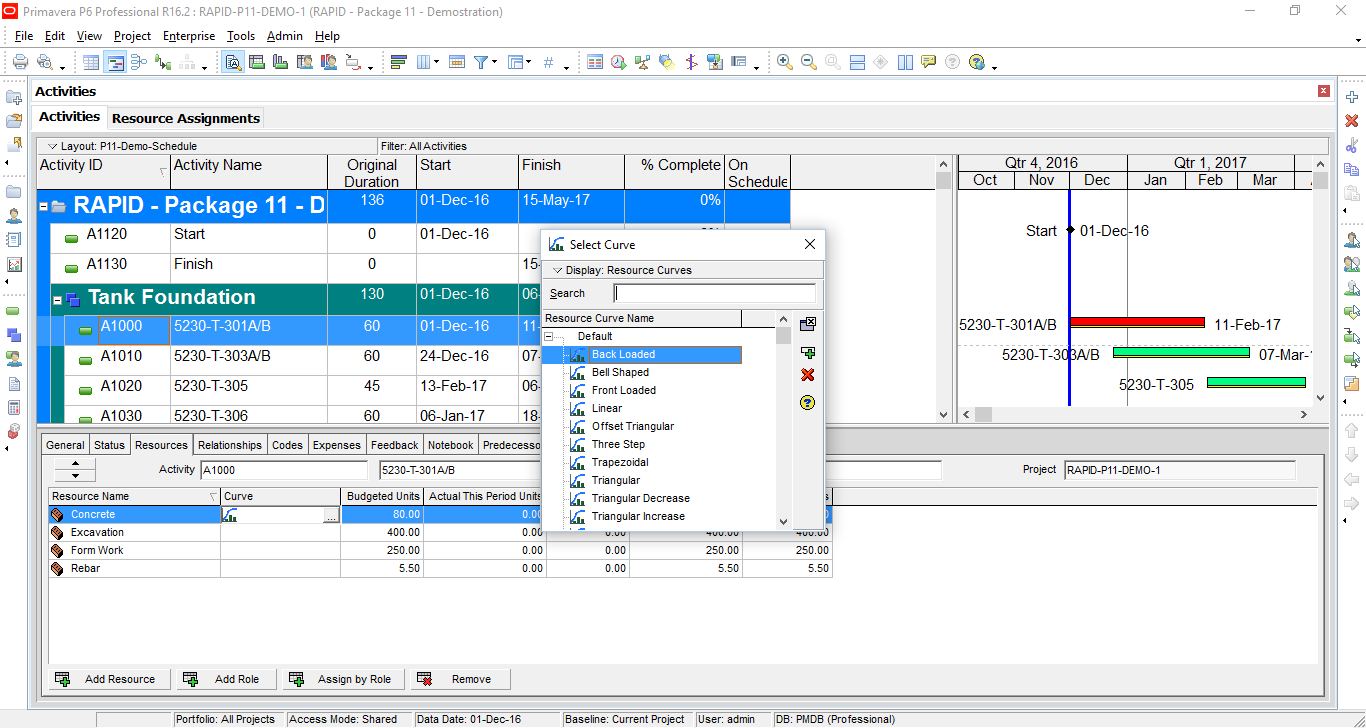
Now, the resource is distributed more heavily toward the end of the activity:

Step 5: Review Resource Assignments
- Go to Project → Resource Assignments.
- Customize the layout to view your resource plan clearly.

(You can download the Primavera layout here)
You can now easily view the Quantity Plan:

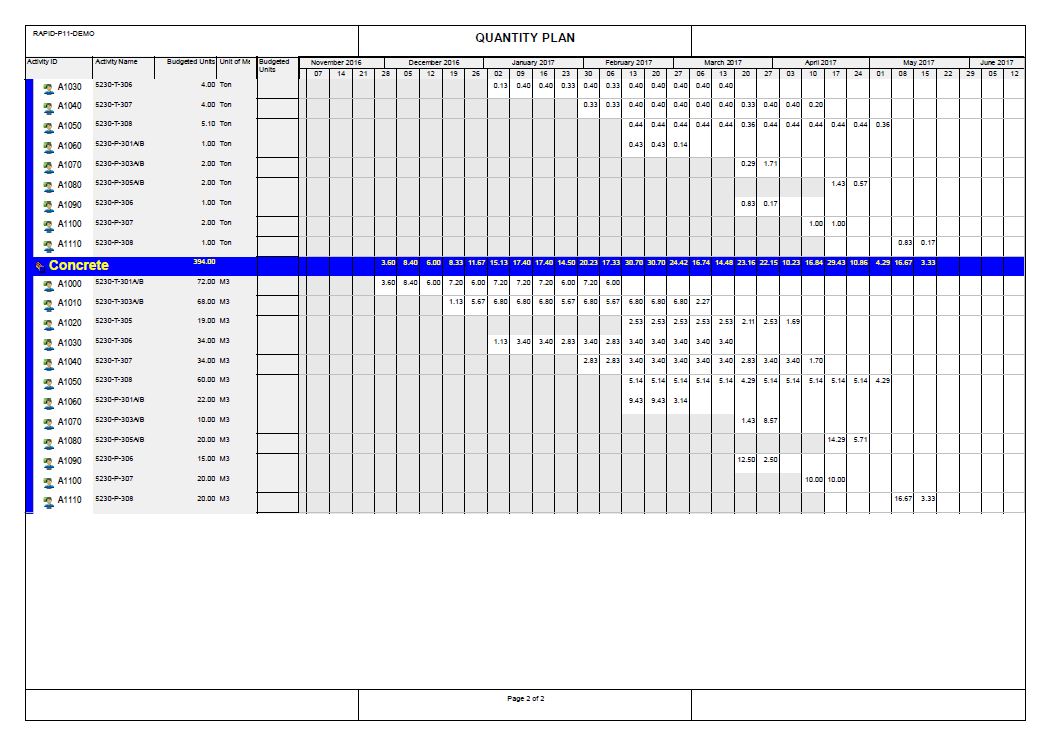
Step 6: Generate a Concrete Plan Chart
- In the Activities window, open the Resource Usage Profile.
- Select the Concrete resource.
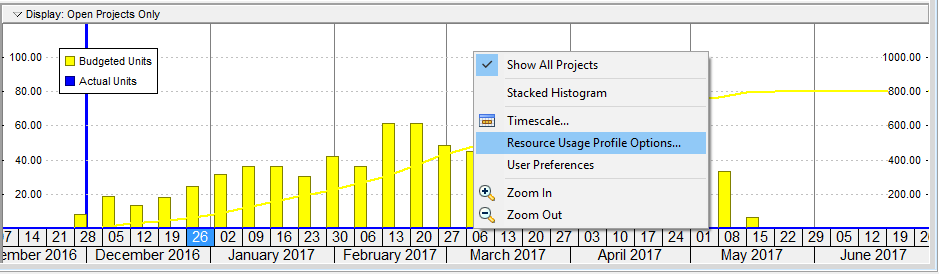
- Right-click on the chart area and choose Resource Usage Profile Options.
- Adjust the settings as shown in the picture below:

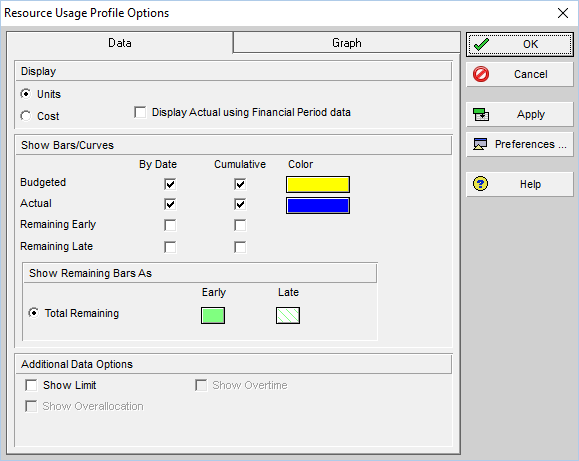
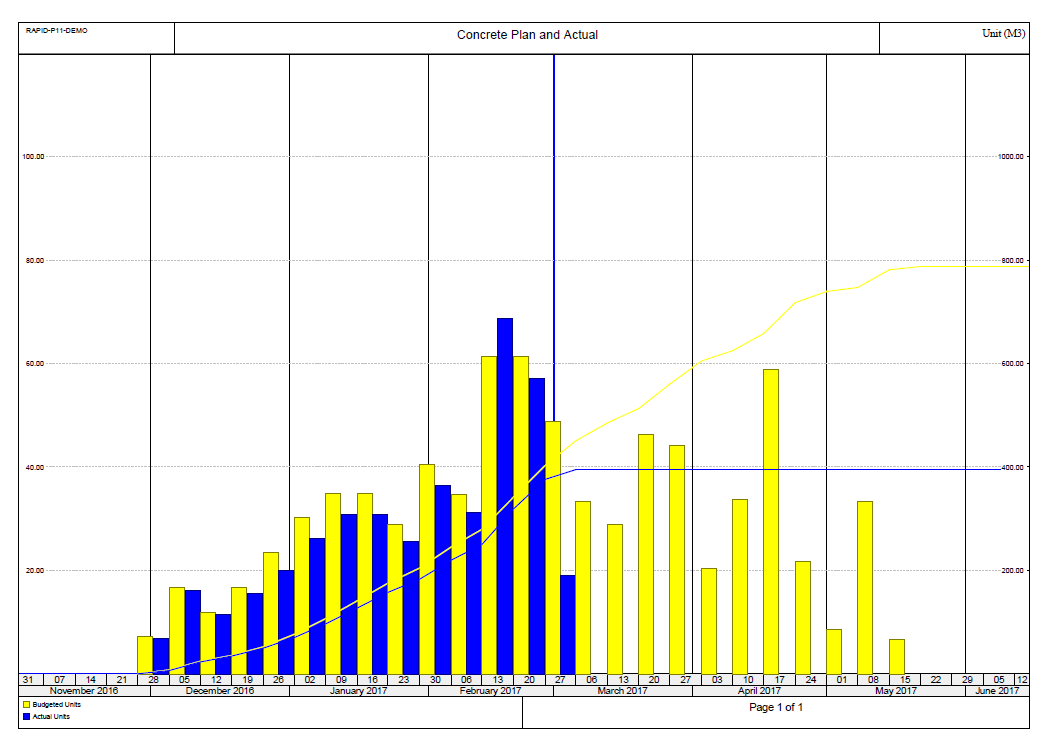
You’ll now see a chart like this:
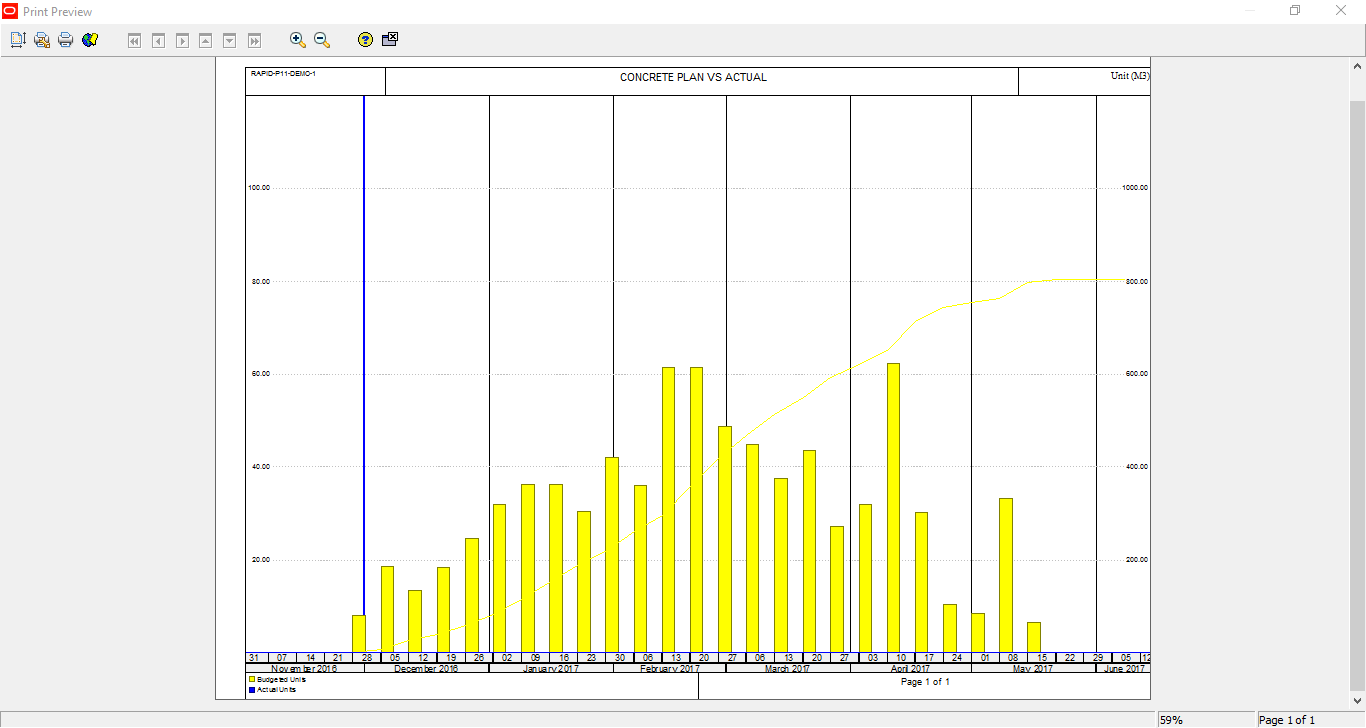
(You can download the Primavera layout here)
Later, when you update the project with actual progress, the report will reflect the updated data:

 Khuong Do Blog
very useful. but how you identify resource distribution logic?
LikeLike
By default the units are distributed linearly. Unless you use Resource curve
LikeLike
Hi sir, Sir if i want to add 10 labor to an a activity what i will do when it is by default “fixed duration and time”
LikeLike
Sir, Can u write a blog on revised or recovery schedule. Its very appreciate. Thanks n regards, Gaurav Mittal
LikeLike
Maybe in the future 🙂
LikeLike
Thank you so much for your posts, I am a planner engineer at an entry level and your posts have helped me alot
LikeLike
You wrote: In Primavera P6, after finish creating the schedule, you may need to assign resource to activity to make the resource plan.
But activity duration estimates and the whole schedule depend on resource capabilities and availability!
Resource plan shall not and cannot be made AFTER the schedule was created!!!
LikeLike
Hi,
Yeah, you’re right. We should create schedule based on resource productivity and availability.
However for beginner, we usually use the schedule function first, then after a few month getting familiar with P6, we start to use resource function.
So, using resource is some kind of advanced level.
LikeLike
Great and effective presentation.
LikeLike
Hi Du Doy;
Thank you for this helpful post. I have a confusion about how to use an Excel file to resource load a large EPC schedule. what is the data we need? Quantities or Man hours? The activities should be fixed duration and Unit or Fixed duration and Unit/Time ? How do we determine Unit/Time? (I am aware of the formula between Unit, Unit/time,Duration).
Please I am stuck in this. Can you get this dumb person out of confusion?!
Regards,
Matt
LikeLike
Hi Do Duy;
Thank you for this helpful post. I have a confusion about how to use an Excel file to resource load a large EPC schedule. what is the data we need? Quantities or Man hours? The activities should be fixed duration and Unit or Fixed duration and Unit/Time ? How do we determine Unit/Time? (I am aware of the formula between Unit, Unit/time,Duration).
Please I am stuck in this. Can you get this dumb person out of confusion?!
Regards,
Matt
LikeLike
Hi Matt,
To quickly load a large schedule you can try “Top down estimation” function.
You can read the instruction here https://doduykhuong.com/2016/07/08/how-does-top-down-estimation-in-primavera-p6-work/
LikeLike
Hi Doduykhong;
Thank you for your help. When you have a large schedule (e.g. 10000 activities ) and multiple disciplines, you have to export and import via Excel. can you help me on this please. I am badly stuck !!
What I mean, when you have a large schedule and then you are given quantities and manhours to resource load a schedule you have, how would you do that? Thank you
LikeLike
Thanks Mr. Khuong for your posted. Can you advise me how to re-assign resource after the project has been baseline and have actual (For some reason, my resource was deleted)? Because without these resource, the plan (schedule)% complete is 0%.
Thanks,
LikeLike
Hi Sir. I’m also at RAPID Project. Can I have a private class with you to learn more about P6. Do contact me at +60112739 7983. Thanks in advance.
LikeLike
Hi Rizal,
I can not open a class with 1 attendee because the cost will be quite high.
Kindly chat with me through my linkedin account if you need to discuss further.
Regard
Khuong
LikeLike
Noted Sir.
I’ll find you at Linked In then.
Thanks!
LikeLike
Hi Doduykhuong,
I did as posted. Would you please advise me how to change actual units for a resource with Material type manually in case of the volume not achieved. I assigned Task Dependent and Fixed duration and units.
For example, by using your example: assign 80 m3 to 10 days activity, each day will take 08 m3. However, the volume that can be achieved on that day only 0.5 m3.
How to manage this situation so the schedule showing actual volume?
Thank you
LikeLike
Hi there.
I’m sorry that I can not support individually.
It will take lots of time for communication to identify issue and provide solution.
Maybe in future I will provide that support service with a small fee.
Regard,
Khuong
LikeLike
Dear Khuong Do
Can you please provide step by step process to create a QUANTITY PLAN as shown above in your article.
Regards,
Gula Mujtaba Khan
LikeLike
Hi,
After finishing this step “Go to menu Project -> Resource Assignments. We can make the layout look like below picture:”, click on File -> Print Preview. You will have report like the picture.
LikeLike
Dear Mr. Khuong Do,
Can you please explain how to use the ” Duration types” while preparing a schedule
LikeLike
Hi Paul,
Kindly refer to this article: https://doduykhuong.com/2018/03/25/how-to-use-activity-duration-type-in-primavera-p6/
LikeLike
i really appreciate this post because it is done step by step. not confusing.thank you
LikeLiked by 1 person