
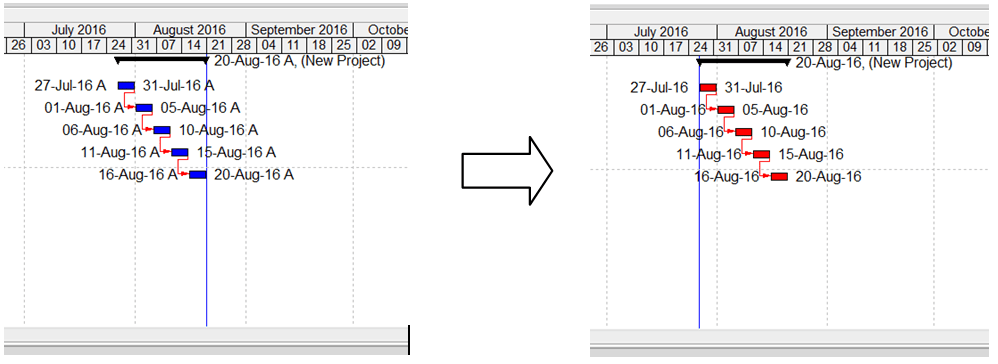
Sometimes, you may have a Primavera schedule with actual progress recorded, but you need to revert it to an As-Planned state for analysis or reporting. This guide shows you how to do it step by step.

Step 1: Adjust Project Calculation Settings
- Go to the Project window → Calculation tab.
- Highlight your project and check the following options:
- Link Budget and At Completion for Not Started Activities
- Reset Remaining Duration and Units to Original

Step 2: Reset Resource Units and Costs
If your project uses resources (e.g., Labor), you need to clear actual units and costs:
- Go to Tools → Global Change.
- Click New and configure the rule to set Actual Units and Actual Cost to zero.
- Click Change to preview the changes, then Commit Changes.
Now, all resource actual data is removed.


Step 3: Reset Activity Dates
Next, clear actual start and finish dates:
- Go to Tools → Global Change.
- Create a new rule to reset Actual Start and Actual Finish to blank.
- Click Change, review the preview, then Commit Changes.
Now, all actual date data is removed.


Step 4: Reset the Data Date
- Press F9 (Schedule).
- Set the Data Date equal to the Project Planned Start Date.
- Click Schedule.

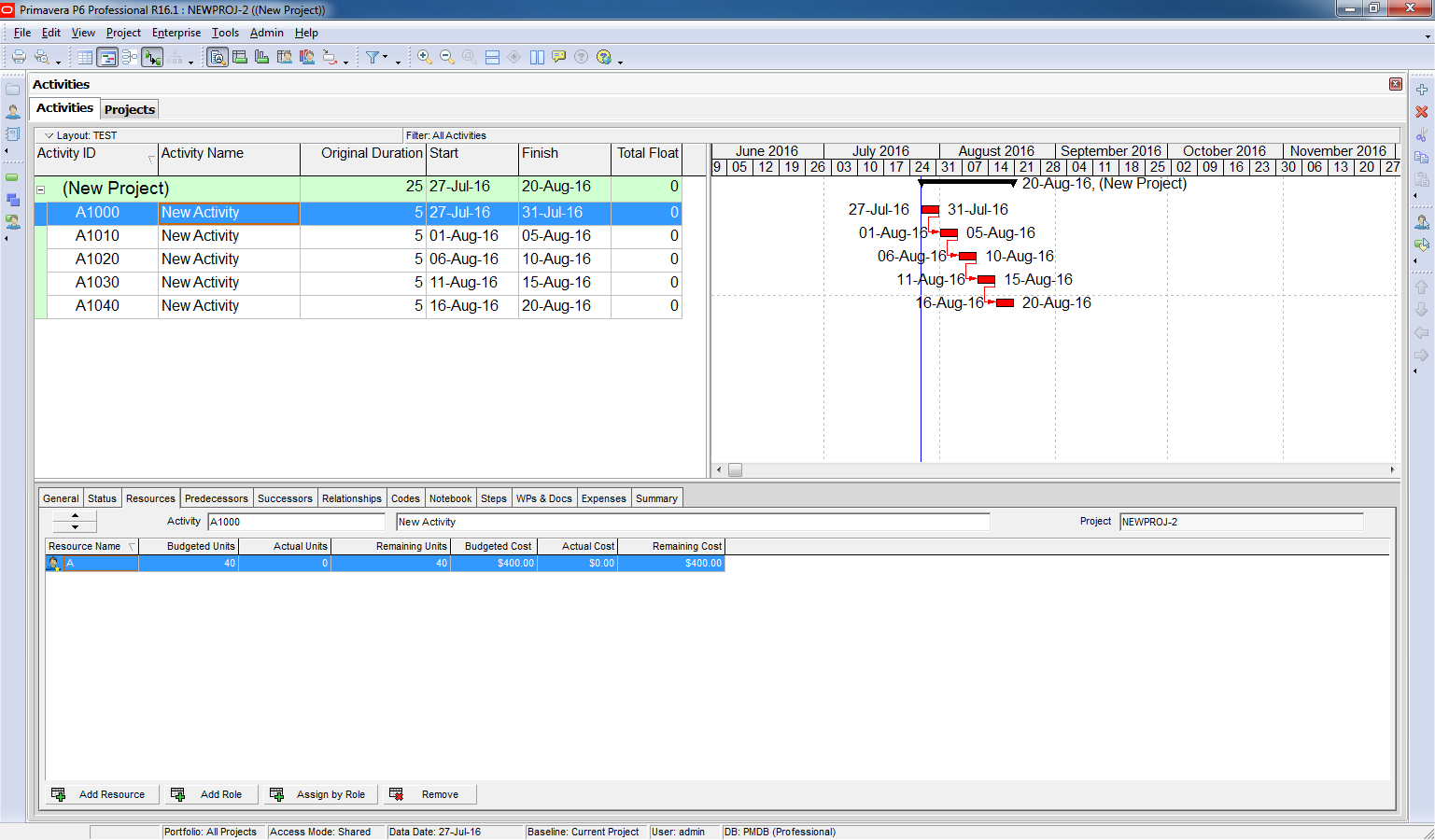
Result
You have successfully removed all actual progress and restored the original planned schedule. This is useful for creating baseline comparisons or preparing reports without actual performance data.

 Khuong Do Blog
Excellent
LikeLike
Perfect
LikeLike
Most Excellent
LikeLike
If you can show how to update new baseline from old baselines. There are hundreds of activities to update in new baseline. what is the way of doing it ? I’ve tried import/export using excel but the updated activities come out of their WBS
LikeLike
When you need to update a baseline of a project, you can restore it to become a normal project (In menu Project -> Maintain Baseline). Update it. Then convert it to baseline.
LikeLike
That is great!
LikeLike
In my schedules your first step in which we have to select the “link budget” option. It is not getting selected. It in fixed mode where we cant select it. What should i do?
LikeLike
Incase it is disabled then contact to your Primavera admin.
LikeLike
Did you open the project? Make sure the project is opened so that you can select option.
LikeLike
the only thing that you forgot was to run the same type of global change of NON LABOR and equipment
LikeLike
Hi Mr Zoltan,
You’re right. We also need to run Global change for Non labor.
Thank for your sharing.
LikeLike
Hi,
I am a new starter and faced a problem with changing the start day. I wanted to provide a schedule in P6, the actual date of the project is 30-October-2017, while when I launched the P6 it took the start date as 27-Nov-2017, I tried to change it to 30-October-2017, I failed to do so, need instruction.
LikeLike
Hi,
You may need to check the Project Start date and Project Data Date. Make sure it is 30-Oct-2017.
LikeLike
how to prepare revised program from updated baseline???????
LikeLike
Hi Athi,
I got this article. Hope this help : https://doduykhuong.com/2016/09/06/how-to-update-baseline-in-primavera-p6/
LikeLike