

In Primavera, it’s possible to work with multiple projects simultaneously. For example, we have a Program that includes two projects: Project 1 and Project 2.
By default, when both projects are open, Primavera displays two separate critical paths—one for each project.
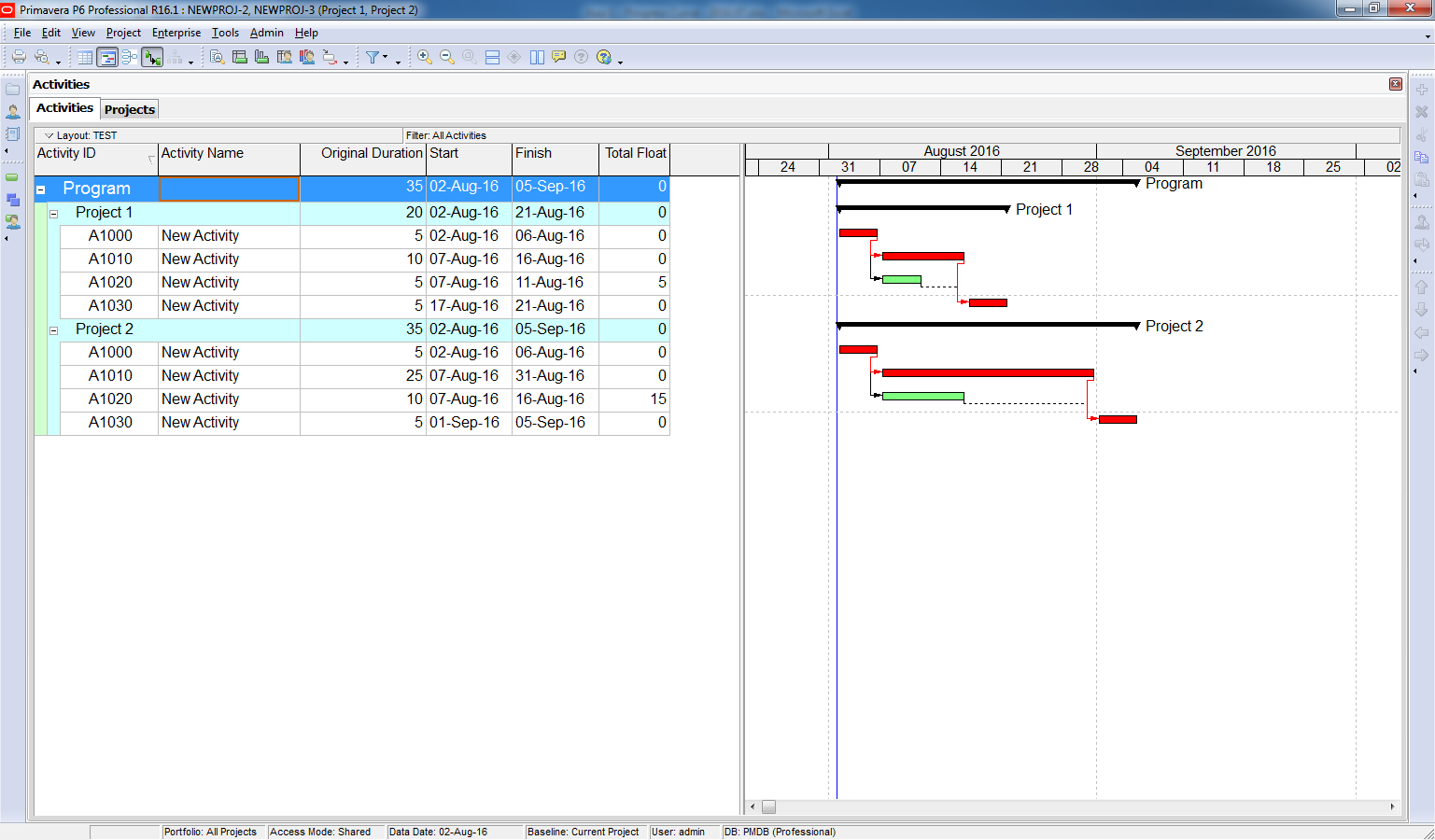
However, if you want to display only one critical path for the entire program, follow these steps:
Step 1: Open the Schedule Options
- Press F9 to open the Schedule dialog.
- Click on Options.
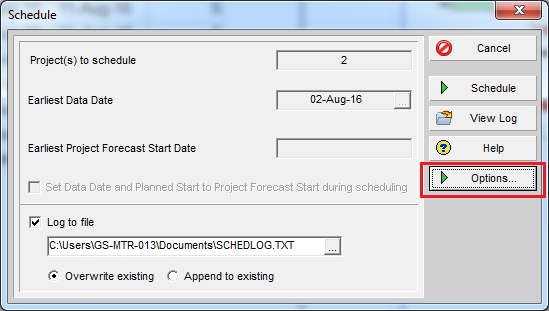
Step 2: Adjust Float Calculation Settings
- In the “Calculate float based on finish date of” section, select “Opened Projects”.
- This setting tells Primavera to calculate float across all open projects, treating them as a single timeline.
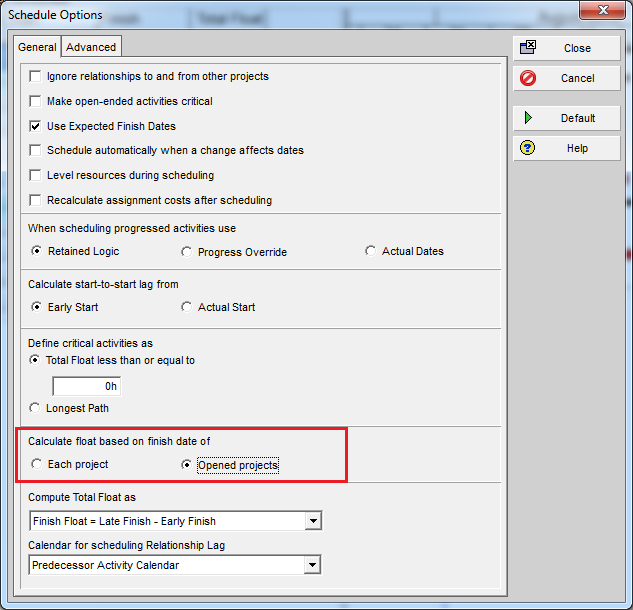
Step 3: Run the Schedule
- Click Close, then run the schedule.
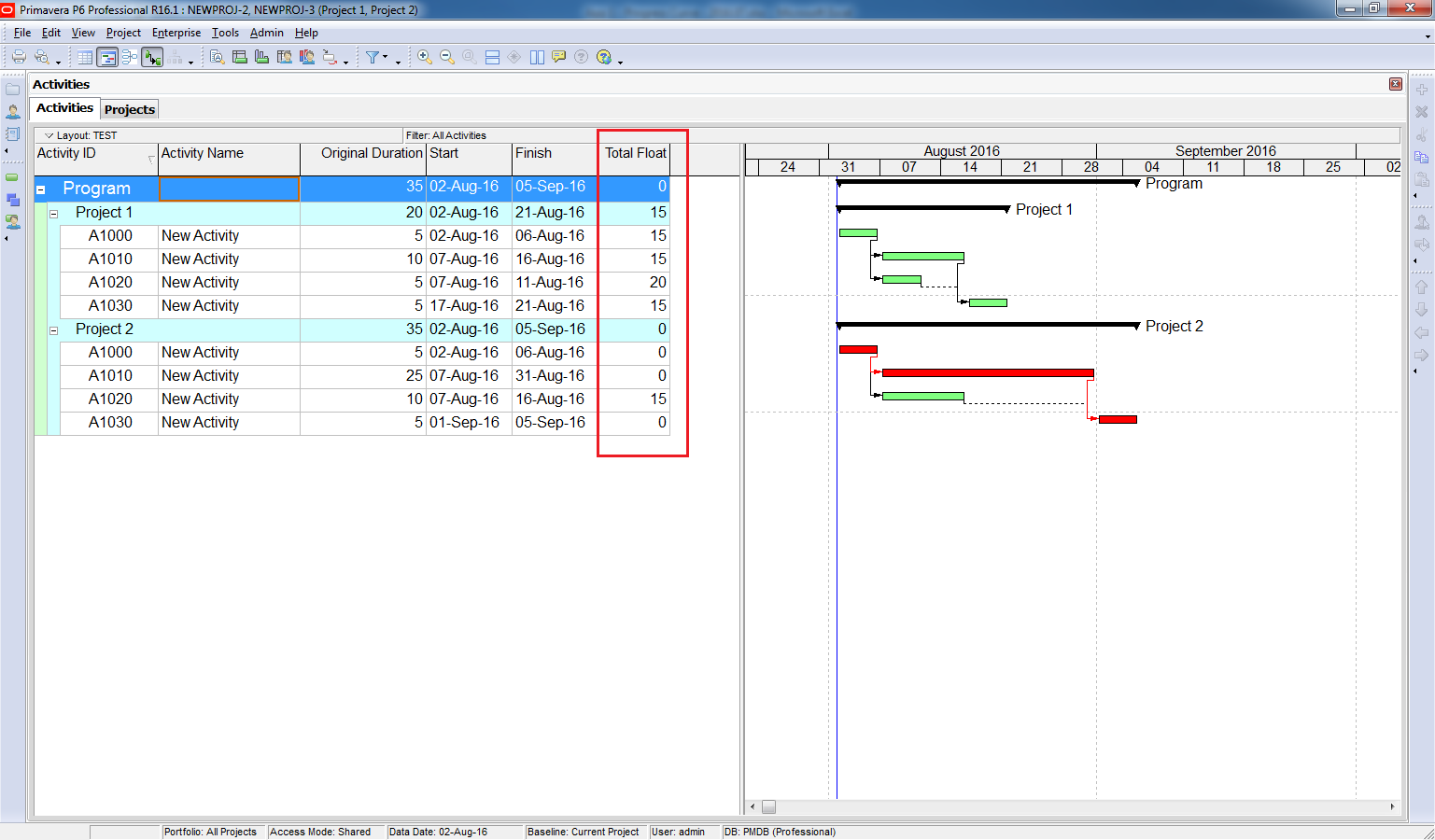
Step 4: View the Result
- Primavera will now display a single critical path for the program.
- The critical path is calculated based on the latest finish date among the open projects (in this case, Project 2).

 Khuong Do Blog
Another great article, keep it up!
LikeLike
how to make filter for critical path?
LikeLike