
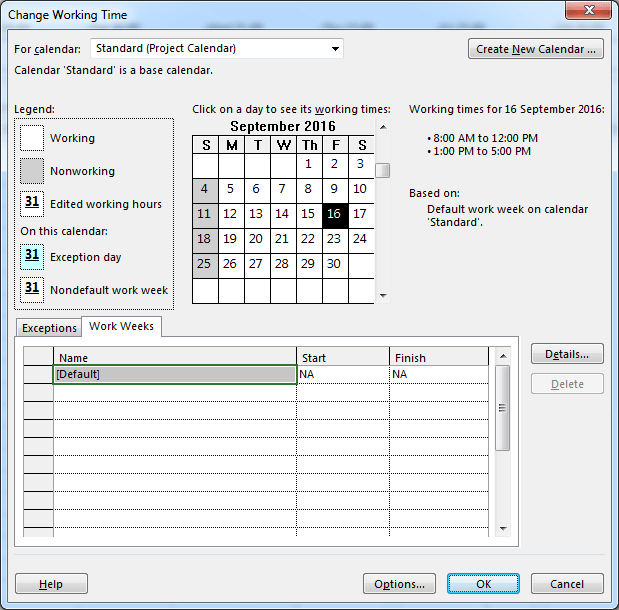
By default, when you create a new project in Microsoft Project, it uses a 5-day work week (Monday to Friday). If your project requires a 6-day work week, you can easily adjust the calendar settings. Here’s how to do it.
Step 1: Review the Current Schedule
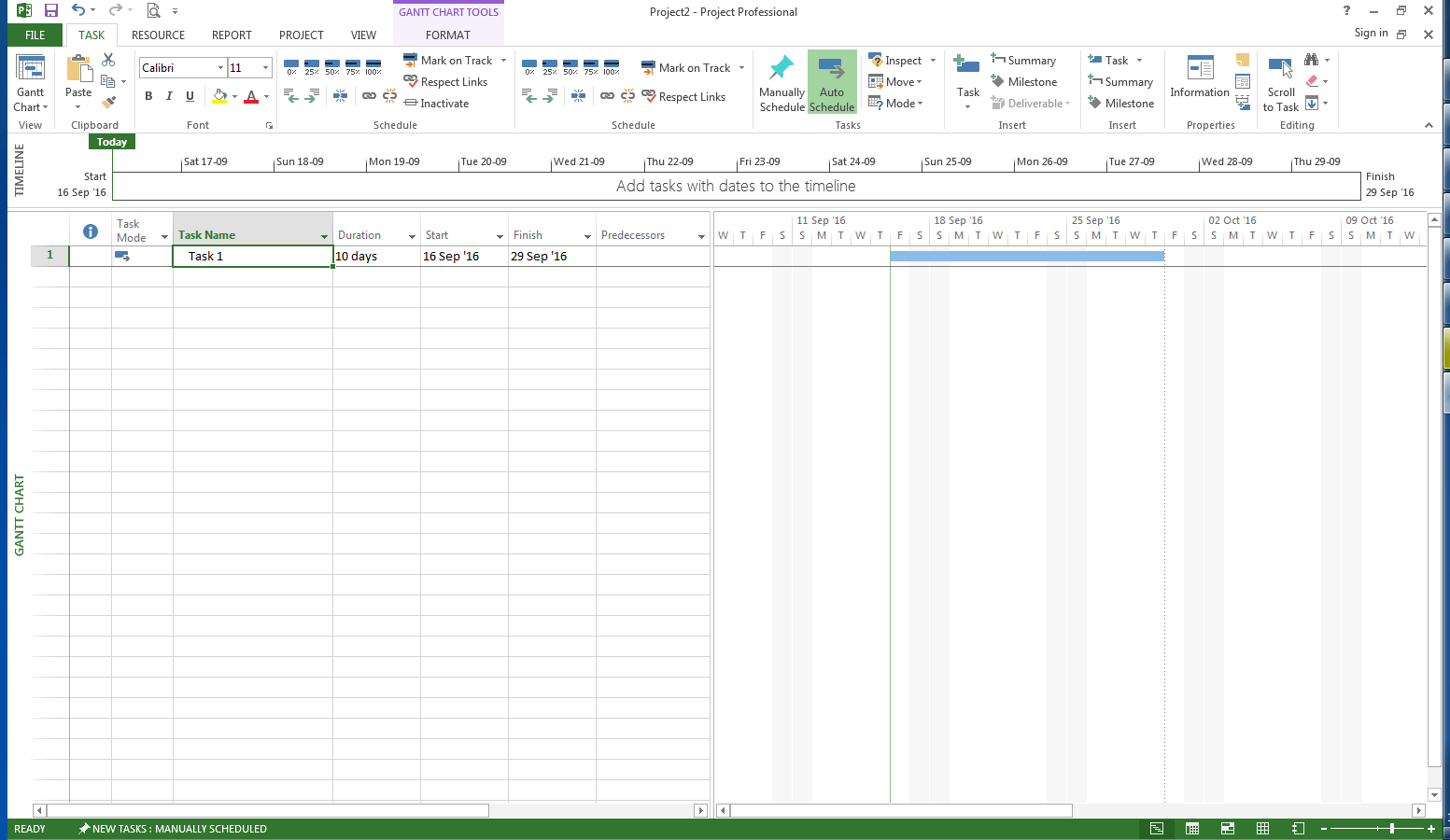
Let’s start with a simple project using the default 5-day work week.
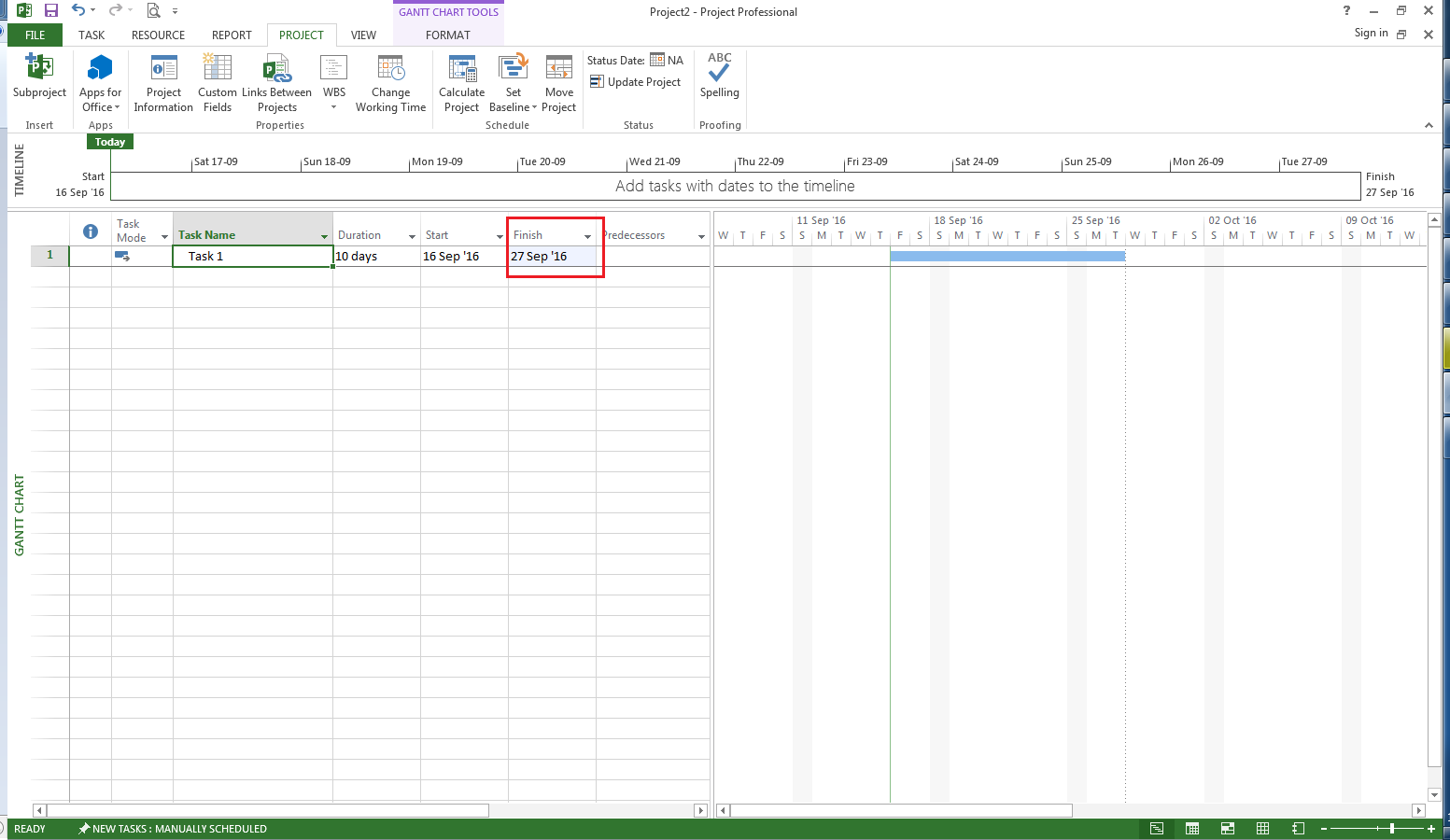
For example, a task with a 10-day duration starting on 16-Sep will finish on 29-Sep.
Step 2: Change the Working Time
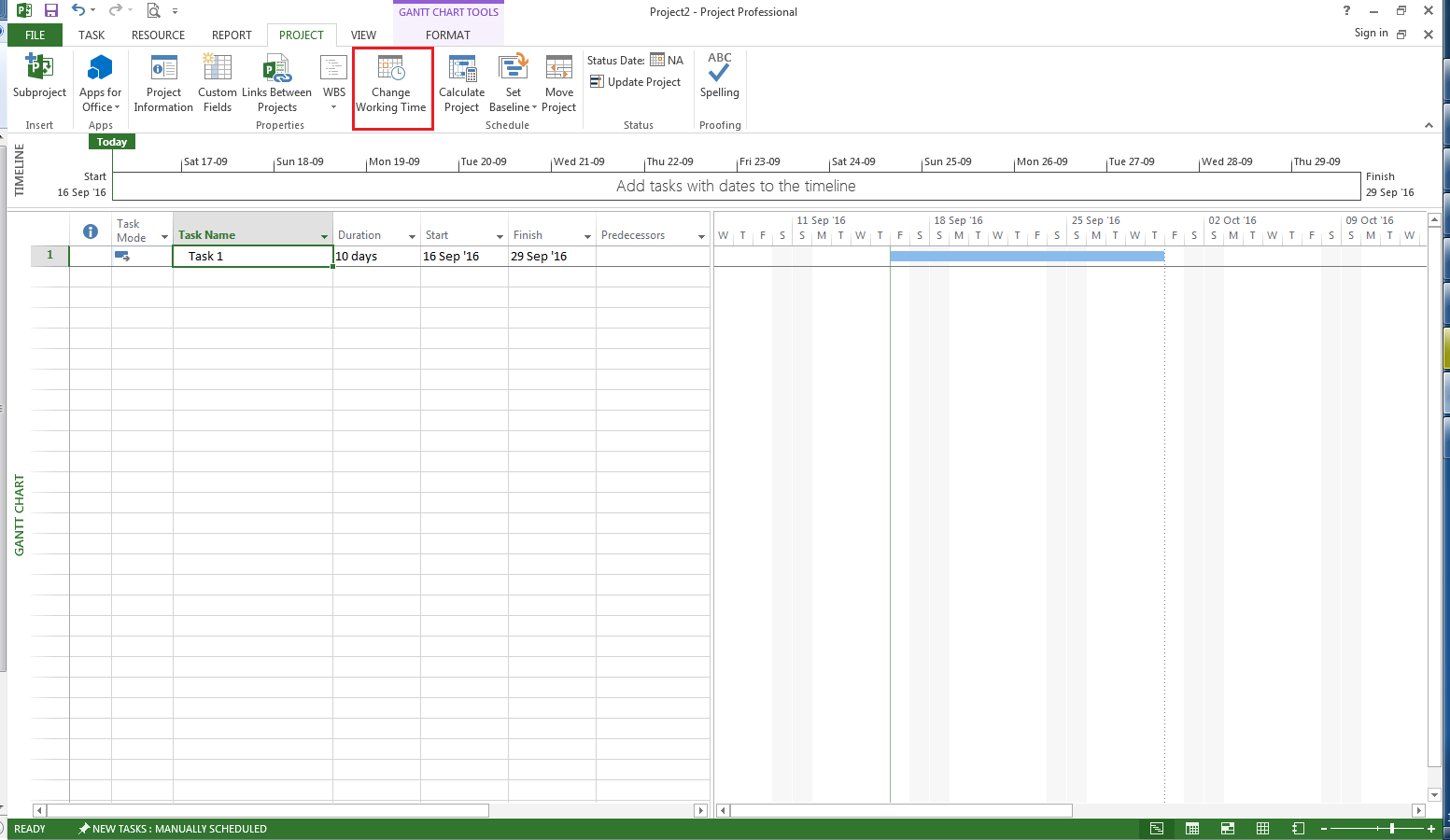
- Go to the Project tab and click Change Working Time.
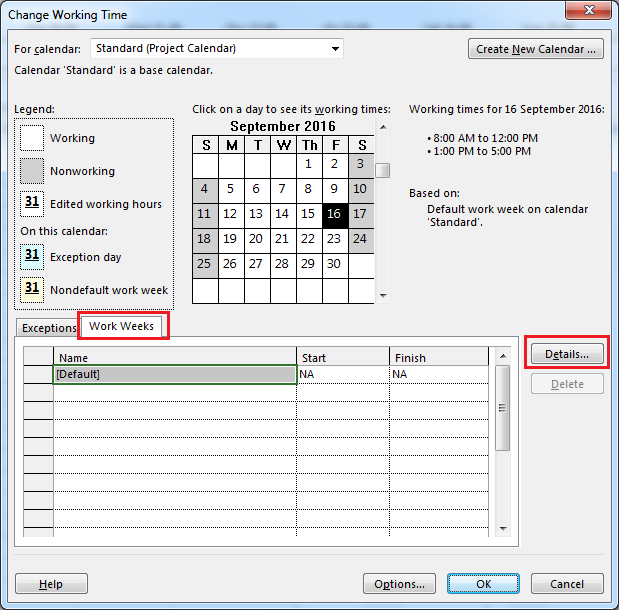
- In the dialog box, select the Work Weeks tab and click the Details button.
- Select Saturday from the calendar.
- Choose “Set days to these specific working times” and enter the working hours for Saturday (e.g., 08:00–12:00 and 13:00–17:00).
- Click OK.
Now, Saturday is considered a working day in your project calendar.


Step 3: Add National Holidays (Optional)
To account for holidays:
- Go to the Exceptions tab.
- Enter the holiday name, start date, and finish date.
For example, if your national holiday runs from 5-Feb-17 to 11-Feb-17, this period will be marked as non-working time.

Step 4: Apply and Review Changes
After completing the calendar setup, click OK to apply the changes.
Now your project uses a 6-day work week, and you’ll notice that the same task now finishes earlier—on 27-Sep instead of 29-Sep.

 Khuong Do Blog
Hello, The approach you outlined is OK but I would suggest an alternative approach. When using Microsoft Project, one aspect of troubleshooting is to ensure you can always use the default out of the box settings. Instead of modifying the default “Standard” Project Calendar, I would suggest creating a new Calendar called “6 day workweek Calendar” and then applying that to the project. In addition, you should consider changing your definition of a work week to 48h instead of 40h as per the default, otherwise when you enter 1w as a task duration t will still default to 40h (5d) !! One last suggestion – if you want to be able to use these new settings and calendar for any new projects you create going forward save the plan as a template. Then all you do is use that template as the basis of a new project, and you won’t have to setup another calendar or change the workweek as these changes are already defined in the template project ! 🙂 If you plan to use Project Server or Project Online the approach is different again, but contact me for advice in this area. I should add, for the benefit of clarity and disclosure, that I work for a company that specialises in this area and I have been a Microsoft Project Consultant for the last 26 years !!
LikeLike
Thank you Kelvin,
It’s really helpful for me.
LikeLike