

When developing a project plan, it’s not enough to define only the Start and Finish dates of each activity. We also need to determine when resources are required and how many are needed at each stage.
In this guide, I’ll show you how to create a Labor and Equipment Mobilization Plan using Primavera P6.
Project Example
We’ll use a simple project with three activities and the following resource assignments:
- Activity A: 10 workers and 1 crane
- Activity B: 5 workers and 2 cranes
- Activity C: 20 workers

Step 1: Configure Time Period Settings
- Go to Admin > Admin Preferences.
- Click the Time Periods tab.
- Adjust the Hours values to match your project calendar.
For example, if your project uses a 6-day work week:- Hours/Week: 48
- Hours/Month: 208 (8 hours × 26 days)
- Hours/Year: 2,496 (208 × 12)
Click Close when done.

Step 2: View Resource Usage
- Click the Resource Usage Spreadsheet button.
- Hold Ctrl and select the two resources: Worker and Crane.
- The data will appear on the right side of the screen.
By default, the data is shown in Units, which may not be helpful if you’re interested in the actual number of people or equipment.

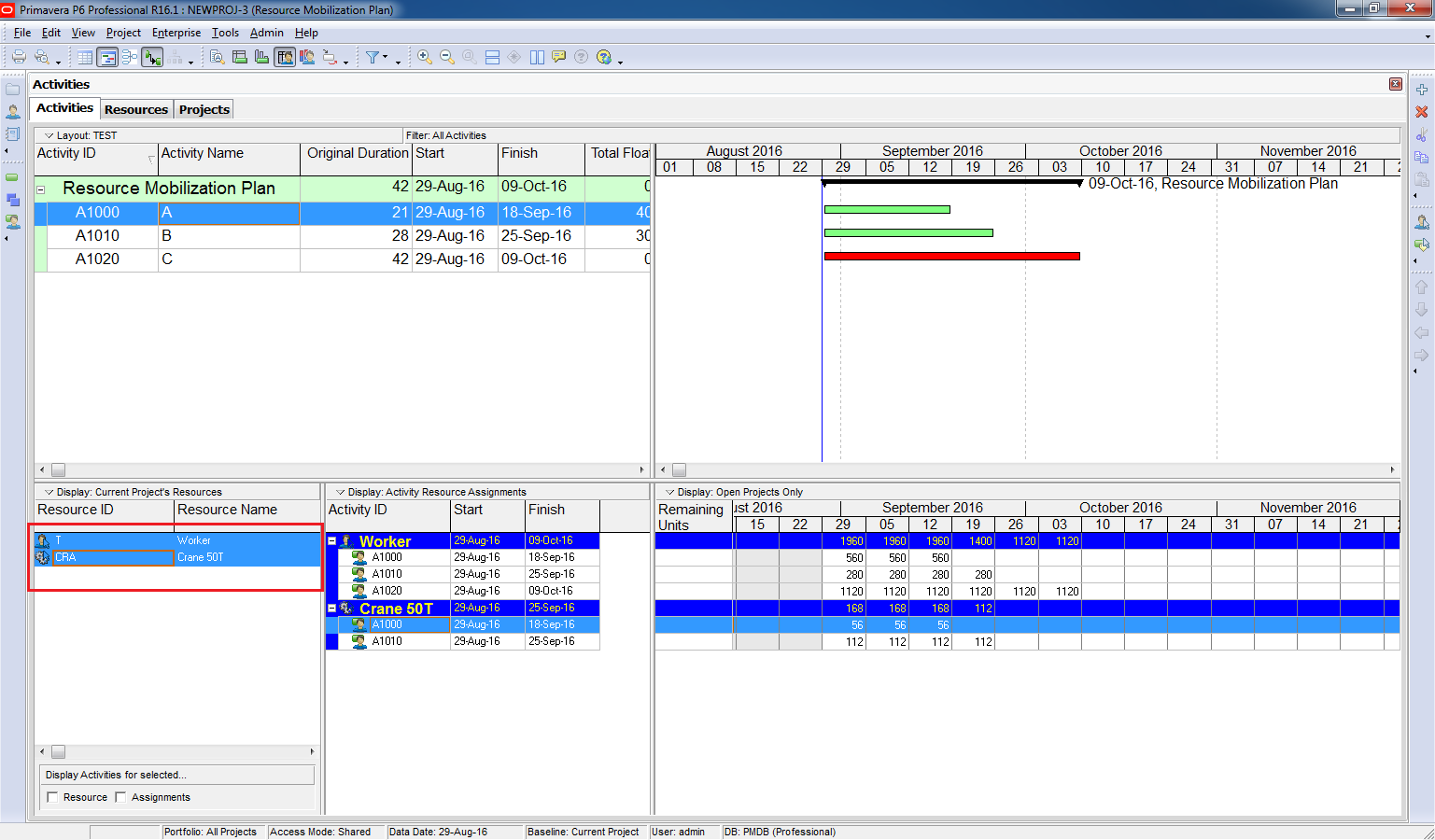
Step 3: Display Resource Quantities
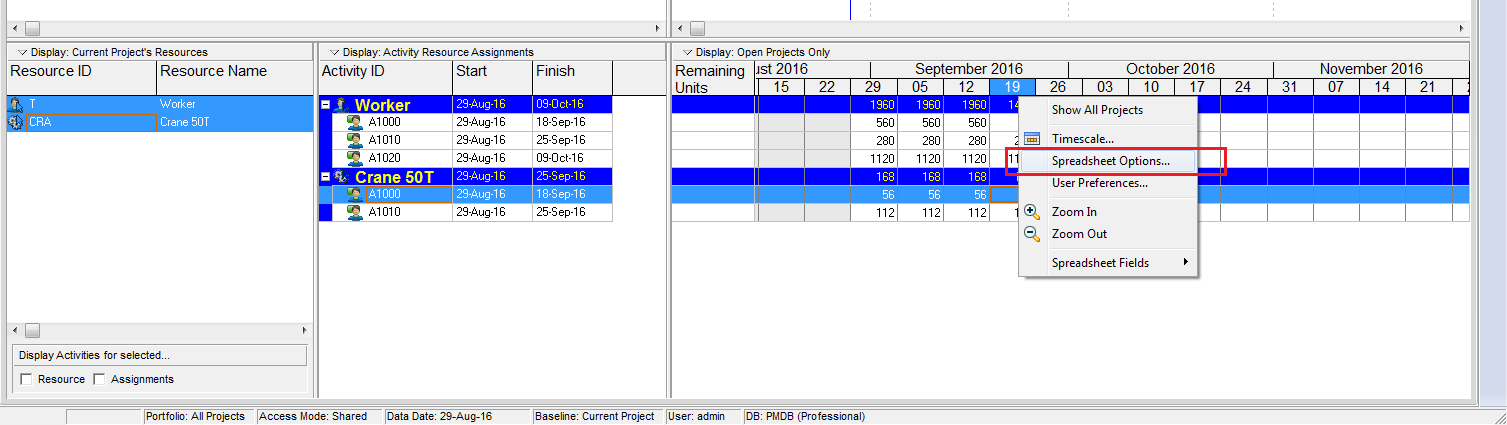
- Right-click on the table and select Spreadsheet Options.
- Enable Calculate Average and choose Based on Hours per Time Period.
Now, the spreadsheet will display the actual number of workers and cranes required per time period.

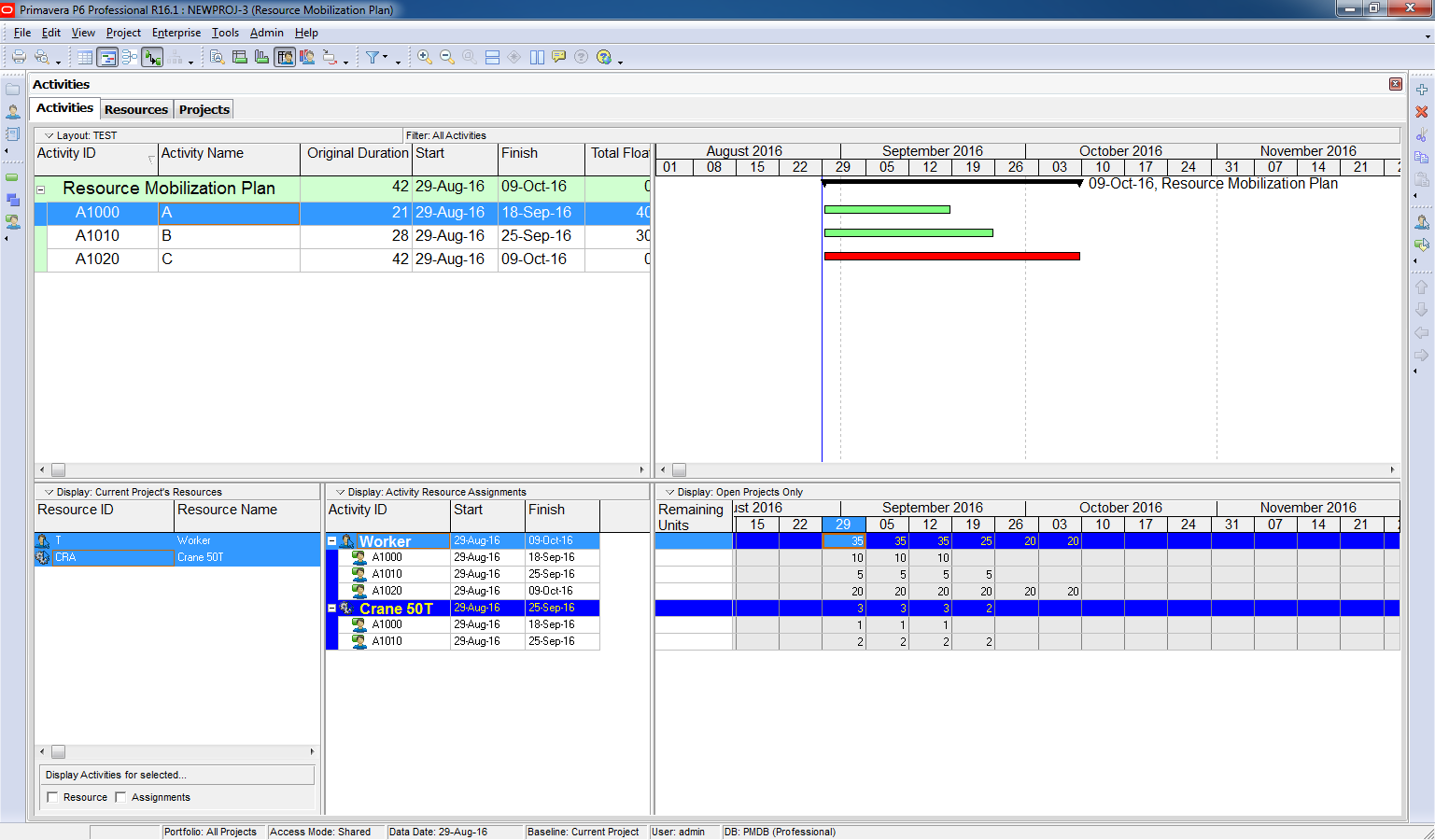
For the week of 29-Sep, the plan shows:
- 35 workers
- 3 cranes
Step 4: Print the Report
To generate a report:
- Go to Print Preview and print the mobilization plan for documentation or sharing.
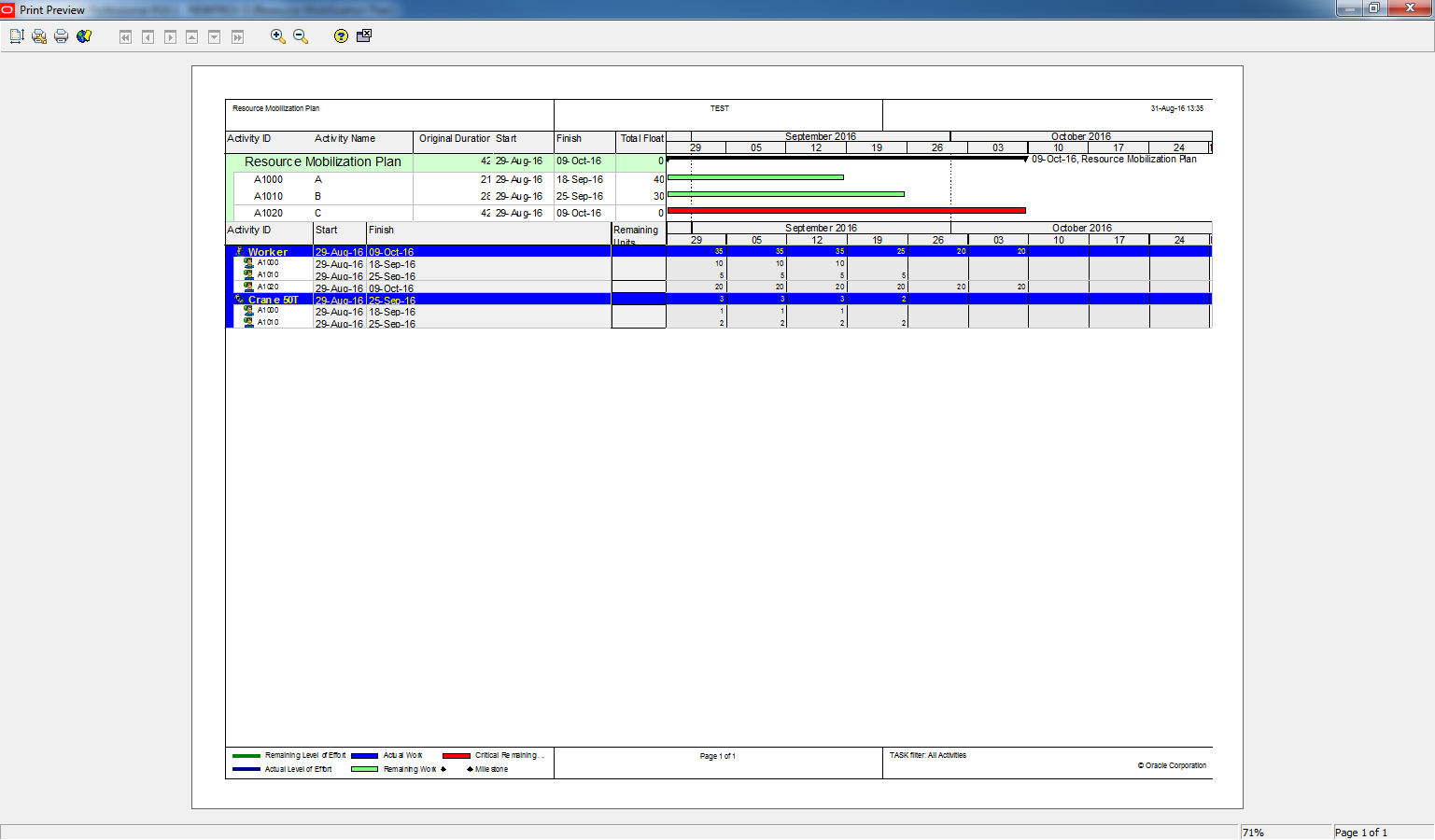
With this Resource Mobilization Plan, you can clearly see when and how many resources are needed throughout the project.

 Khuong Do Blog
Doduykhuong,
Thanks for this presentation.
I was wondering, should the hours per week be 48 instead of 56?
Also, I noticed you used 26 days per month for a 6 working day week. Is this the standard number of days to use for a 6 day week.
What is the standard for a 5 working day week? Is it 22?
Regards,
Vin.
LikeLike
I think he depends on calocations
1 week = 6 working days = 8×6 = 48 hours “8 working hours/ day”
So if your calender based on 5 working days per week
So 1 week =8×5 =40 hours
For month calculations.. we use the standard 4 weekends per month
So if your calendar 6 working days that means 4 off days per month;
Working days per month= total days per months – total off days
Total days per month=30 days
For 5 working days :
Off days = 2×4= 8 d
Working days per month= 30-8 = 22 d
So working hours/month= 8×22 = 176
For year= monthly working hours× count of months
= 176 ×12= 2112 h
I hope that you find it easy
LikeLike
Hi Vin,
Mayada give a correct answer.
It depend on how your company define working day and non-work day. You can talk with Human resource department for the most exact answer.
LikeLike
How does this work with multiple projects?
Will this work if work activities follow different calendars?
LikeLike
Hi Devang,
1. I can work fine with multiple project as long as all the projects use the same calendar.
2. No, I think it will not work with multiple calendar project.
LikeLike
Good post. Though my problem is the “Calculate Average Based on Hours per Time Period” does not work. Checking it does not convert units of hours to number. Is there a way to resolve this?
LikeLike
hi doduykhuong,
I Trust you are very well
The way you explained the labour and equipment mobilization is very good, in my opinion this examples will work perfectly for plan only. how ever for updating the actual I have faced some problems in that.
here I have mentioned some of my query related to this topic. if possible can you please give some suggestion in that.
how does it will work for actual progress update?
Does the actual cost for each labour and equipment is working fine?
how the actual quantity is being measured and updated for this case either by units, Duration or physical?
Thanks in advance
regards,
Balaji
LikeLike
Hi Balaji,
Basically P6 control by Units, so even you see the number is in person or machine but in fact P6 save in database in Unit format.
You will update in Unit format as usual. For example if this week we actually have 10 worker on site, you will update Actual Unit is 480 ( 10 worker x 8 hours/day x 6 days/week). And in the Mobilization table, if you show Actual value, P6 will show 10.
Regarding actual cost, it still work as usual, it is not affected from showing data like this.
LikeLike
Hi doduykhuong,
Thanks for the valuable post.
LikeLike
Dear Bro,
Greetings,
Depending on which criteria exactly that we can choose amongst the different duration types?
LikeLike
Hi.
I had an article explaining your question here https://doduykhuong.com/2018/03/25/how-to-use-activity-duration-type-in-primavera-p6/
LikeLike