
Introduction:
When working with Primavera P6, importing projects from one system to another should ideally preserve all original settings, including calendars and completion dates. However, many users encounter a common issue: the project completion date changes after import. This discrepancy can lead to confusion and scheduling errors if not addressed properly.
Problem:
After importing and scheduling a project in Primavera P6, you may notice that the project completion date differs from the original system. For example, the original laptop shows 30-Dec-26, but after import, it becomes 25-Dec-26.
Reason:
By default, when importing a project, Primavera P6 uses the Default Configuration, which applies the current database calendar instead of the calendar embedded in the imported XER file. This discrepancy often leads to changes in calculated dates.


Solution:
To ensure the imported project uses its embedded calendar in the imported XER file:
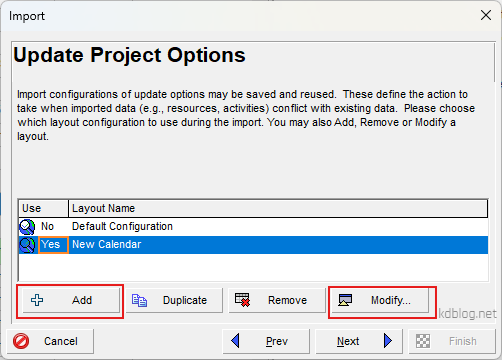
Create a New Import Configuration
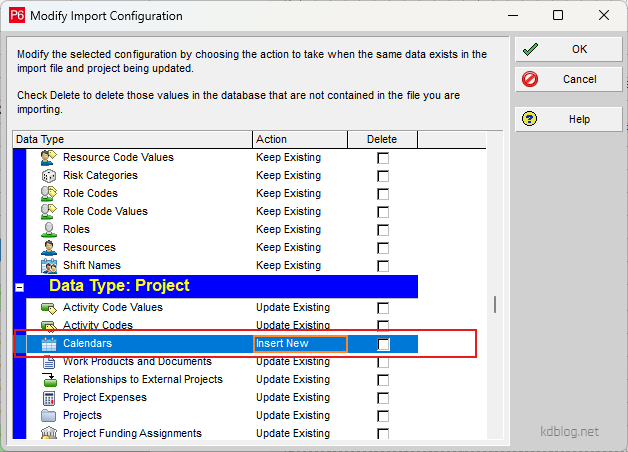
- Under the Calendar option, select Insert New.
- Note: The Update Existing option also works, but it may affect other projects in your current database.
Enable the Setting
- Double-click on the word “No” to change it to “Yes” for applying the new configuration.

Now when you import the project, Primavera P6 will create a new calendar identical to the one in the original system, and the project completion date will remain consistent.

 Khuong Do Blog
Leave a comment