
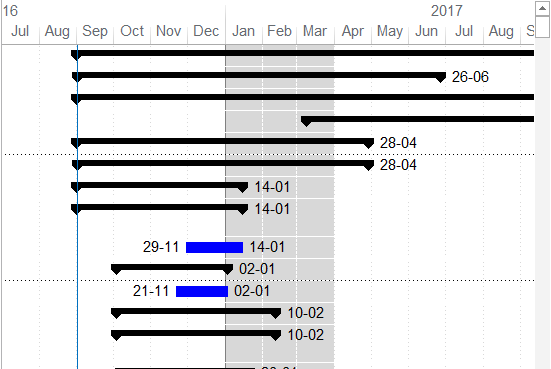
Microsoft Project does not offer a built-in tool to directly highlight a specific time period in the Gantt chart. However, you can achieve this effect by using a custom calendar. Here’s how:
Create a New Calendar
-
- Go to the Project tab and select Change Working Time.
- Click Create New Calendar and name it something like “Gantt Shade”.
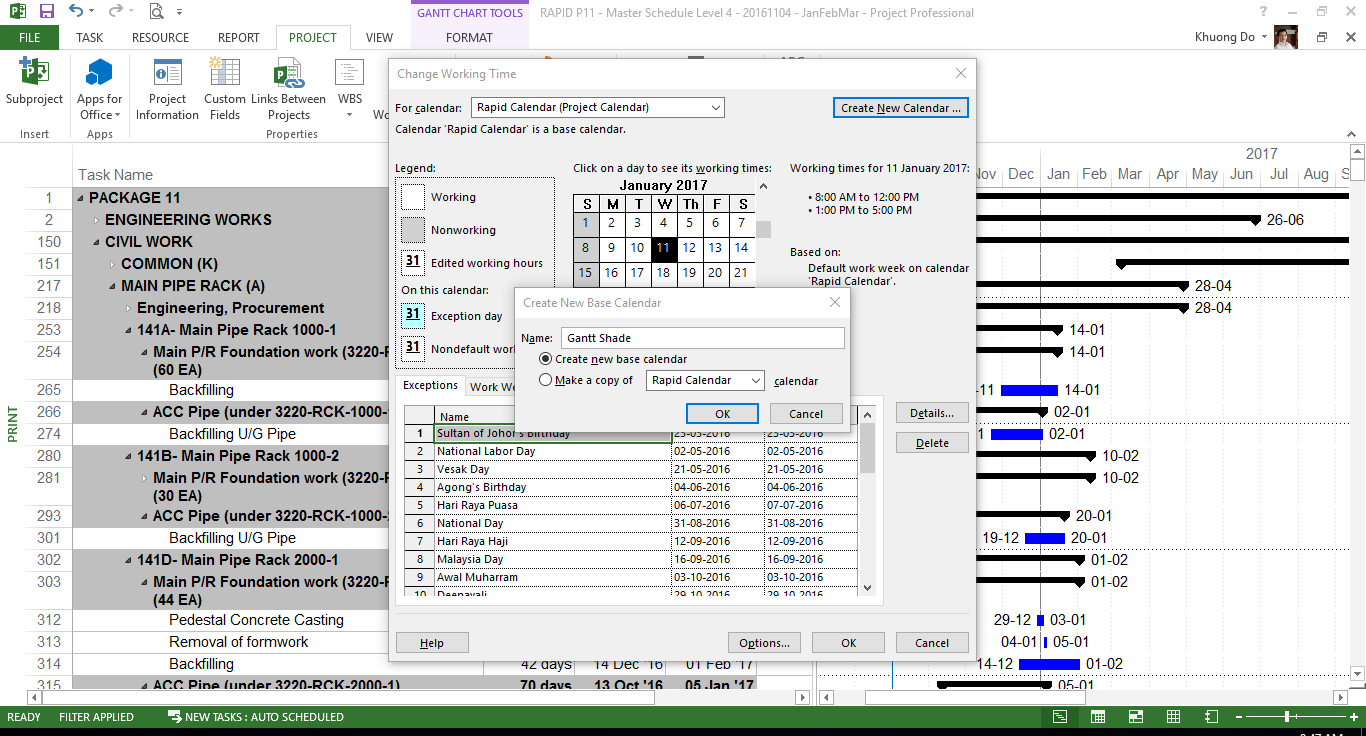
Define the Highlighted Time Period
- In the Exceptions tab of the new calendar, add a new exception for the time period you want to highlight (e.g., January to March).
- Set the Start and Finish dates accordingly.

Apply the Calendar to the Gantt Chart
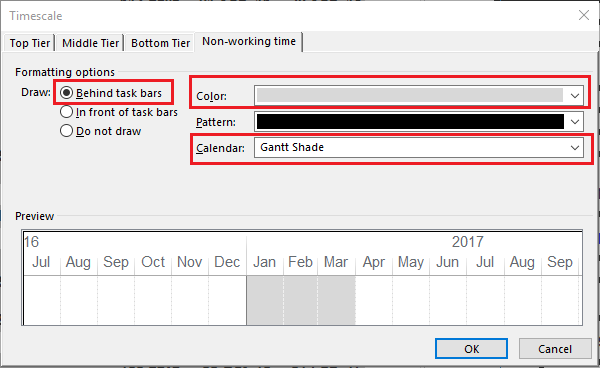
- Right-click anywhere on the Gantt chart and select Nonworking Time….

- In the Non-working Time tab:
- Set Calendar to Gantt Shade.
- Set Draw to Behind task bars.
- Choose a Color (e.g., Gray) to visually distinguish the time period.
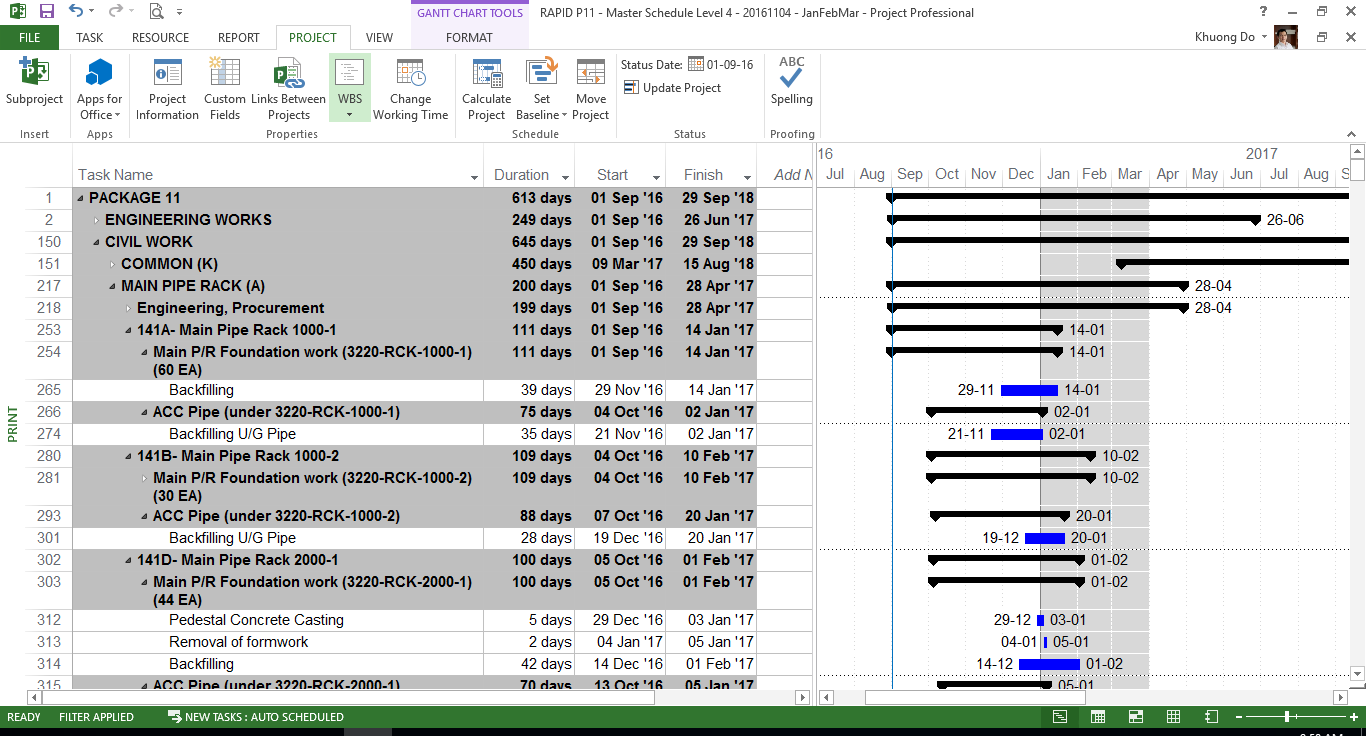
Result
- The selected time period (e.g., January to March) will now appear shaded in the background of your Gantt chart.

 Khuong Do Blog
Good morning,
I have found many of your online articles very helpful which is why I am asking you about the following;
We are just getting started with implementing P6 Professional 16.2.
We have licensed copies of P6 Professional 16.2 standalone on three of our laptops.
We are focused basically on one project for learning/development purposes.
Currently we simply email a copy of the schedule and layout between us.
Our company has Microsoft SQL
Question: Is there a “relatively” inexpensive way to now network or setup a database for these laptops to share and view the schedule simultaneously?
Do we have to purchase different licenses or just let Oracle know what we are doing?
Our IT department is unfamiliar with Primavera P6 so I am trying to do some legwork in getting advice from people who do this everyday.
Thank you for any advice you can offer,
LikeLike
Hi Charlie,
With P6 Professional you can set up database on server and client on PC to work and share data like you expect.
However I can not show you how to do it by chatting like this. You may have to hire a company specialized in P6 to go on site and configure for you.
LikeLike
If your company willing to spend a reasonable fee, you can message me at my facebook page so that we can discuss in more detail. My page https://www.facebook.com/doduykhuongblog/
LikeLike