

Analyzing Combined Delay Events in Primavera P6 Without Creating Multiple Projects
In a typical delay analysis scenario, suppose a project experiences five distinct delay events. If we want to analyze the combined impact of Delay Event 1 and Delay Event 2, we traditionally create a new project that includes only those two events. Then, to analyze Delay Event 1 and Delay Event 3 together, we create yet another project. This process continues, and we may end up managing over 20 separate project files.
Now imagine that the baseline schedule requires a minor correction—such as adding a single relationship. That change would need to be applied to all 20+ project files individually. Clearly, this is inefficient and time-consuming.
This article introduces a more efficient approach: using Primavera P6’s Multi-Project Scheduling feature to analyze the combined effects of delay events—without creating dozens of separate projects.
Step-by-Step: Using Multi-Project Scheduling for Delay Analysis
Let’s assume we have a baseline schedule, as shown in the image below:

We represent each of the five delay events in separate project files:
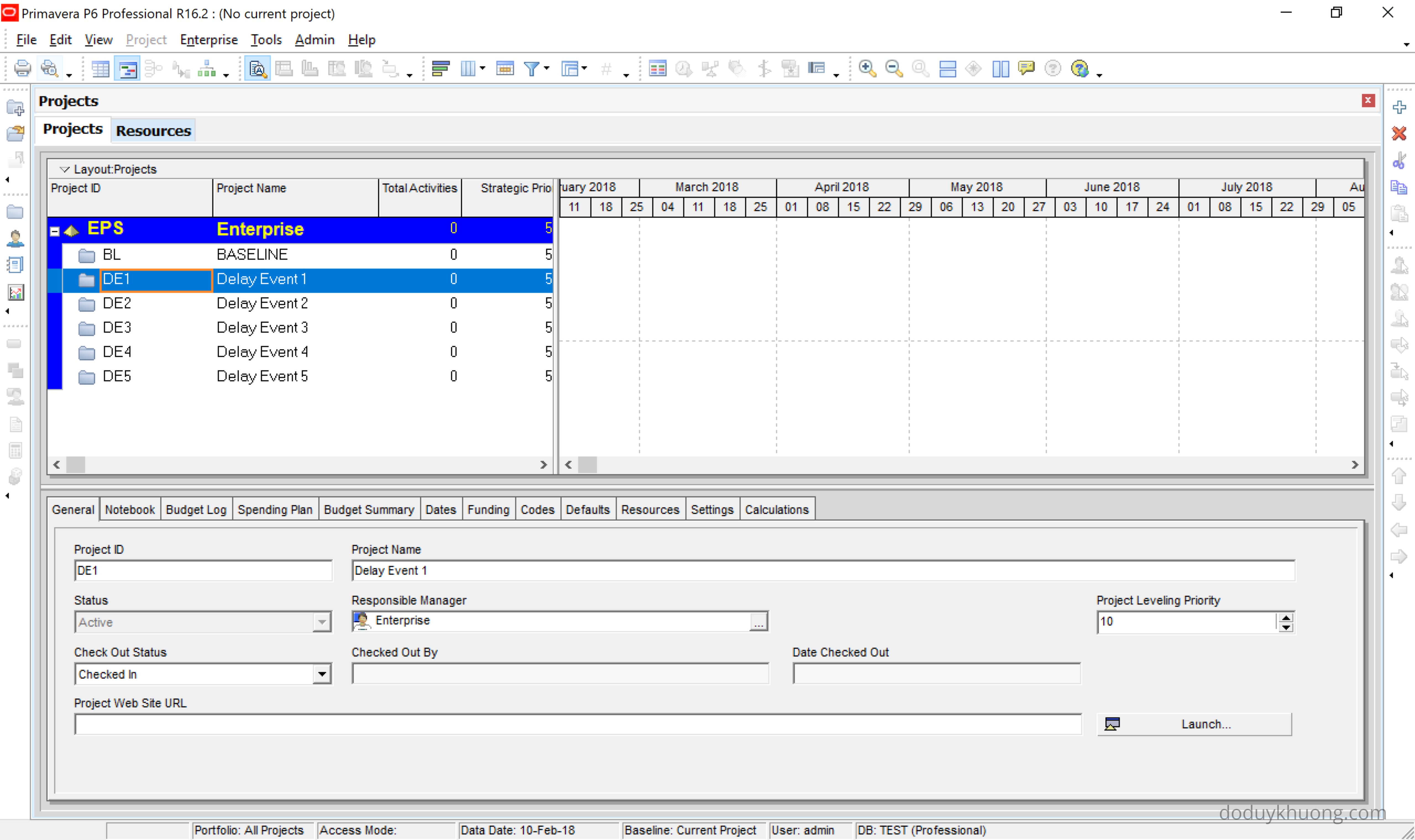
Viewing the Impact of a Single Delay Event
To analyze the effect of Delay Event 1:
- Open the Baseline project and the Delay Event 1 project.
- Press F9 to schedule.
- In the Schedule Options dialog, check the box:
“Ignore relationships to and from other projects.”
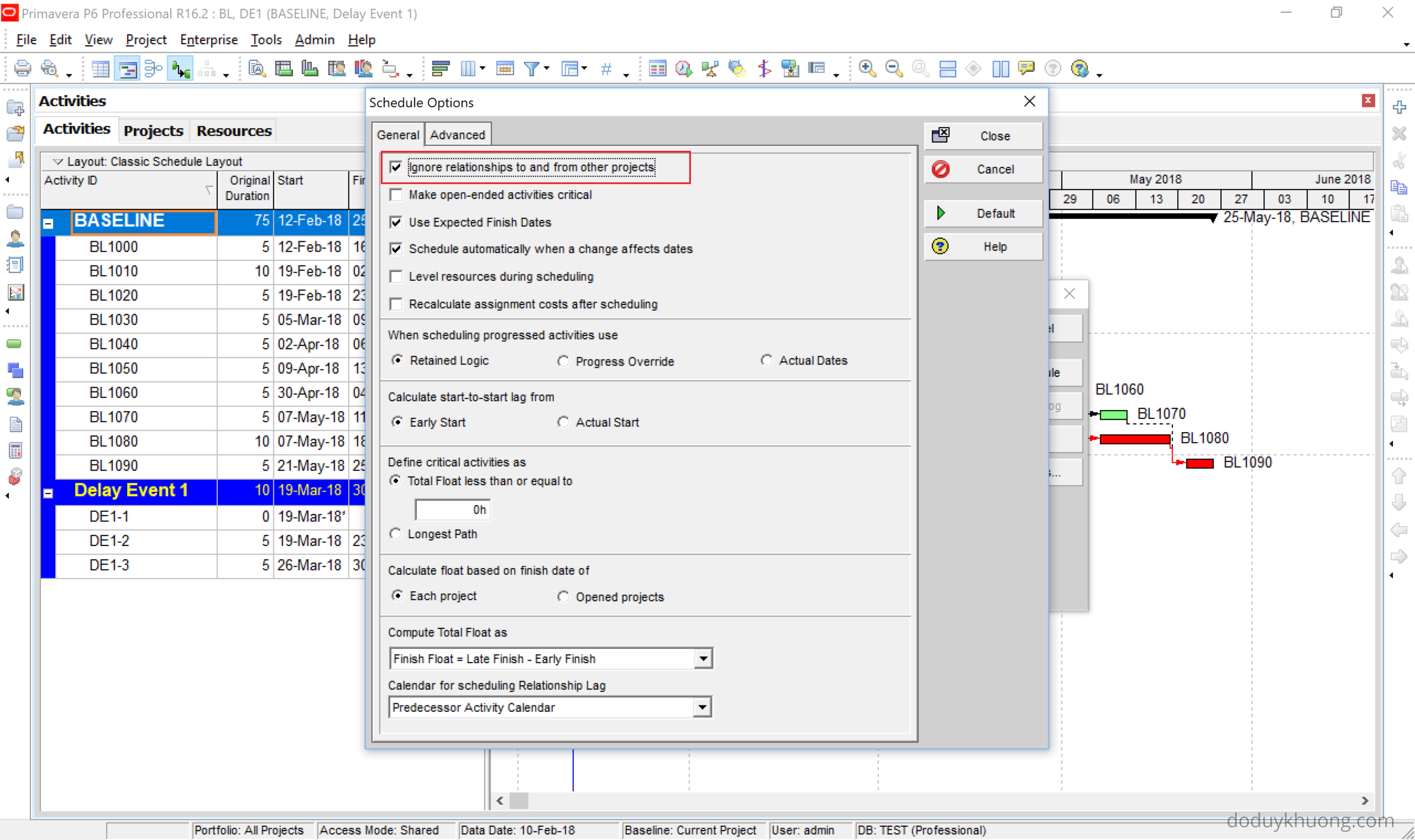
After scheduling, you’ll see the impact of Delay Event 1 on the baseline.
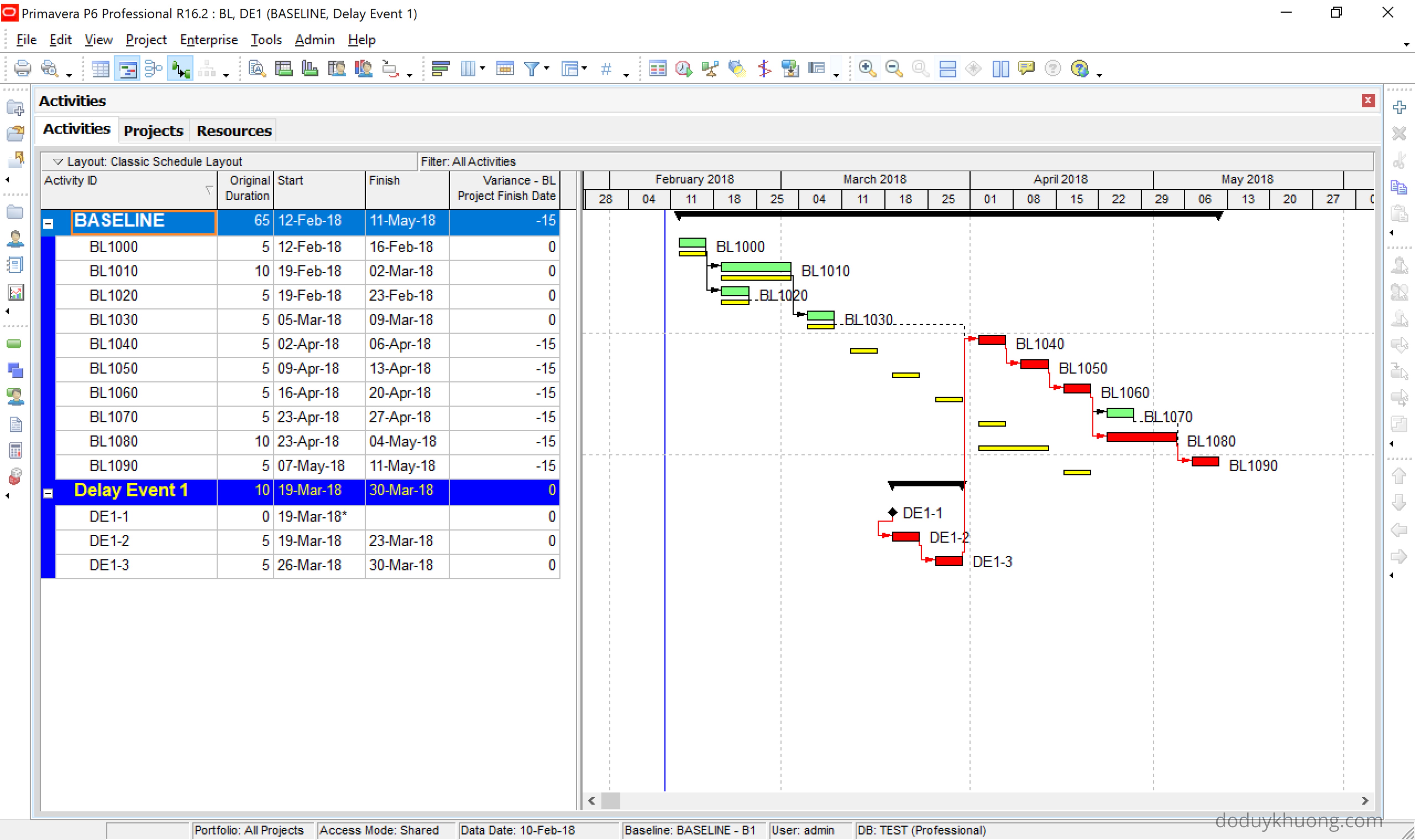
Result: Extension of Time (EOT) = 15 days
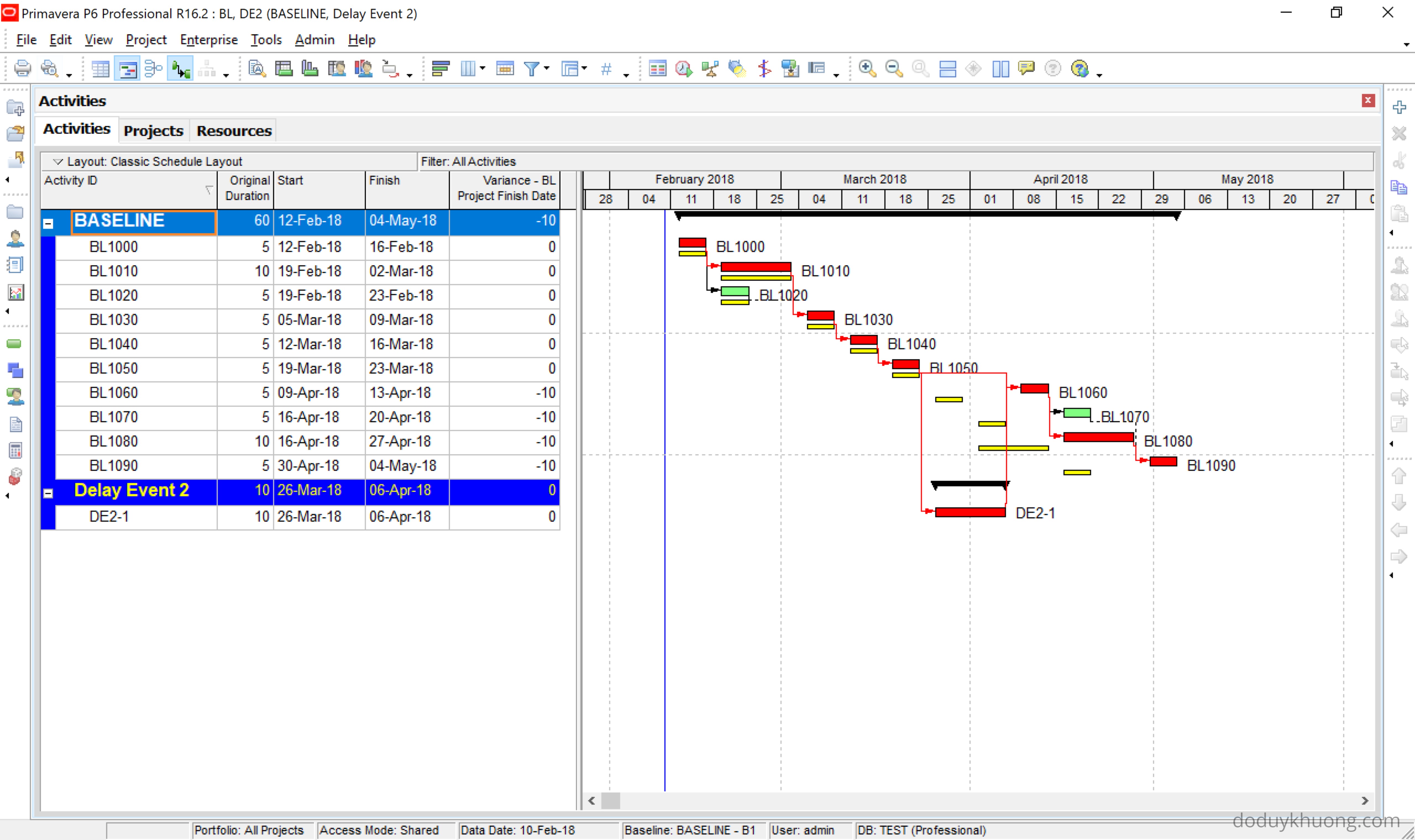
Repeat the same steps for Delay Event 2:
- Open Baseline and Delay Event 2
- Press F9
- View the result:
EOT = 10 days
Viewing the Combined Impact of Multiple Delay Events
To analyze the combined effect of Delay Event 1 and Delay Event 2:
- Open Baseline, Delay Event 1, and Delay Event 2
- Press F9 to schedule

Result: EOT = 25 days
You can repeat this process to analyze any combination of delay events—without duplicating projects. Simply open the relevant delay event files alongside the baseline and schedule them together.
We can also see the combined effect of all delay events:


 Khuong Do Blog
This is quite insightful and educative Mr. Do Duy. I am a Planning Engineer based in Nigeria who have a knack for Primavera Knowledge. I will like us to build a Professional relationship which can lead to a Partnership on consultancy scale. There are quite a number of opportunities here in Nigeria. This is my cell phone line : +2347031046555
LikeLiked by 1 person
Hi Kolawole,
Thank you. I’m very happy when you enjoy my blog.
Let’s keep in touch.
Cheer.
Khuong
LikeLike
Thank you Mr. Do I always wait your blogs . Keep up
LikeLiked by 1 person
Hi Mr. Khuong,
I have gone through the blog of showing combined effect. I am having some doubt that after opening baseline and delay events programme are you creating the links in between delay events and the baseline?? Please clearify.
LikeLike
Yes. We have to create link between delay event and baseline
LikeLike
Hi Do,
I found it a wonderful technique, thank you very much.
Cheers,
Muneer Akl
Muneerakl@me.com
LikeLike
Thank you. I’m very happy when you like it 🙂
LikeLike
Hi sir
This is Hasheer from UAE. I have a doubt regarding the combination of delay. How can I combine all the delay into one project, sir?
LikeLike