
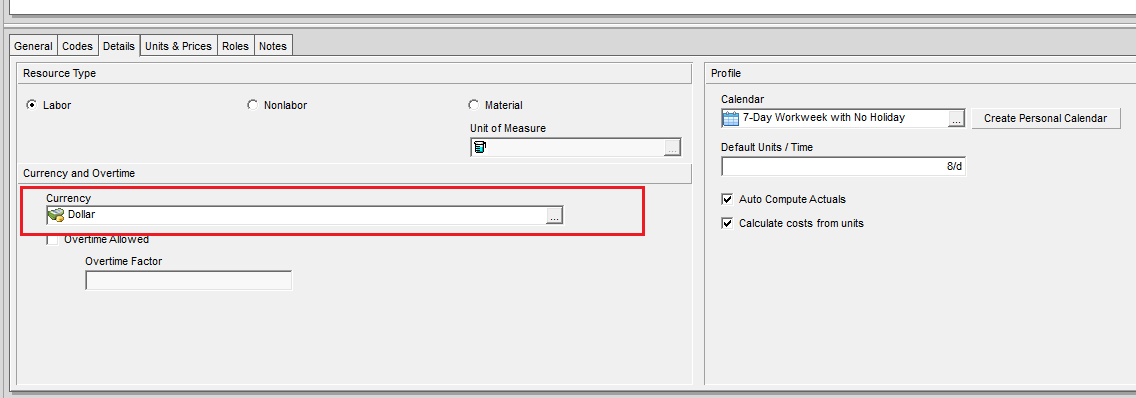
In the Resource window under the Details tab, you’ll find a field called Currency. What does this setting do? Let’s break it down.

Purpose of Resource Currency
By selecting the currency in that box, it determines in which Currency the Resource will be paid with. The setting locks the Price/Unit in that Currency regardless of change in the Exchange rates.
By default, this field displays the View Currency selected in User Preferences at the time the resource was added.
Example Scenario
Suppose we hire a resource named Test from India and agree to pay in Indian Rupees.
In the Resource Details tab, select Indian Rupee as the currency.
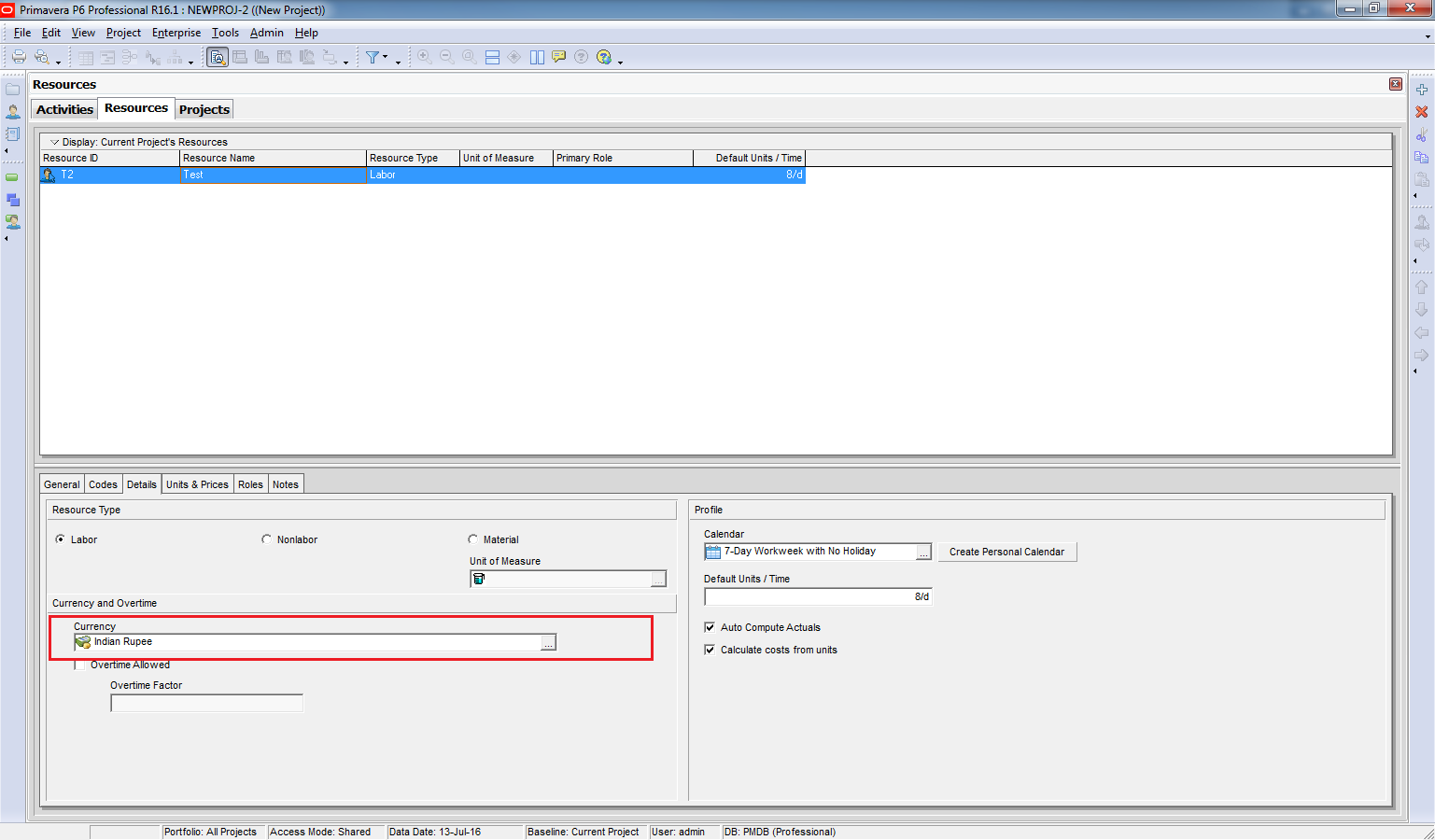
Go to Edit → User Preferences → Currency and switch to Indian Rupee for data entry.

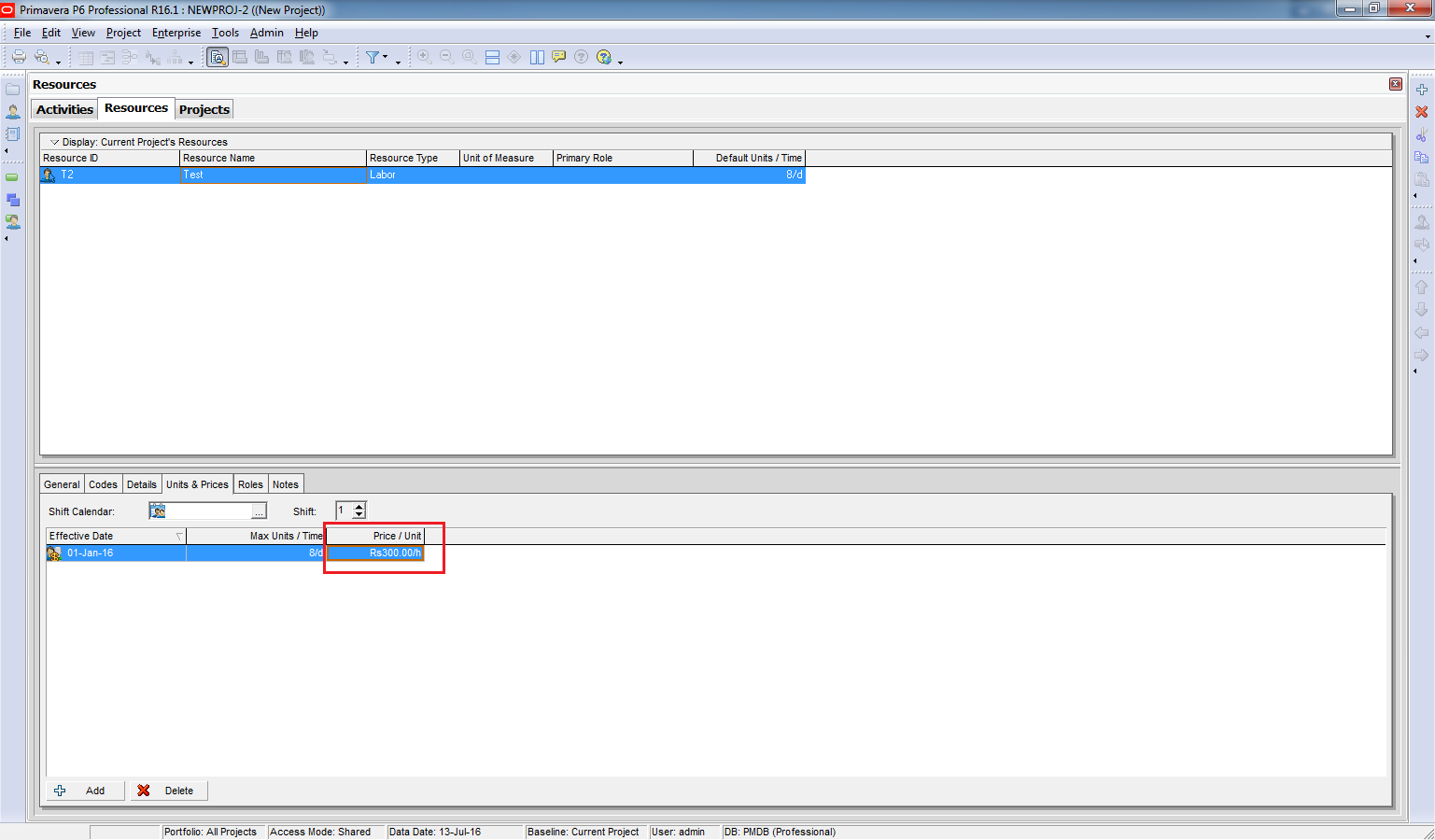
Under Units & Prices, enter 300 Rupees/hour.
How It Works
From now on, even if the exchange rate changes, Primavera will adjust the equivalent value in other currencies so that the resource’s rate remains 300 Rupees/hour.
For example:
- Current exchange rate: 1 USD = 40.67 INR
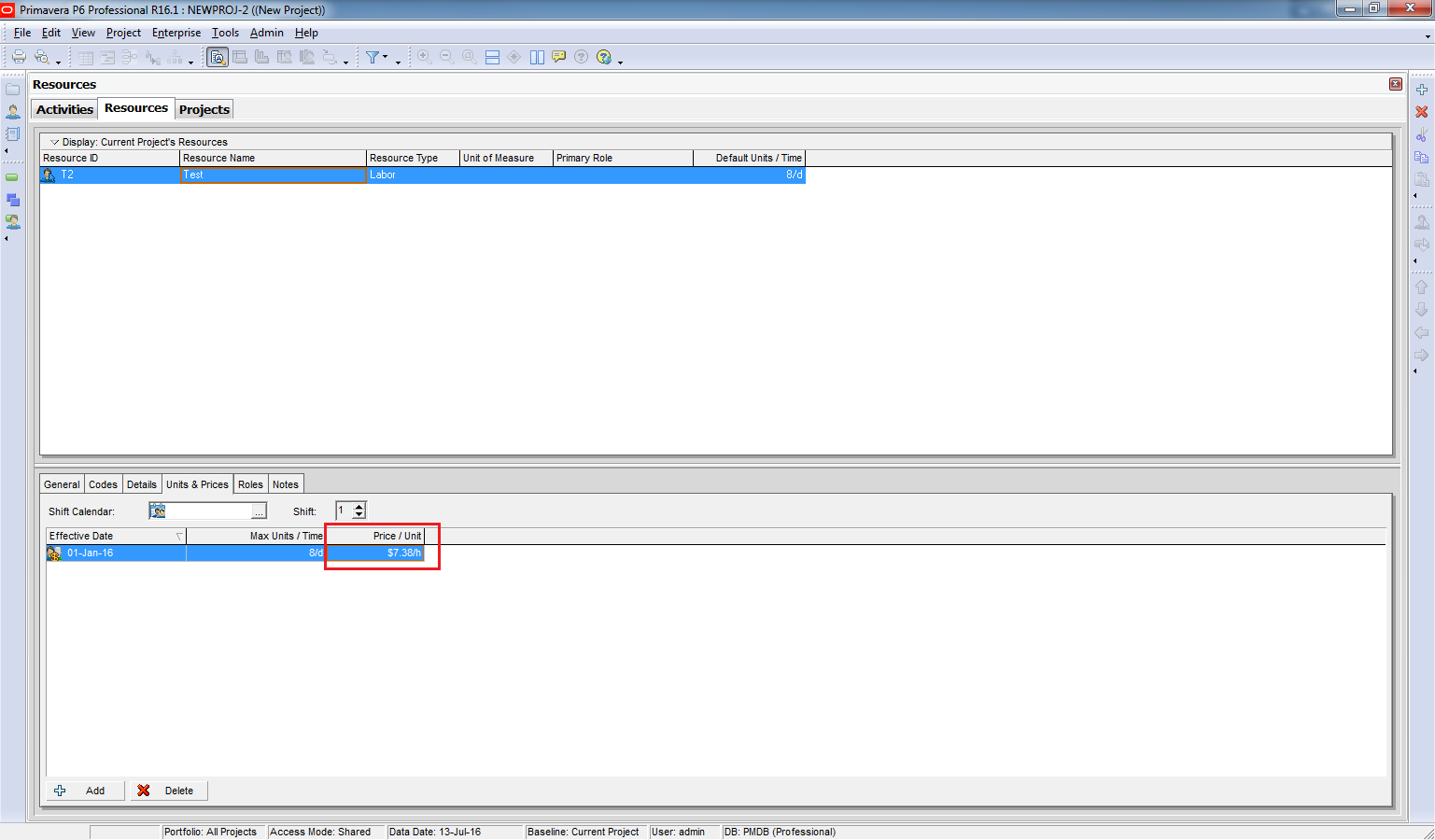
- Price in USD: 7.38 USD/hour
We switch back to USD to see the value.
Go to Edit -> User Preferences -> Currency. Select USD.
It show 7.38 USD. (1 USD = 40.67 Rupee)
If the exchange rate changes to 1 USD = 50 INR:
- Primavera recalculates the USD price:
Go to Admin -> Currencies. Change from 40.67 to 50. And click Close
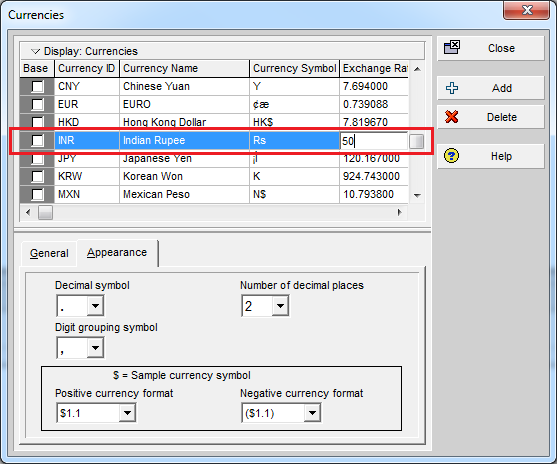
Now we can see the Price/Unit in USD decrease to 6 USD.

Switch back to INR, and you’ll still see 300 Rupees/hour.

Key Benefit
By selecting a Resource Currency, you lock the payment amount in the resource’s local currency. Exchange rate fluctuations will only affect the converted value in other currencies, not the original agreed rate.

 Khuong Do Blog
Great blog. And what a learning platform for beginner planners like me.
LikeLike
Thanks Zain. I’m very happy when you enjoy my blog 🙂
LikeLike
This are really great lesson thank u, Can you please explain to me in detail how to load cost/manpower on primavera for project that has thousands of activities without having to do it one after the other using BOQ and spreadsheet.
LikeLike
Hi Adesua,
I hope Top down estimate function can help you a little bit. You can read it here https://doduykhuong.com/2016/07/08/how-does-top-down-estimation-in-primavera-p6-work/
It may not have a exact assignment like we import from excel. Currently I have not researched into it. When I do, I will post it on my blog.
LikeLike
Great job Dodukhuong..
A quick question – I have made a schedule with total “X” amount. However when same schedule I have imported to other system it shows total “Y” amount, currency is same. What could be reason?
LikeLike
Hi,
Maybe the Price/Unit in other system is different.
Budget cost = budget unit x Price/Unit.
You can check those element between 2 system to be sure they are identical.
LikeLike
Very Nice Blog … very Useful … no words for thanks .. you are spreading great knowledges …
LikeLike